-20250819-084018.svg)
Optimizer’s configuration tables provide in-depth data about the current usage of configuration items on your site. Monitoring takes this a step further by allowing you to track the usage of configuration items over time. This is helpful when you’re doing cleanup of your site and want to be sure that items flagged as not currently in use are safe to delete.
Once daily, Optimizer scans your instance to check if any items which you have marked to be monitored have been used or modified. You can review the results of these scans from the Monitoring page.
Monitoring a configuration item
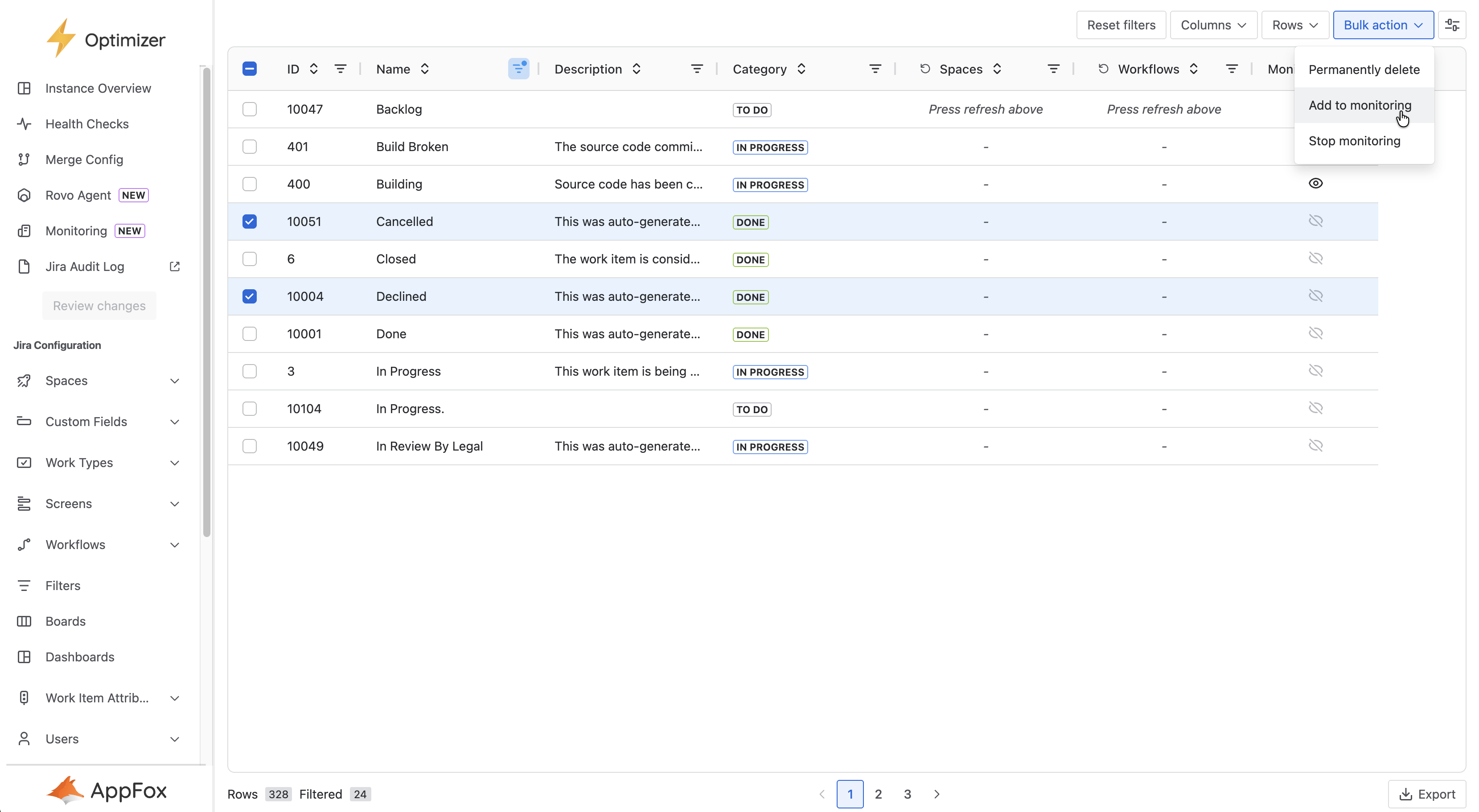
To monitor a compatible configuration item, navigate to that item's Smart Table and select the items you wish to monitor. Then, navigate to bulk actions at the top right of the page and select ‘Add to monitoring’.
At present there is a limit of 50 monitored items per supported configuration item type
Managing monitored items
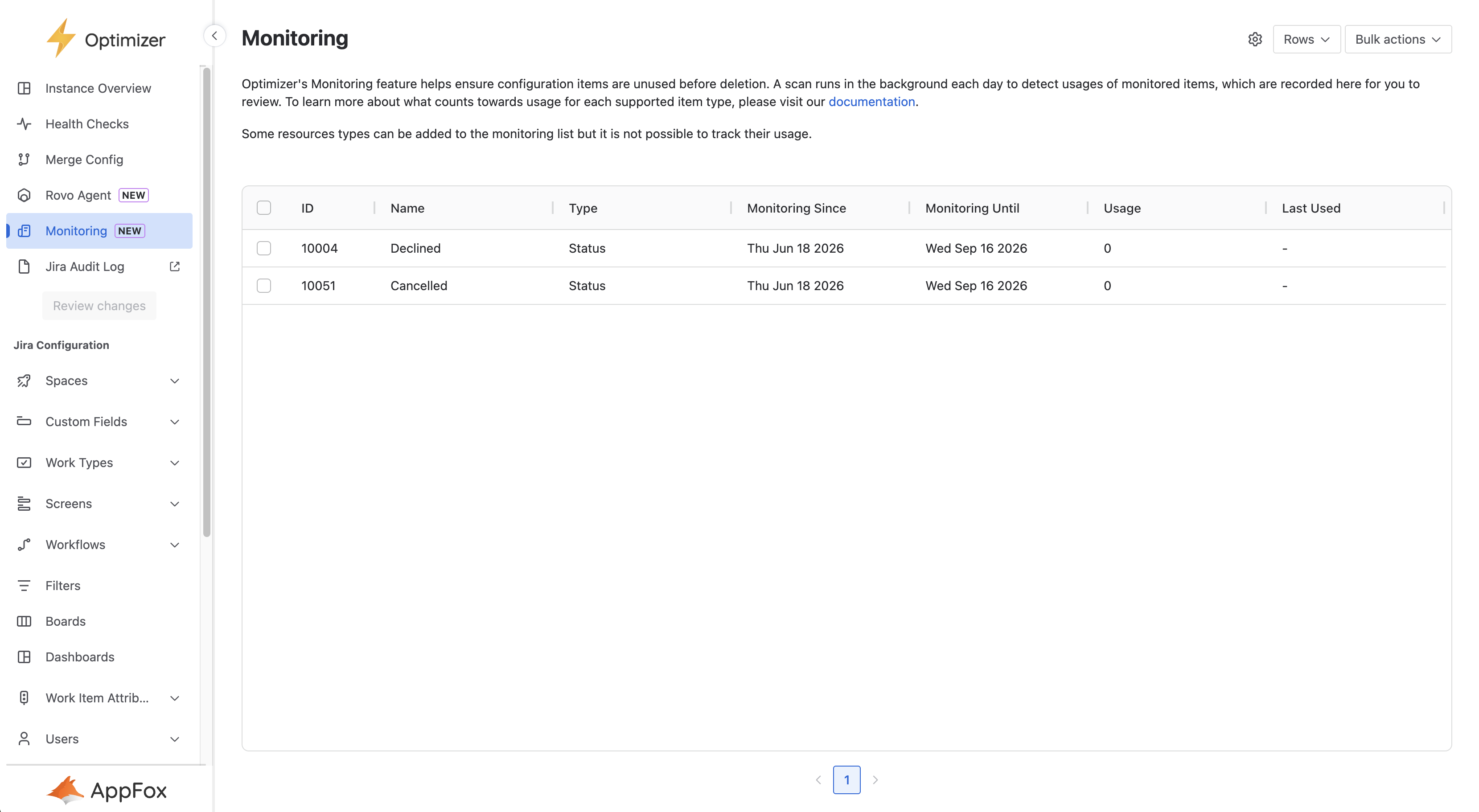
To manage your monitored items, select the Monitoring page on the navigation bar. On this page, you will see a table displaying information about all items you currently have monitored. Each item in the table will display available information on its usage since it was added to monitoring.
Items marked for monitoring will no longer be monitored after their monitoring duration has passed.
You can change the default monitoring duration for newly monitored items via the settings button on the Monitoring page.
Stop monitoring
If you no longer wish to monitor an item, you can do this by selecting the relevant items and using the ‘Stop monitoring’ bulk action. This will remove the items from monitoring and permanently delete their collected usage data.
Reset monitoring
If you wish to continue to monitor an item but reset any already gathered usage data, you can use the ‘Reset monitoring’ bulk action. This will permanently delete all gathered monitoring data and reset the monitoring period for the item.
Delete monitored item
Items which normally support bulk deletion can be deleted from the monitoring page using the ‘Permanently delete’ bulk action. This helps you delete items you are monitoring which you have confirmed to no longer be in use. Selecting the bulk action will queue the deletions up for review as with all other non-monitoring bulk actions.
Compatibility
|
Configuration Item |
What usage is tracked |
|---|---|
|
Filters |
The number of days usage is detected. |
|
Boards |
|
|
Custom Fields |
The number of times the monitored item is applied to a work item over the monitoring period, which is updated on a daily basis. |
|
Labels |
|
|
Work Item Link Types |
|
|
Spaces |
How many work items have been updated in the monitored space |
|
Work Types |
How many work items with the monitored work type have been created |
|
Statuses |
How many work items have had the monitored status |
|
Resolutions |
How many work items have had the monitored resolution |
|
Priorities |
How many work items have had the monitored priority |
If you want to inquire about a configuration item type which currently is not supported, contact our service desk https://appfox.atlassian.net/servicedesk/customer/portal/3/group/5/create/35