-20250819-084018.svg)
Optimizer for Jira comes with a Rovo agent, designed to assist you in maintaining your site. In order to use the agent, Rovo must be enabled on your site. Learn more about Rovo.
Please note that the Optimizer Rovo agent uses AI and can make mistakes – we encourage verifying its output before making configuration changes.
Accessing the agent
You can access the Optimizer Rovo agent in a couple of ways:
-
Click Ask Rovo in the top Jira navigation bar, then in the agent dropdown menu (which shows ‘Rovo’ by default), select Browse Agents and search for Optimizer.
-
Within the main Optimizer app, navigate to the Rovo Agent item in the left navigation menu and click on one of the prompts.
Use cases
-
The Optimizer Rovo agent can be a useful source of information about Jira configuration items and best practices for maintaining your site. It’s an intuitive interface for learning more, which complements reading documentation. Example questions:
-
What are some tips for maintaining a well-configured Jira site?
-
What is a field configuration scheme used for?
-
-
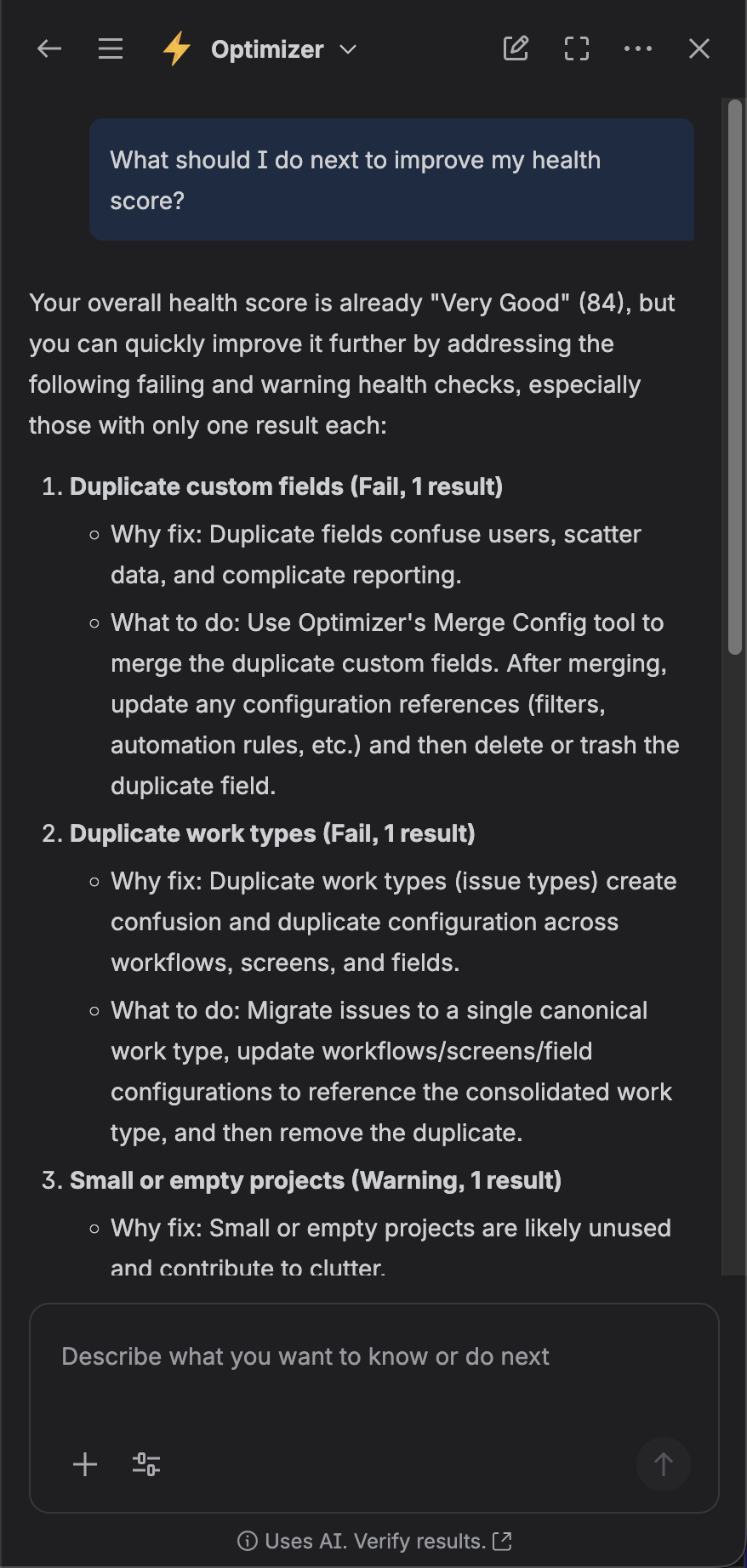
The agent has access to Optimizer’s health check data, and so understands the current health of your Jira site and can help you form a plan to improve your score. With so many different types of configuration items, it can be difficult to know where to start with a site cleanup – the Optimizer Rovo agent can help you prioritise, and understands the relationship between configuration item types. Example questions:
-
What should I do next to improve my health check score?
-
In what order should I tackle the problems identified by Optimizer’s health checks?
-
-
The agent also has access to historic health check data, so it can help you understand trends in your site’s health over time. Example questions:
-
How has my health check score changed over the last year?
-
Which problem has most negatively impacted my health check score in the last year?
-
Controlling access
All users on your site are able to access the Optimizer Rovo agent, but admins can control the data that the agent has access to. This includes:
-
current health check results,
-
health check history.
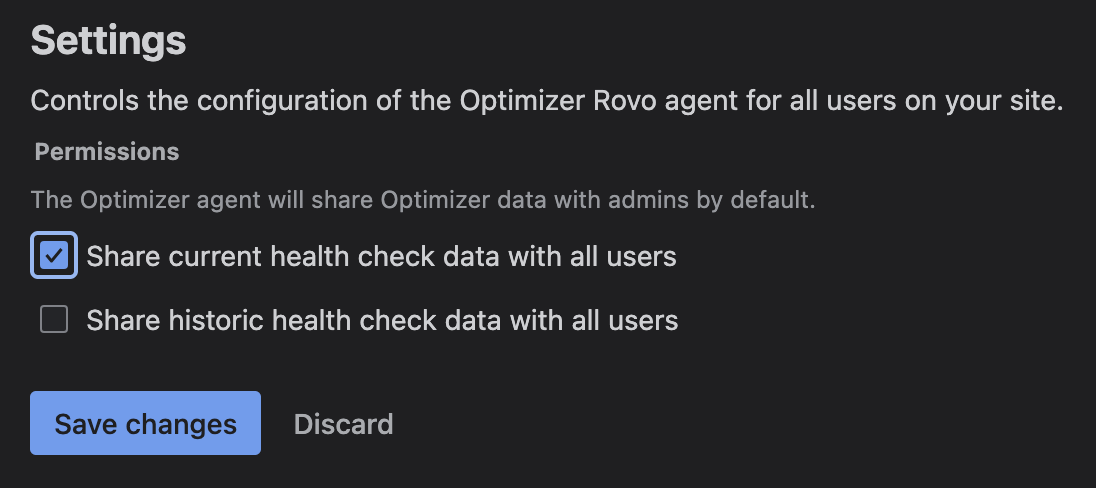
By default, only admins can access this data via Rovo. However, admins can enable access for all users if they wish, within the main Optimizer app. To do this, go to the ‘Rovo Agent’ page in the navigation menu and choose your settings:
Making this data available to non-admin users of the Optimizer Rovo agent can be helpful in providing an easy way to keep stakeholders in your business up to date on the health of your Jira site and the improvements that have been made over time.