-20250819-084018.svg)
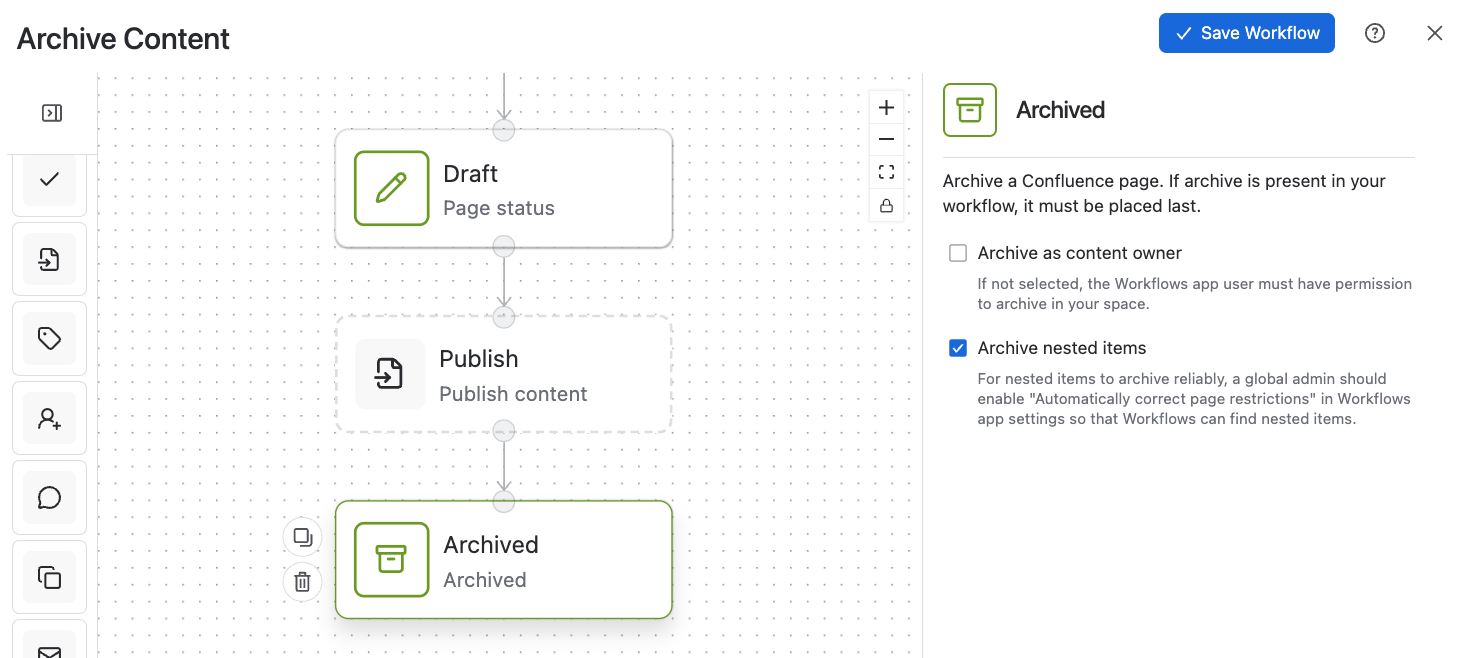
The Archived step is a terminal step that you can use at the end of your workflow to archive the page and its nested content (if configured).
Pre-requisites
The following requirements must be met to use the Archived step successfully.
-
Archiving content on Confluence requires a Standard Confluence plan or higher.
-
If archiving nested items, Confluence Premium or higher is required.
-
-
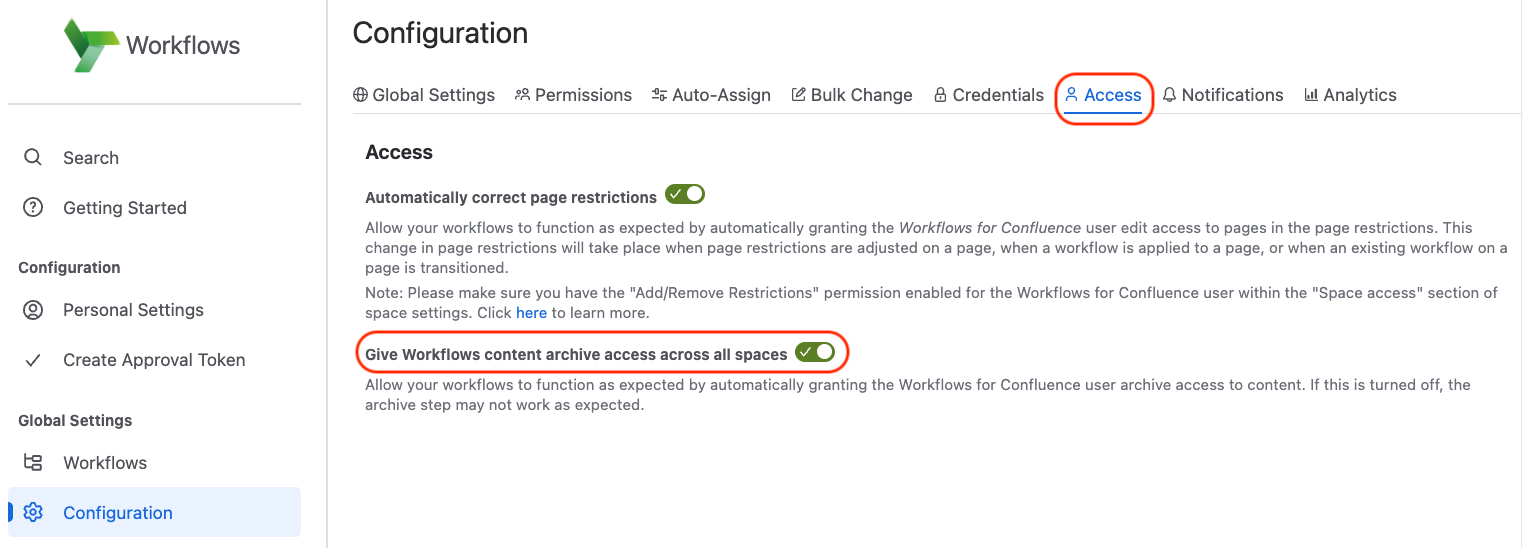
The Workflows for Confluence user must have permission to archive in your space. We highly recommend that you enable the Give Workflows content archive access across all spaces toggle in the Workflows global Configuration. It will elevate space permissions for the Workflows user when transitioning into an Archived step.
-
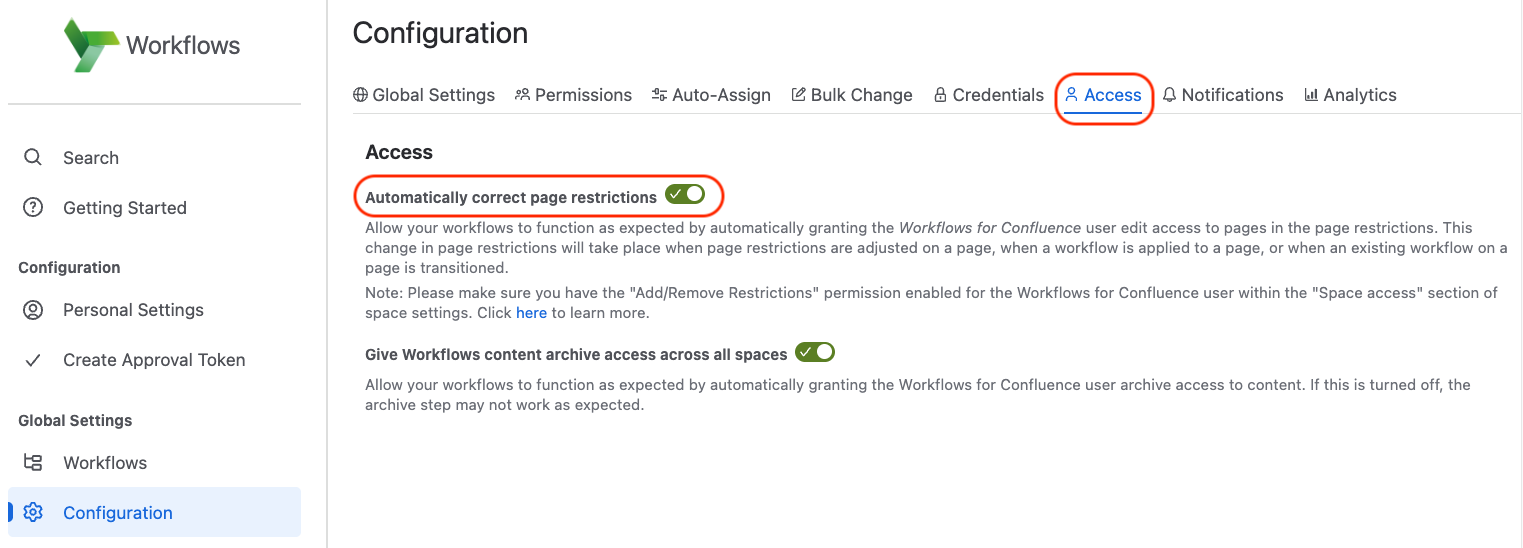
If your Archived step is configured to archive nested items, the Workflows for Confluence user or the user transitioning the workflow must have view access to all the nested content. If this requirement is not met, the restricted content will be ‘left behind’ during the archive process. We highly recommend that you enable the Automatically correct page restrictions toggle to automatically grant the Workflows for Confluence user access to your pages:
Configuration options
Click on an Archived Step to open the configuration menu.
|
Configuration Option |
Description |
|---|---|
|
Archive as content owner |
If checked, the page will be archived as the page owner. This option can be useful as content owners always have permission to archive their own content. If used with “Archive nested items”, all content will be archived using the respective content owner users. If not checked, the page will be archived using the Workflows app user. If used with “Archive nested items”, all nested content will also be archived using the Workflows user. Note: the Workflows for Confluence user must have permission to archive in your space. |
|
Archive nested items |
If checked, all descendant content of your page will be archived. This includes pages, live docs, folders, whiteboards, databases, and smart links. Note: the Workflows for Confluence user or the user transitioning the workflow must have view access to nested content, otherwise it will be ‘left behind’. If not checked, only the page with your workflow applied will be archived. Any nested items will be ‘left behind’. Note: We limit archiving of nested items to 1,000 content items. If the limit is exceeded, the archival process won’t be attempted. |
We recommend that you do not use both options together. Archiving nested items as their content owners may disrupt the content hierarchy in the Archived table if items have different owners. This disrupts the ability to restore the content with its original hierarchy (it may have to be done manually).
Accessing workflows on archived pages
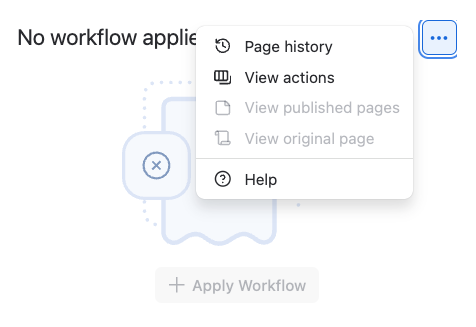
Workflows for Confluence will automatically remove workflows from archived pages, but you can still access your workflow history by clicking on ••• and then “Page history”. You can also still access action history with the “View actions” button, which includes more information about the result of the archival step. If the page is ever restored, your workflow will be automatically re-applied to the page.
Example use cases
Automatically archive a page after a set time period
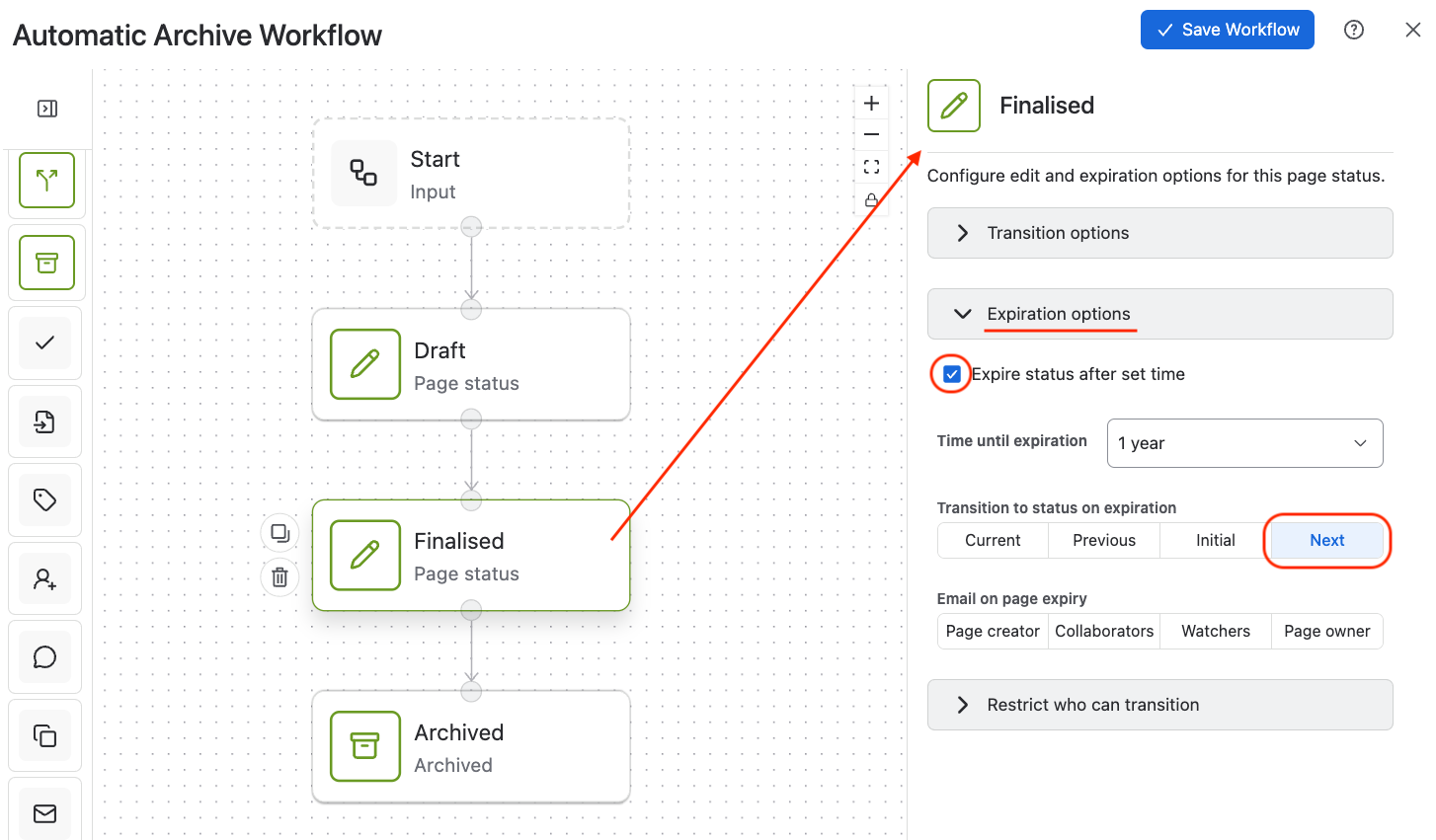
This example workflow illustrates how you can implement an automatic archival process after a set time period. This is useful for automatically archiving stale content. The ‘Finalised’ step is a normal page status which is configured to expire after 1 year. When the status expires, it is configured to transition to the ‘Next’ status, which in this case is an Archived step. So to use this workflow, you would leave the page in the ‘Finalised’ step, and it will automatically transition to the ‘Archived’ step after 1 year.
If using this process, the Workflows for Confluence user must have view access to your page. If “Archive nested items” is used, the Workflows for Confluence user must have view access to all nested items too.