-20250819-084018.svg)
Compliance for Confluence can be used by select Rovo agents in order to interact with page classifications. You can either:
-
Utilise the Compliance Assistant agent that is included with Compliance Cloud or
-
Create your own Rovo agent and give it access to the Compliance Cloud skills
Prerequisites
In order to use Compliance Cloud with Rovo, you must:
-
Ensure that Rovo is enabled on your site. If you see the Rovo icon in the bottom-right of your Confluence page, or the Ask Rovo button next to your profile icon then Rovo has been enabled.
-
Site administrators can enable Rovo at admin.atlassian.com. Learn more about activating Rovo in Atlassian’s documentation.
-
-
Be using Compliance for Confluence version 16.0.0 or later.
-
Site administrators can update their version of Compliance for Confluence at admin.atlassian.com.
-
Both of these conditions must be met in order to have access to the Compliance Assistant agent and Compliance Cloud skills.
The Compliance Assistant agent
The Compliance Assistant Rovo agent will automatically be added to sites with Compliance for Confluence (v16.0.0 or later) installed.
This agent has the ability to take actions in Compliance including:
-
Reading the current classification level/sub-level of a page, and the levels that can be applied to it
-
Recommending a classification level/sub-level based on the content of a page
-
Applying a classification level to a page
-
Searching for pages according to classification criteria
Finding the Compliance Assistant agent
By default, all users will have access to the Compliance Assistant agent and can find it among the list of agents available within your Confluence instance.
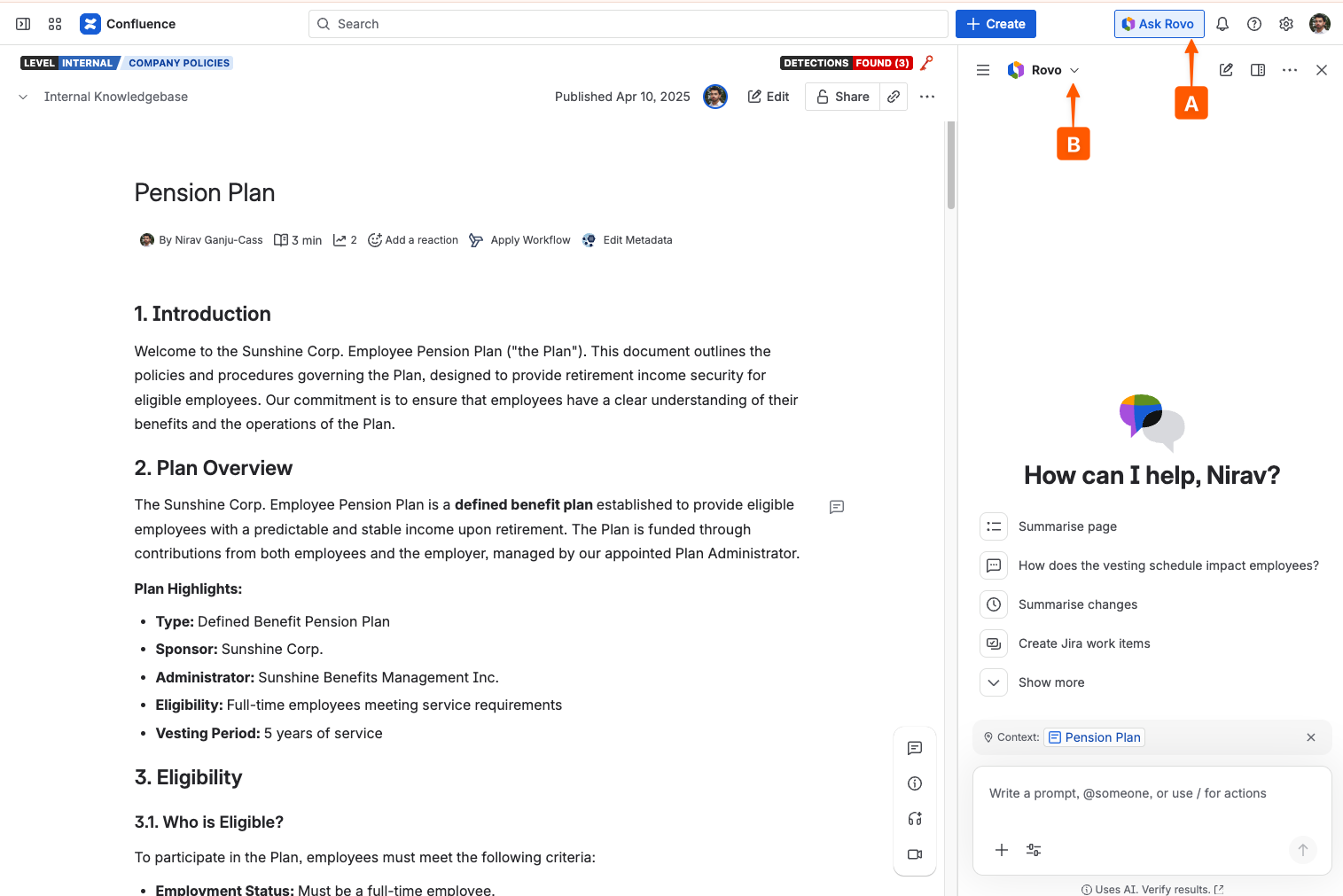
For example, click the Ask Rovo (A) button in your Confluence menu, then click on the agent selection dropdown (B).
You can then use the agent search (C) to find the Compliance Assistant agent (D).
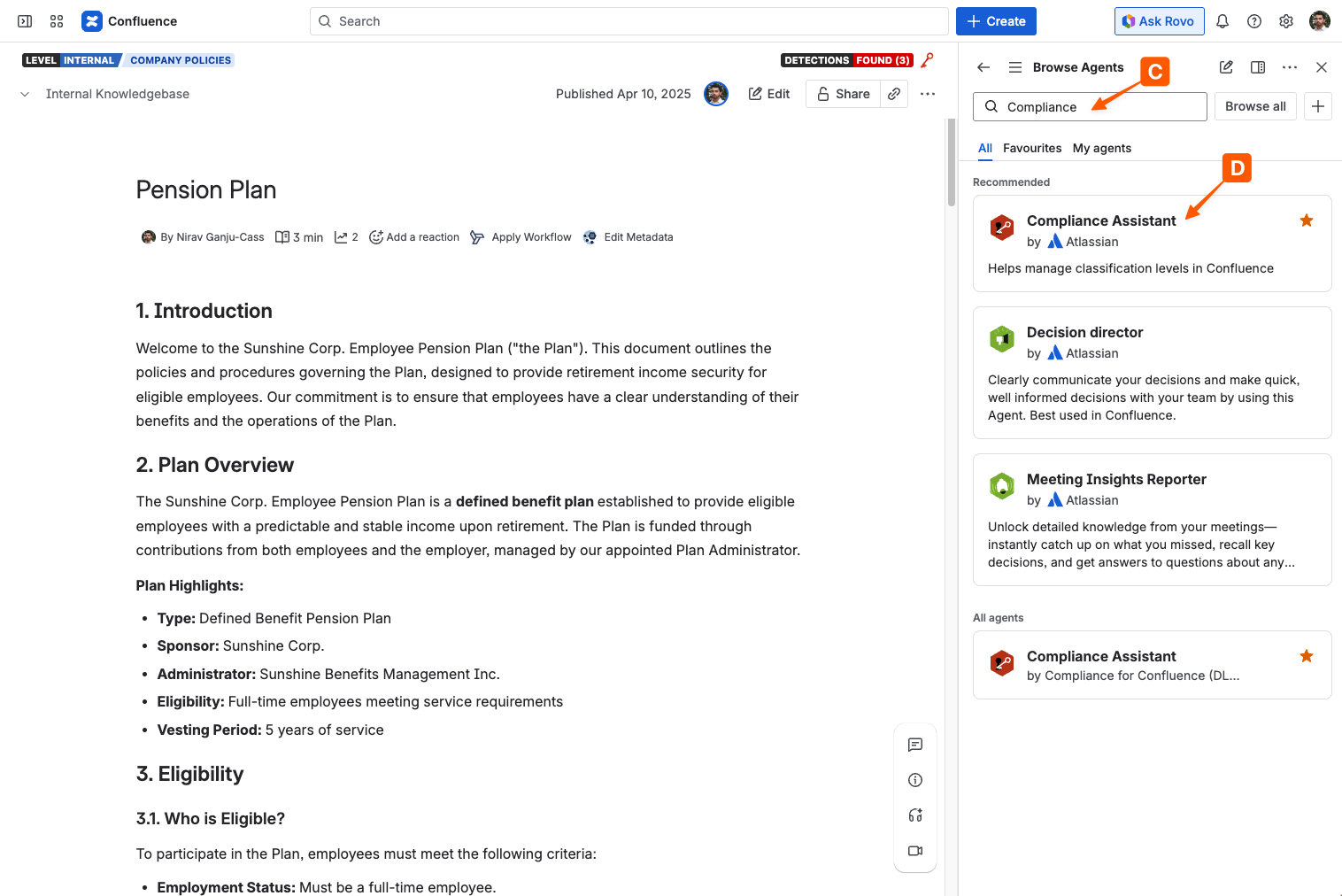
Once selected, you can chat to the Compliance Assistant as you would any other Rovo agent, and ask it to perform actions related to page classification.
The Compliance Assistant agent is built into the Compliance app and therefore the prompt and instructions cannot be edited. To customise the prompts and instructions you will need to create a custom agent as described in the section below
Create custom agents with Compliance skills
Custom agents created in Atlassian Studio can be given access to specific skills in order to interact with other apps and products.
Compliance for Confluence adds 7 unique skills that can be granted to custom Rovo agents in order to allow them to interact with the Compliance app.
Adding Compliance skills to a Rovo agent
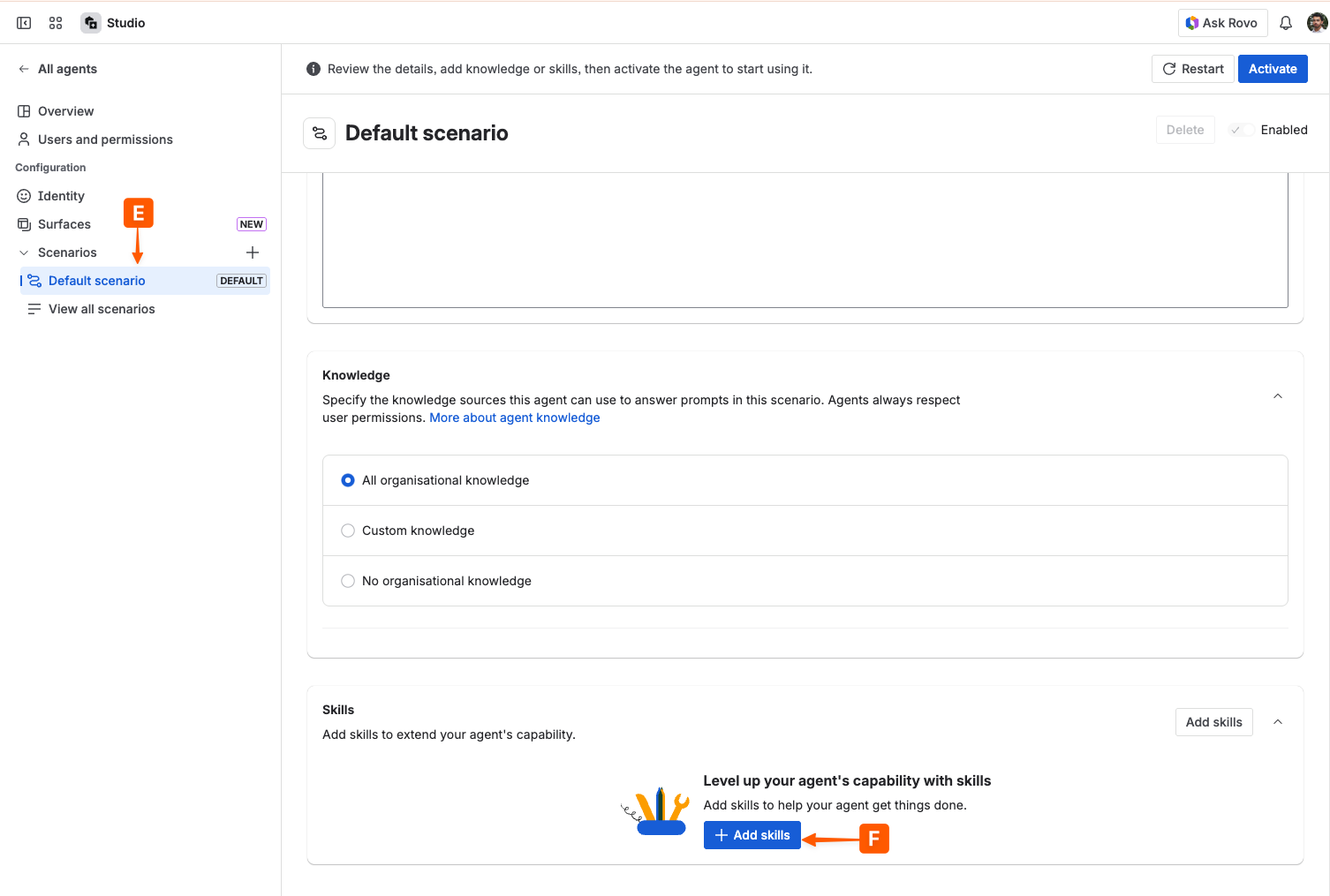
In order to grant a custom agent access to Compliance skills, navigate to Atlassian Studio and enter edit mode for the selected agent.
Select the scenario (E) that you wish to add the skills for, and click the add skills button (F) at the bottom of the page.
The Compliance skills will be located within the Other tab of the Connected Apps section (G).
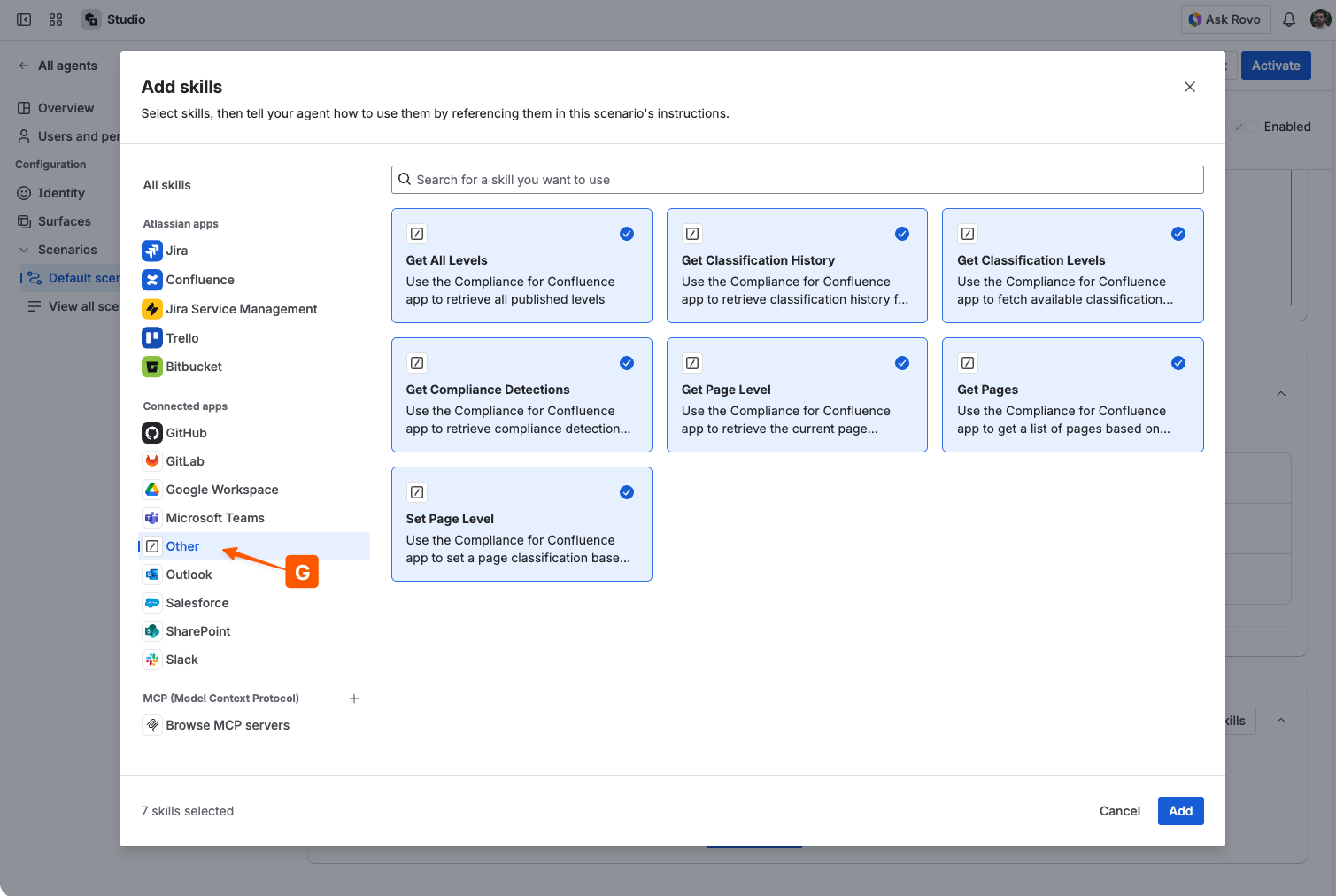
Once selected, the agent will have access to these skills as part of any request.
Available Skills
Rovo agents can be given any of these 7 skills:
Rovo skills always respect the permissions of the user that is invoking them. For example, if a user cannot classify a page themselves and asks Rovo to classify it for them, the agent will be unable to classify the page either. Similarly, it cannot fetch information that the user does not also have access to.
|
Skills name |
Description |
|---|---|
|
Get All Levels |
Fetch all published levels and sub-levels within the Confluence instance. Useful for giving the Rovo agent access to all level names, descriptions, and ids as part of its context. |
|
Get Classification History |
Retrieves the classification history for a single selected page. Equivalent to the information accessible to users as described in View Page Classification History . |
|
Get Classification Levels |
Fetches all available levels and sub-levels that are applicable to the selected page. Useful for giving the agent access to level names, descriptions, and ids that can be applied to a chosen page. This should always be given to agents that are designed to recommend or set a classification level. |
|
Get Compliance Detections |
Returns any sensitive data detections that the Compliance app has picked up on the page. Note that these detections must already have been created as described in Sensitive Data Detection (Admin) and the agent will not identify sensitive data itself. |
|
Get Page Level |
Retrieves the current classification level/sub-level for a single selected page |
|
Set Page Level |
Applies a chosen classification level to a single selected page |
|
Get Pages |
Searches for pages based on Compliance-specific search criteria. Equivalent to the search functionality accessible to users as described in Search |
While agents can be given any combination of skills, some actions related to one skill may fail if context-fetching skills are not also accessible to the agent. For example, any agent with the ‘Set Page Level’ skill must also be given access to the ‘Get Classification Levels’ skill so that it can determine the available levels and access the correct level id for updating the classification.
Need support? We’re here to help 🧡
If you have any questions or would like to speak with us about Compliance, please don’t hesitate to reach out to our Customer Support team.