-20250819-084018.svg)
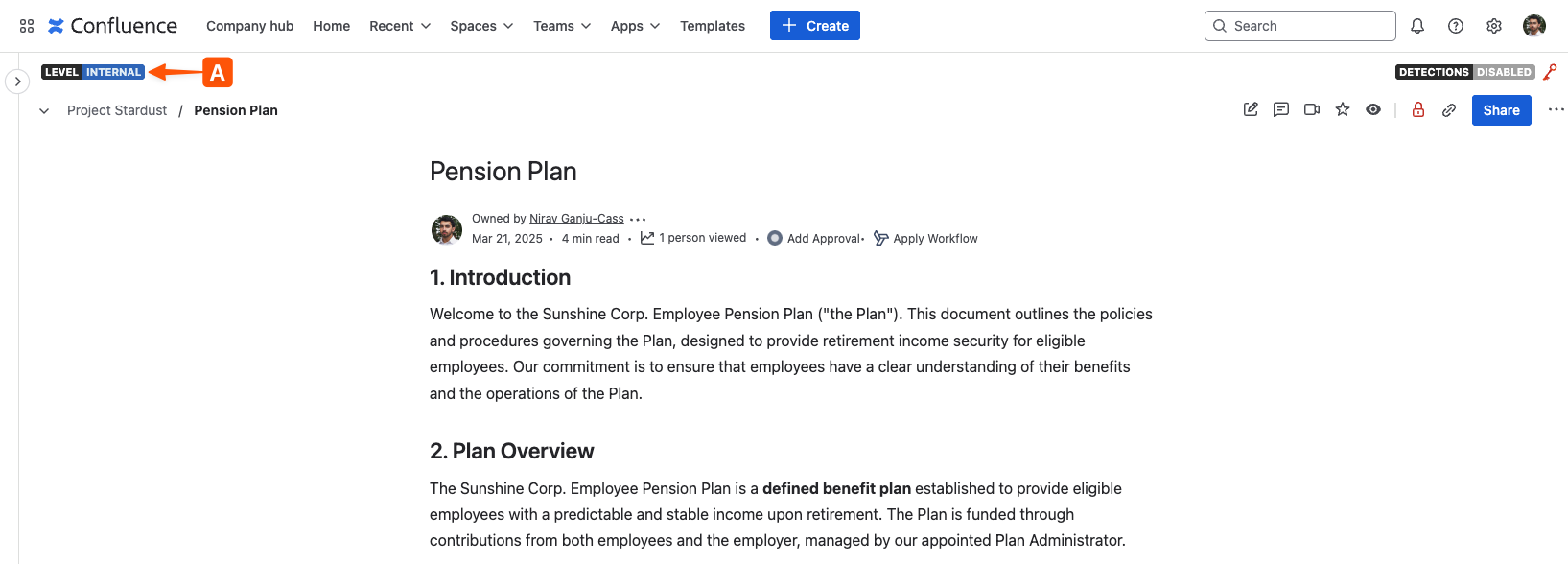
To access the classification history of the Confluence page, start by opening the page classification selection window by clicking the current classification indicator (A) located above the breadcrumb navigation.
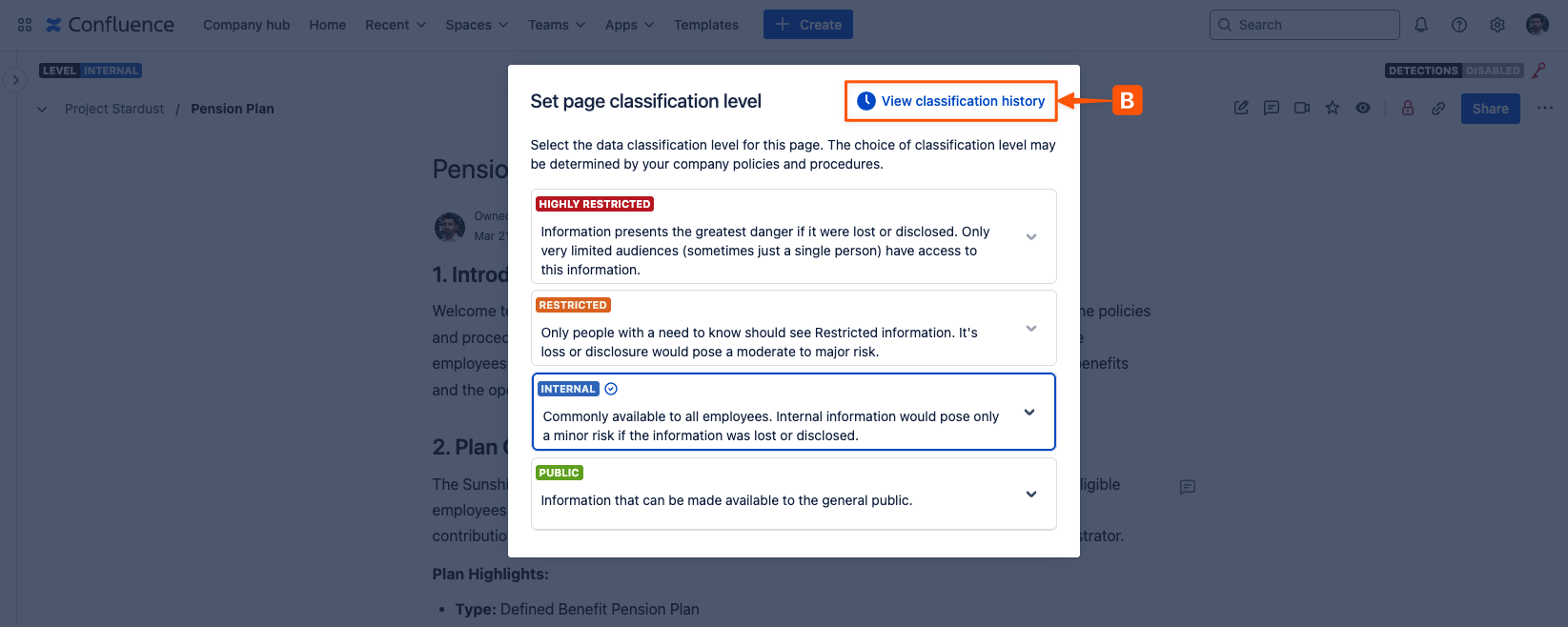
In the classification selection window, click the View Classification History (B) button to switch to the classification history window.
The classification history window lists all previous page classification levels, alongside the date of the changes, the user that made the changes, the method by which the page was classified, and the Confluence version of the published page at the time of the change.
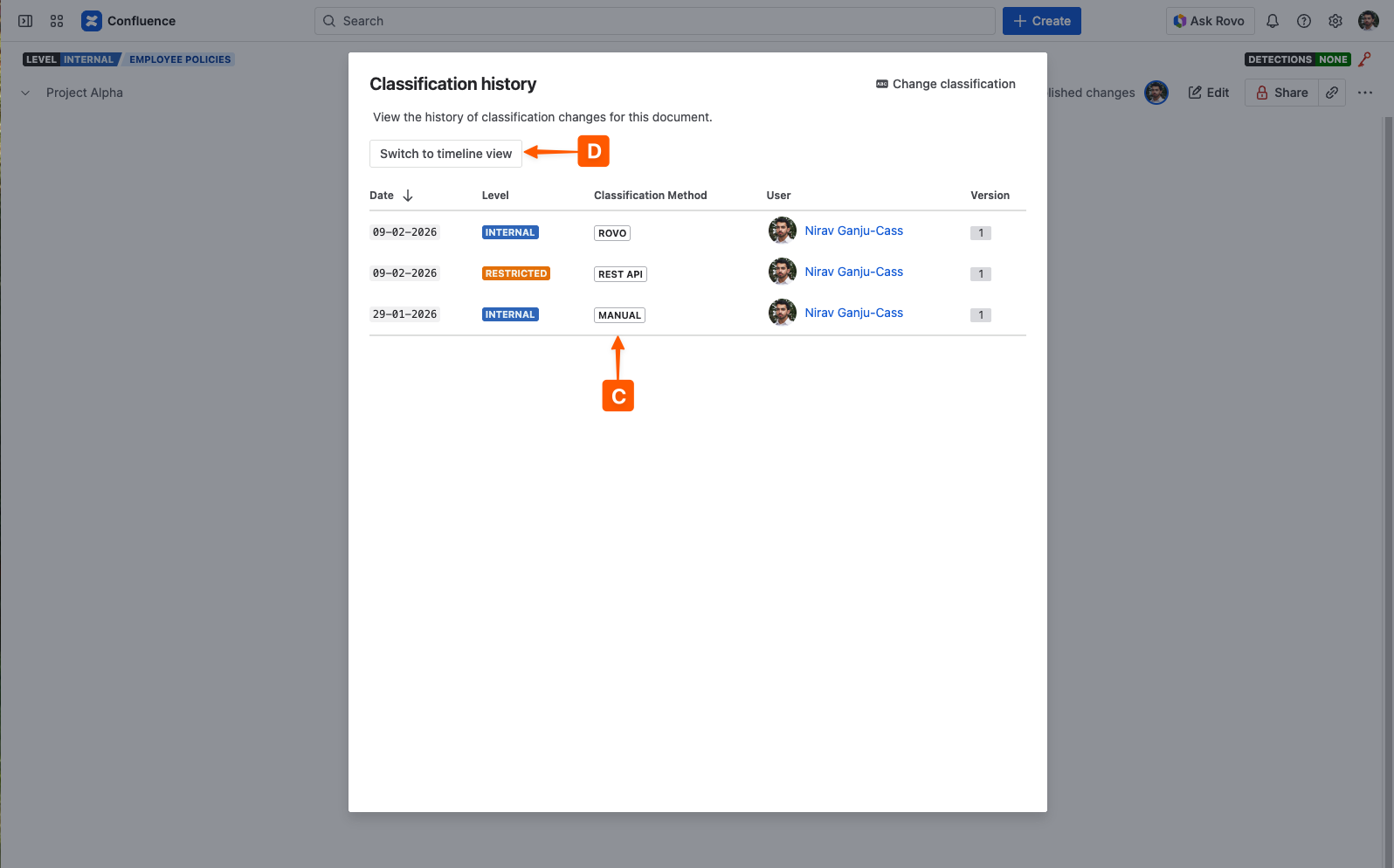
The various classification methods (C) include:
-
Manual: applied by the user on the page by opening the classification modal and clicking a level. This includes levels applied by the user when enforced.
-
Default: automatically applied during page publication when the ‘default classification’ option has been enabled for the space or site. The user that published the page will be listed as the classifier.
-
REST API: applied using the Compliance REST API. Note that the user that created the API key will be listed as the classifier - it is the responsibility of organisations to manage their own API key distribution.
-
Rovo: applied by a Rovo agent; either the Compliance Assistant agent included with the app or any user-created agent that has access to the Compliance for Confluence Rovo skills. The user that invoked the Rovo agent will be listed as the classifier.
-
AI: applied automatically based on the content when the ‘AI classification’ option has been enabled for the space or site. The user that published the page will be listed as the classifier.
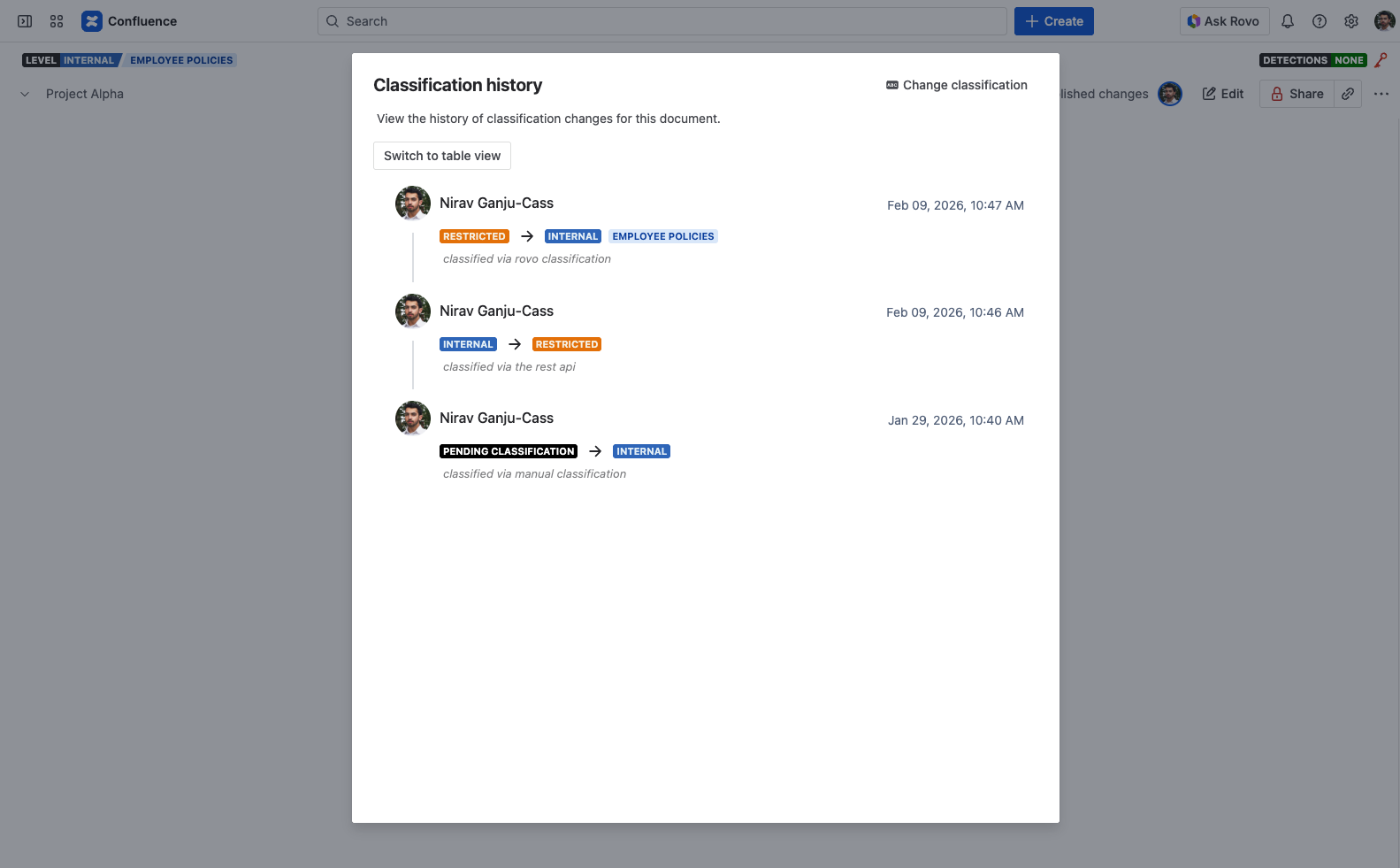
The classification history modal can be used to access the timeline view (D) which displays a more long-form and detailed classification history, including any sub-levels applied.
Next steps 💪
Need support? We’re here to help 🧡
If you have any questions about Compliance or would like to speak with us, please don’t hesitate to reach out to our Customer Support team.