-20250819-084018.svg)
Enforce Classification will prevent users from publishing or saving a Confluence page or live doc until they have selected a data classification level. This is a great way to encourage good data handling from the beginning and reduce the risk of pages remaining as PENDING CLASSIFICATION for extended periods.
Without Enforce Classification enabled, any pages that are published or saved will be marked as PENDING CLASSIFICATION until the user takes action to classify these.
If ‘Default Classification’ is set to anything other than PENDING CLASSIFICATION then ‘Enforce Classification’ cannot be enabled, as pages will be classified using the default level when created or published. To re-enable the Enforce Classification toggle, set the default classification level back to PENDING CLASSIFICATION .
Enabling Enforce Classification
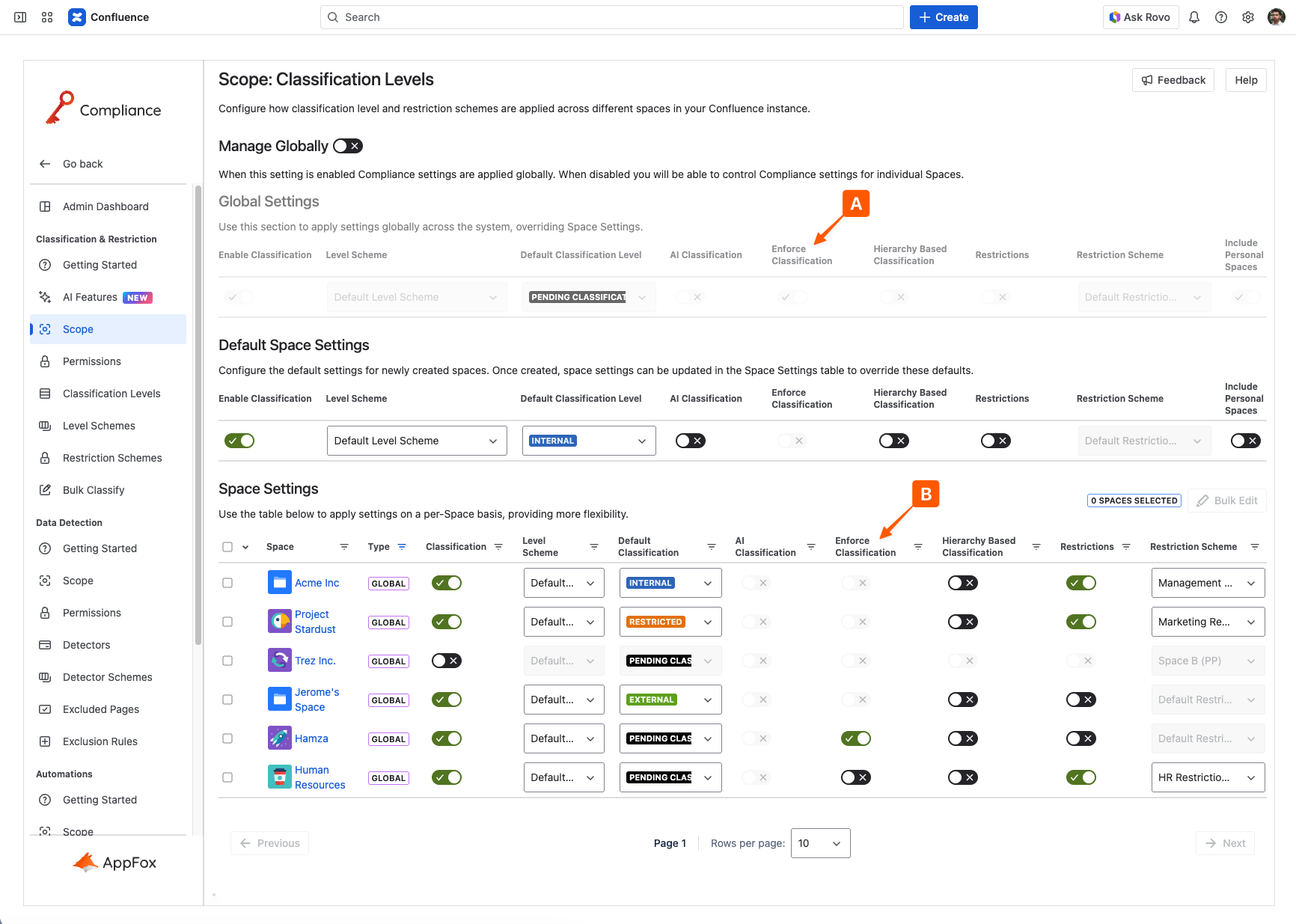
To enable Enforce Classification, start by navigating to Compliance’s administration page from the Confluence apps menu, then select the Scope option within the Classification & Restriction section.
Once you’re on the scope page, you can either enable enforce classification at the global level (A) if ‘Manage Globally’ is enabled, or for each individual space (B) if it is disabled.
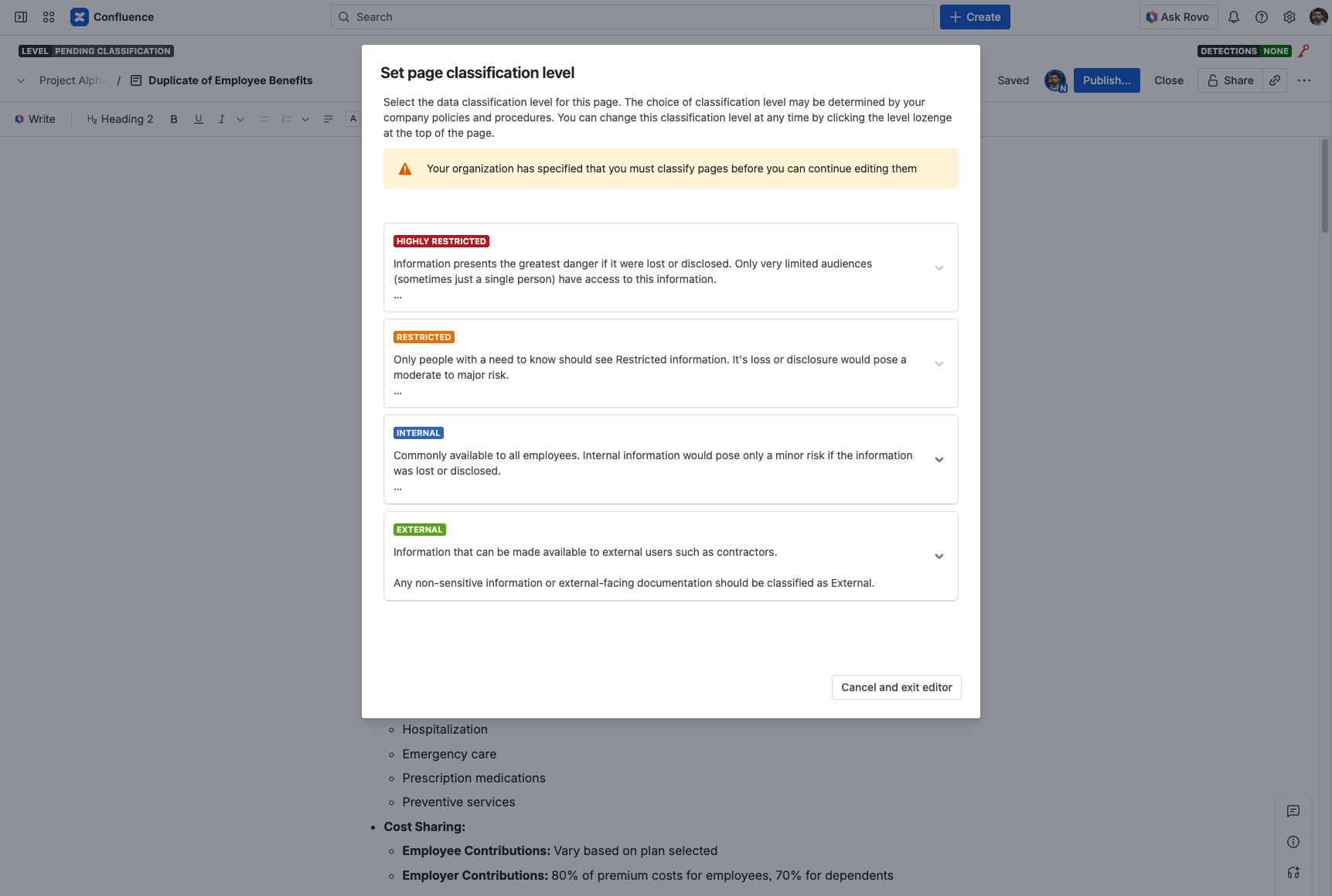
Once Enforce Classification is enabled, any time a user creates or edits an unclassified Confluence page or live doc, they will be presented with the enforce classification modal where they are required to apply a level in order to resume editing.
Only classification levels are enforced, sub-levels are not required and remain optional.
Need support? We’re here to help 🧡
If you have any questions or would like to speak with us, please don’t hesitate to reach out to our Customer Support team.