-20250819-084018.svg)
Compliance Cloud includes a built-in AI classification functionality that can be enabled in your Confluence spaces. While enabled, publishing new pages without a classification level will automatically trigger AI classification and result in an appropriate classification level being applied automatically.
Enabling Automatic AI Classification
Within the Compliance administration area, navigate to the AI Features page (A) within the Classification & Restriction section.
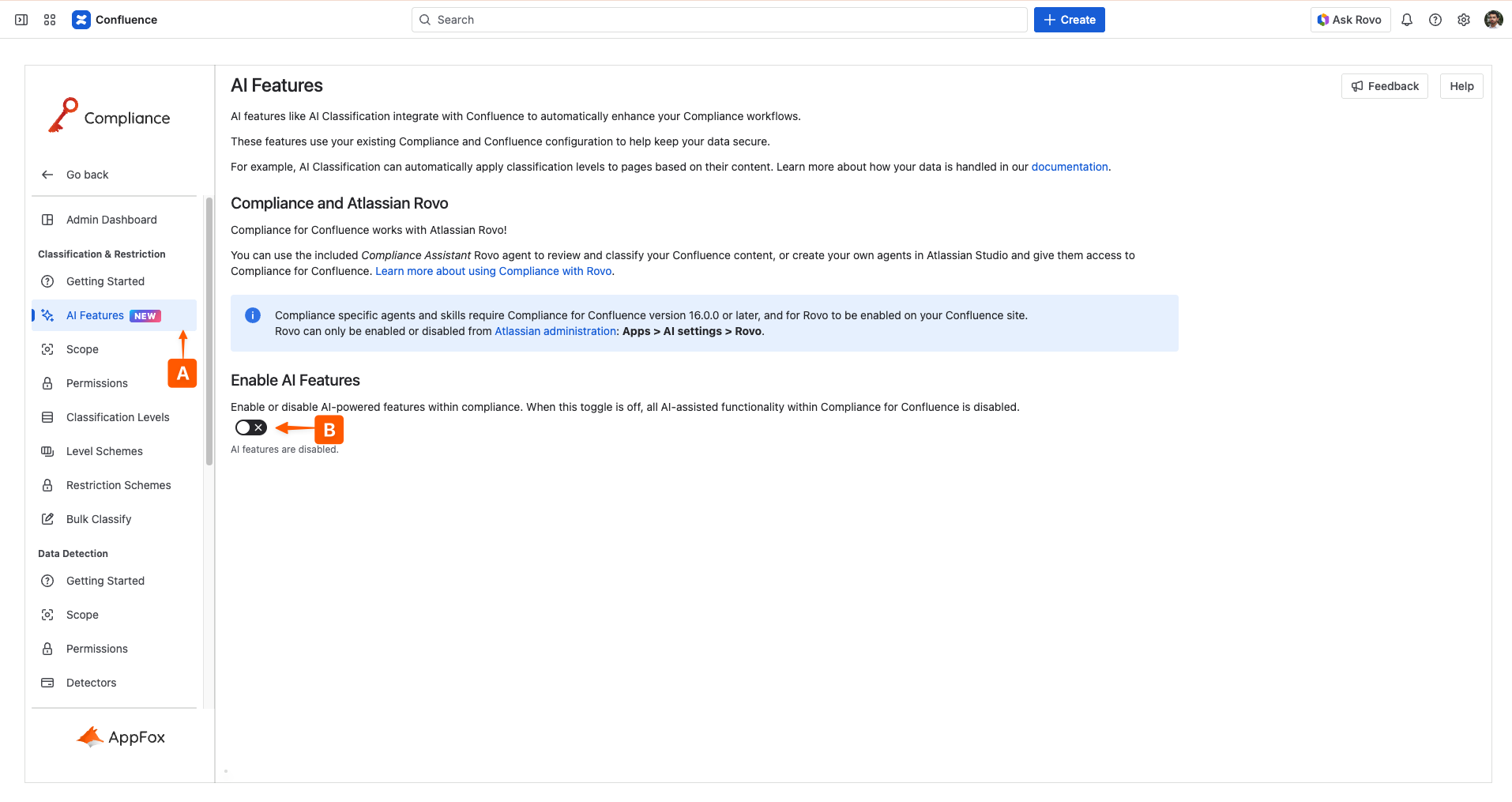
Once on this page, you can use the AI Features toggle (B) to make AI classification available in your classification scope settings. Note that turning on this toggle does not activate AI classification but simple enables the option within your site. You can toggle this off at any time to disable all AI classification site-wide.
On enabling the AI Feature toggle, you will be prompted to Opt-In to AI powered features. For more details on how we handle your data when AI Classification is enabled, see our FAQ on data processing and storage.
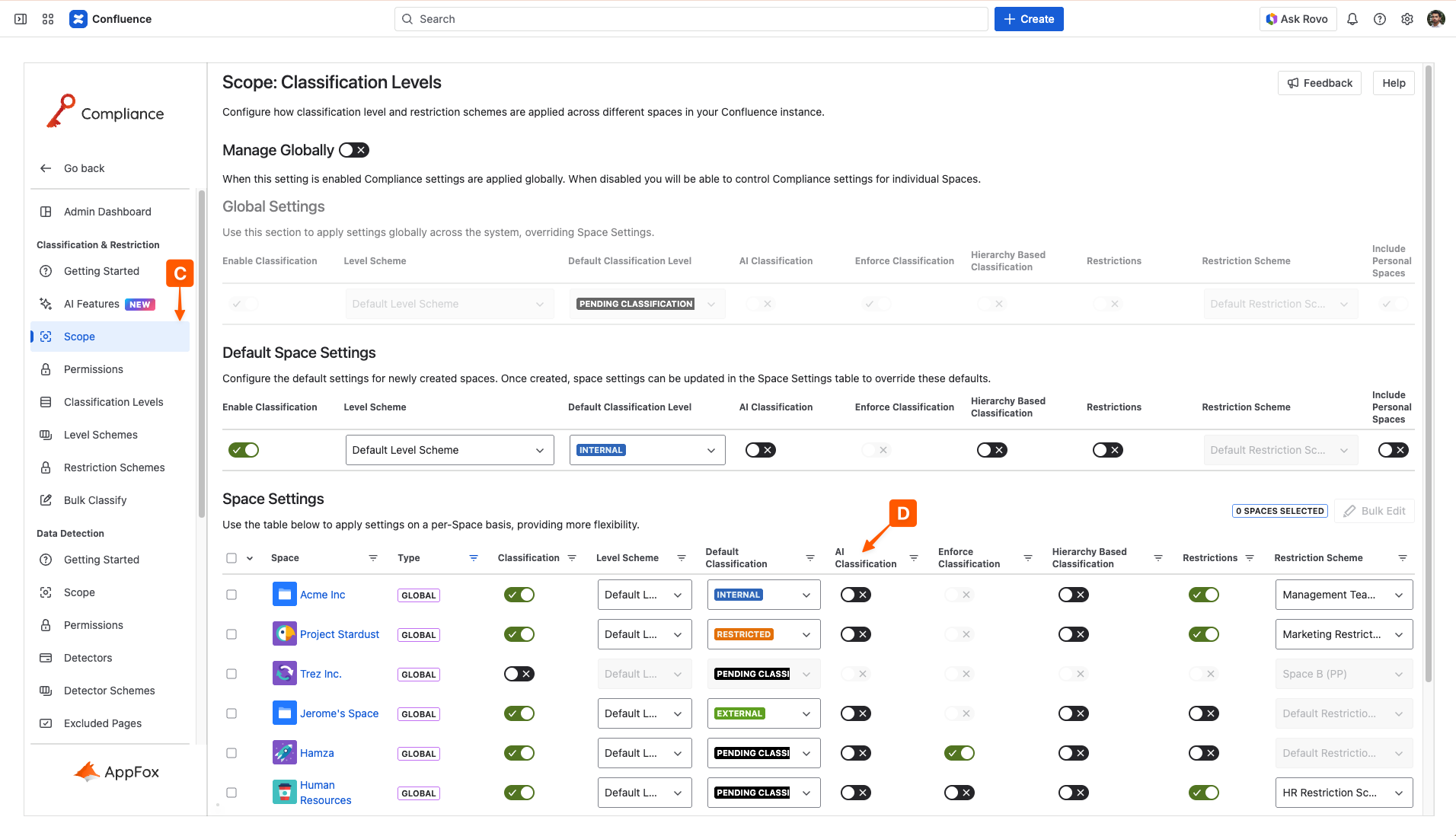
With the AI features toggle enabled, navigate to the Scope page (C) within the Classification & Restriction section.
From this page you can enable the AI Classification toggle (D) either globally across your whole Confluence or on a space-by-space basis, depending on whether you are managing globally or not.
Using Automatic AI Classification
Once enabled, AI Classification will automatically apply classification levels to pages when they are created or updated without an existing classification level applied. Any restrictions associated with the chosen level will also be applied to the page.
When determining the sensitivity of a page, the LLM analyzes:
-
Page title
-
Page content
-
Space name
-
Space description
Page content presented to the AI is limited to 10,000 characters in length. Any page content exceeding this length is truncated, with only the first 10,000 characters in the document being used for classification.
Then, when deciding upon which classification level to select, the AI considers:
-
Level and sub-level names
-
Level and sub-level descriptions
It then selects a level most appropriate for the page depending on the sensitivity of its content, and if confident in its decision Compliance will apply the level to the page.
Users may override the selected classification level at any time by manually assigning a new page classification as described in Change Page Classification Level.
Automatic AI Classification may occasionally be unable to assign an appropriate level to a page. This may be because:
-
No classification levels are available which match the determined sensitivity of the content
-
The AI is not confident that the classification is appropriate
-
Page content is empty or too short
In these cases, it may be useful to fall back to a default classification level to ensure pages are still classified.
Need support? We’re here to help 🧡
If you have any questions or would like to speak with us about Compliance, please don’t hesitate to reach out to our Customer Support team.