
Once you have set up your Levels, Level Schemes, and Restriction Schemes, you can use Scope to apply these throughout your organization's Confluence instance.
There are generally two ways of applying levels and restrictions to your Confluence; globally, default space or on an individual space level. To find out more access the relevant section below:
Access Scope
To access Scope, click Apps in the top navigation bar, select Compliance (A) from the drop-down menu, then click Admin Dashboard (B).
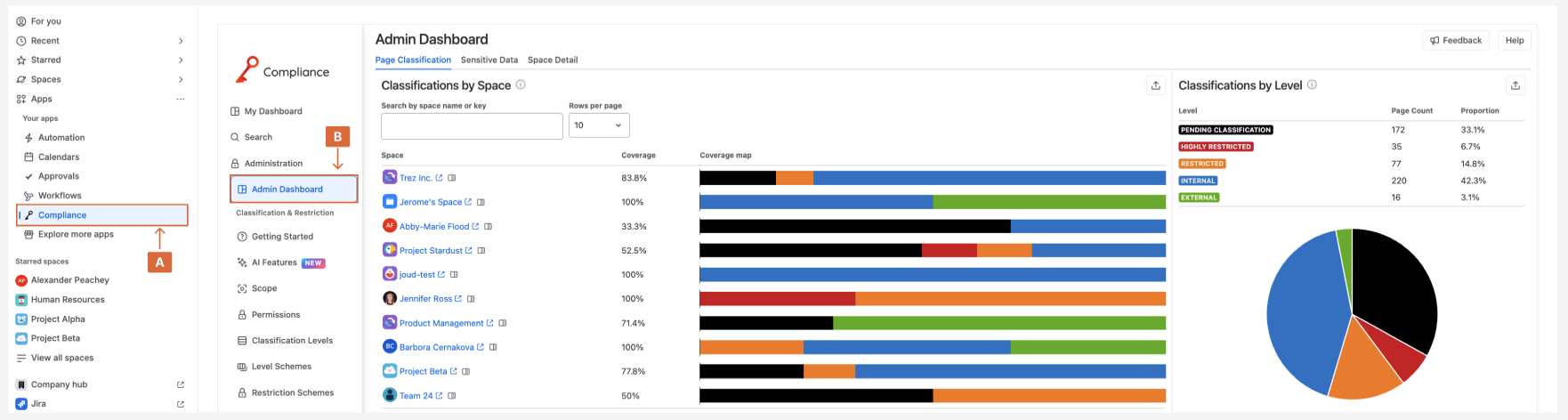
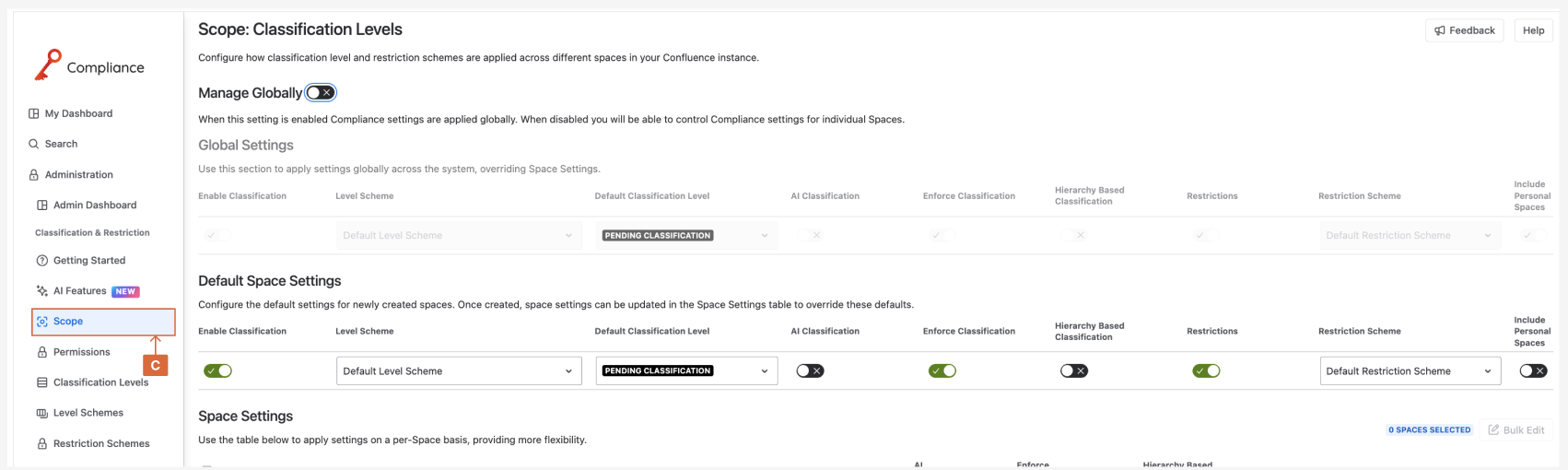
After accessing Admin Dashboard, you can then go to the Scope (C) page
Managing Levels and Restrictions Globally
The Classification and Restriction Schemes can be managed Globally through turning on Manage Globally (D). This will disable any Default Space or Individual Space Settings that are currently active

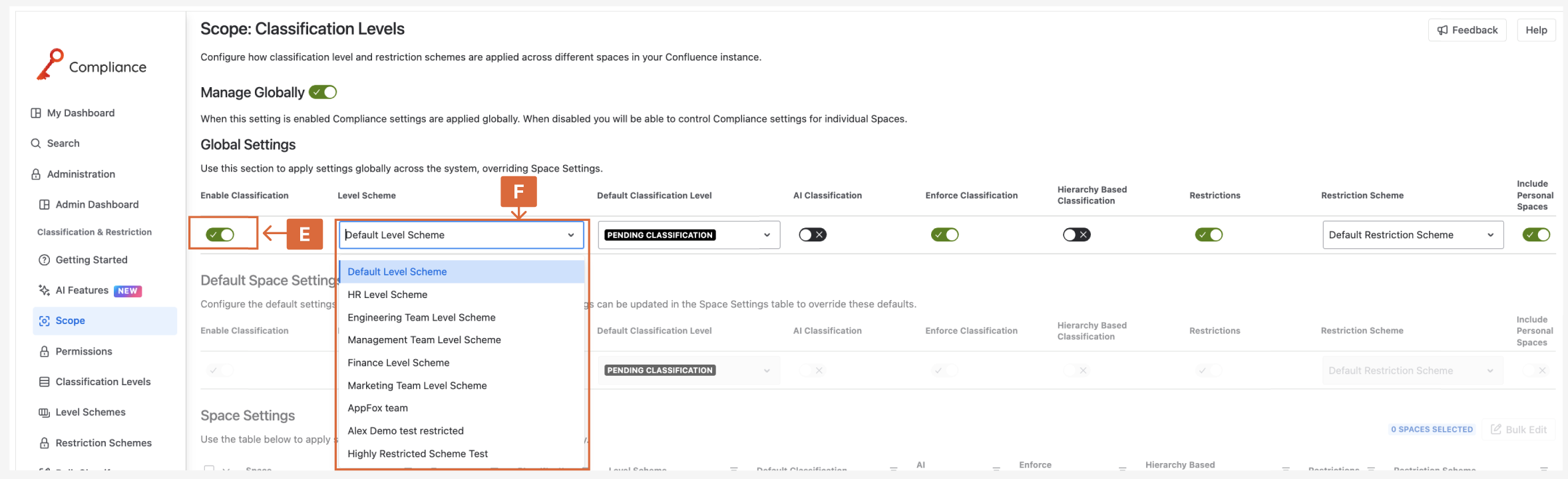
Classification levels can then be managed in Manage Globally though the Enable Classifications (E) toggle. Once classifications are enabled, the scheme you want to use for the instance is selected in the Level Scheme (F) drop down menu.
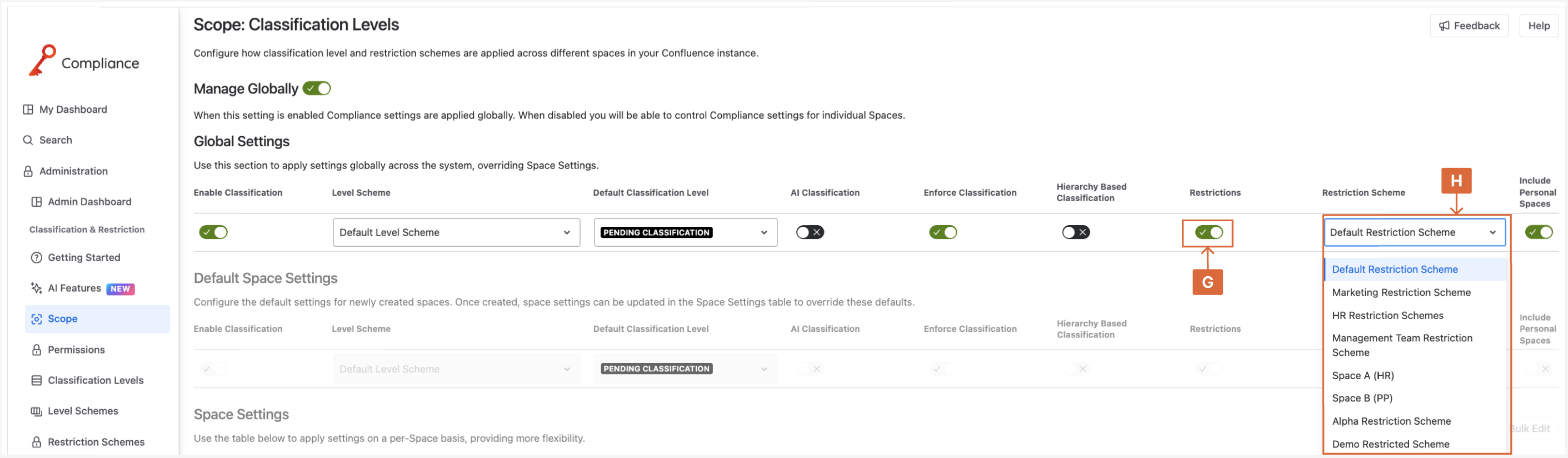
Restrictions Globally are managed through the Restrictions (G) toggle, allowing them to be enabled or disabled. Once enabled a scheme can be chosen through the Restrictions Scheme (H) drop down menu.
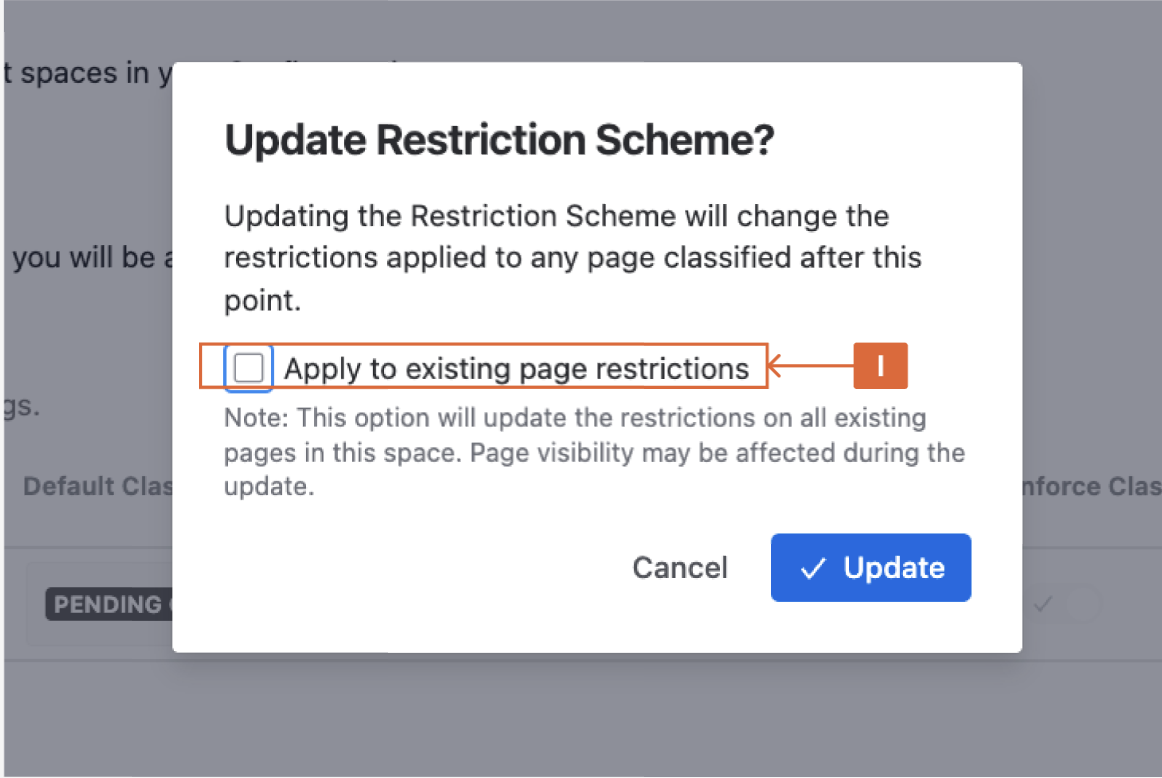
When a new Restriction Scheme is selected, you will be shown a pop-up menu informing you that adding a new scheme will make change to pages classified after changing the scheme. To change pages with pre-existing restrictions, you will need to select the Apply to existing page restrictions (I) option.
Managing Levels and Restrictions through Default Space
Default Space gives you the ability to set a default level for all spaces without having to override individual Spaces Settings. This can be done through Enabling Classification (J) or Restrictions (K).

Level Scheme and Restriction Scheme are managed in the same way Manage Globally schemes are.
Managing Levels and Restrictions through Individual Spaces
You can customise how levels and restrictions apply across Confluence at the individual space level. This works well for teams or departments that need specific access controls to apply per-space Level and Restriction Schemes. To do this, first deactivate the Manage Globally (D) option so you can select individual spaces under Space Settings.
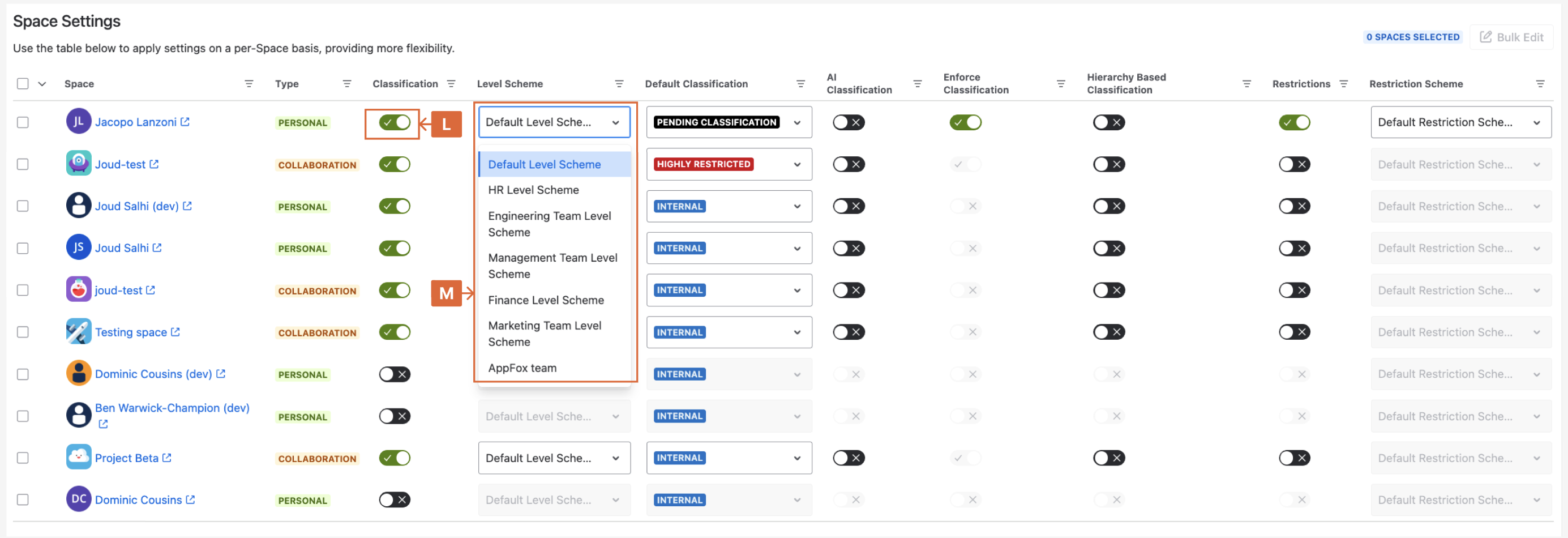
Locate the space, activate the ‘Enable Classification’ (L) toggle, then choose a Level Scheme (M) from the dropdown menu.
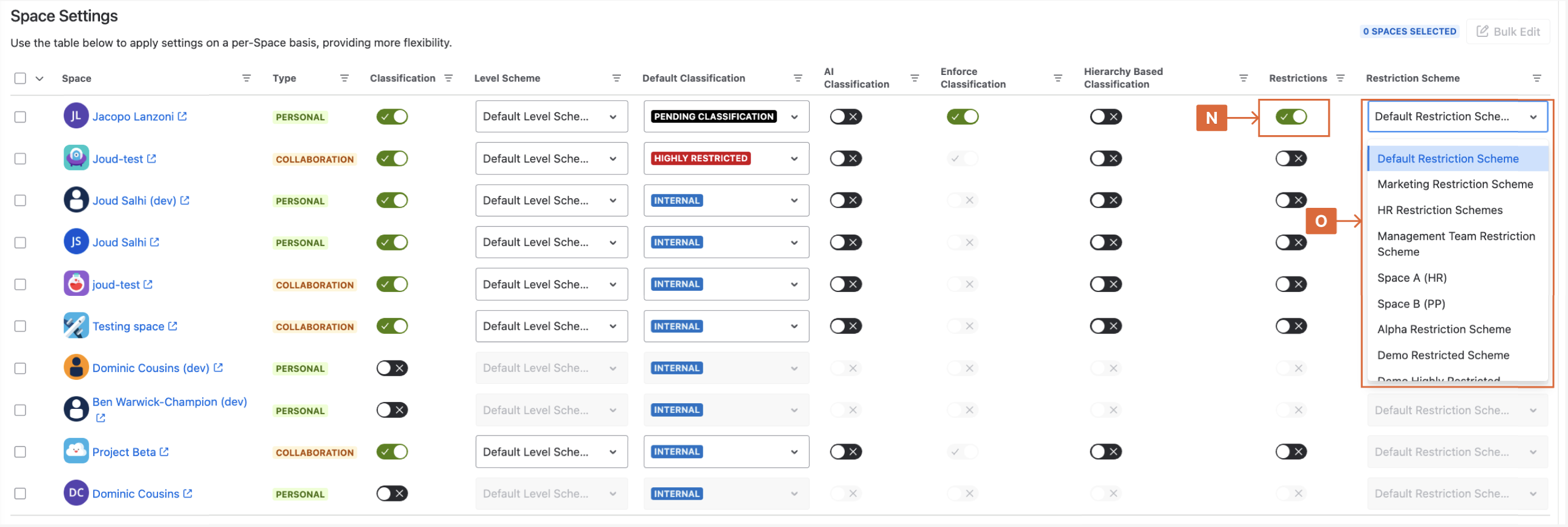
Manage individual space restrictions by enabling the Restrictions (N) toggle for the desired space. Then select a Restriction Scheme (O) to apply to that space.
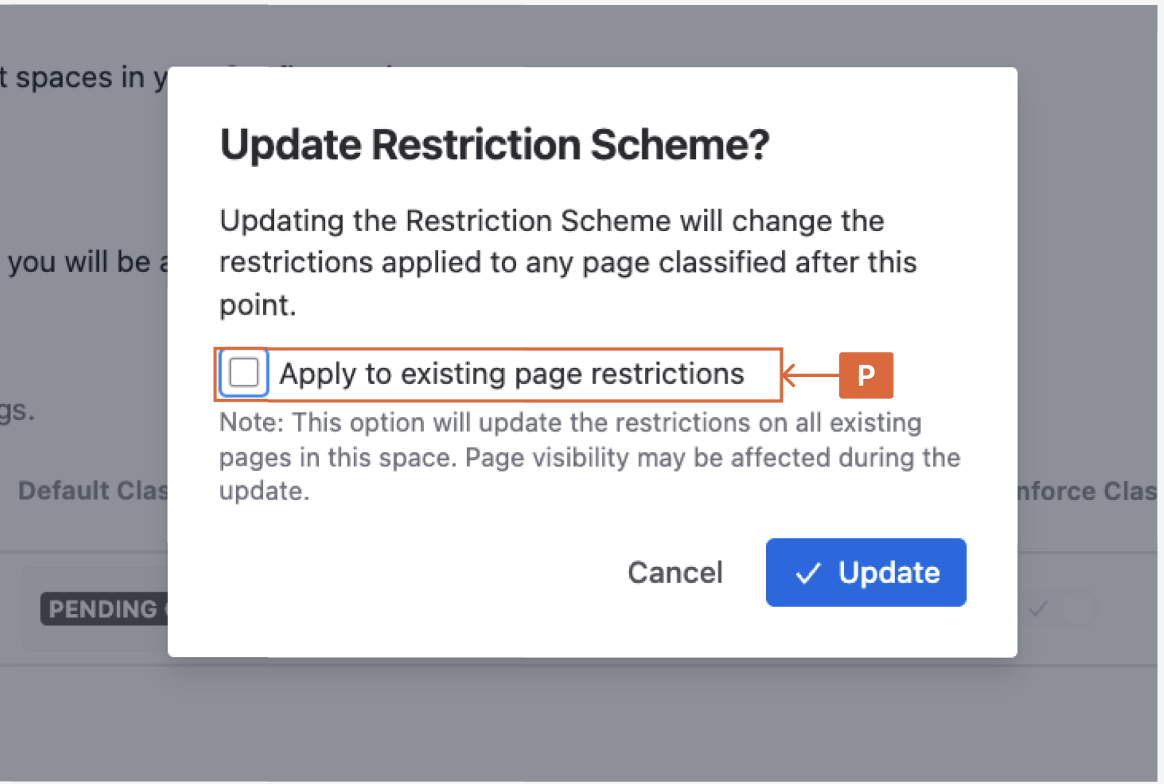
When the Restriction Scheme is change for a individual space, the pop-up message informing you that it will only effect the restrictions of pages going forward. To change previously restricted pages, tick the Apply to existing page restrictions (P) option.
Alternatively, check out the video below, which will walk you through the scope settings and how to apply levels and restrictions globally or to individual spaces.
Need support? We’re here to help 🧡
If you have any questions or would like to speak with us, please don’t hesitate to reach out to our Customer Support team.