-20250819-084018.svg)
Workflows search has been rebuilt. Everything from the old search is still here, and you can now also save and share views, customise columns, combine filters, and export ALL records.
As the number of workflows on your site grows, Search is the quickest way to find a page, check its status, or pull together a report.
To open Search, go to Apps → Workflows in the Confluence sidebar. The Workflows search page opens by default.
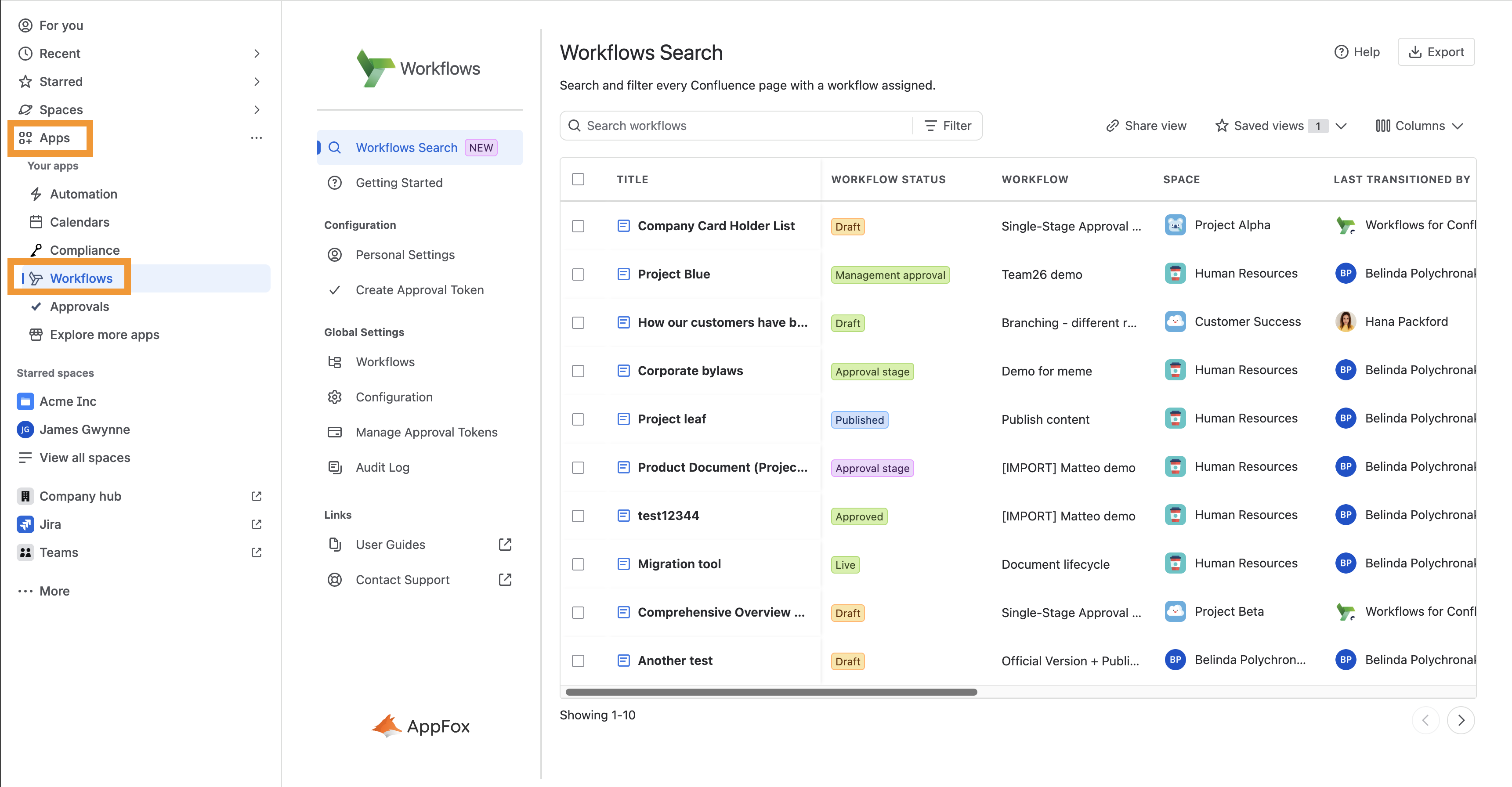
Filtering results
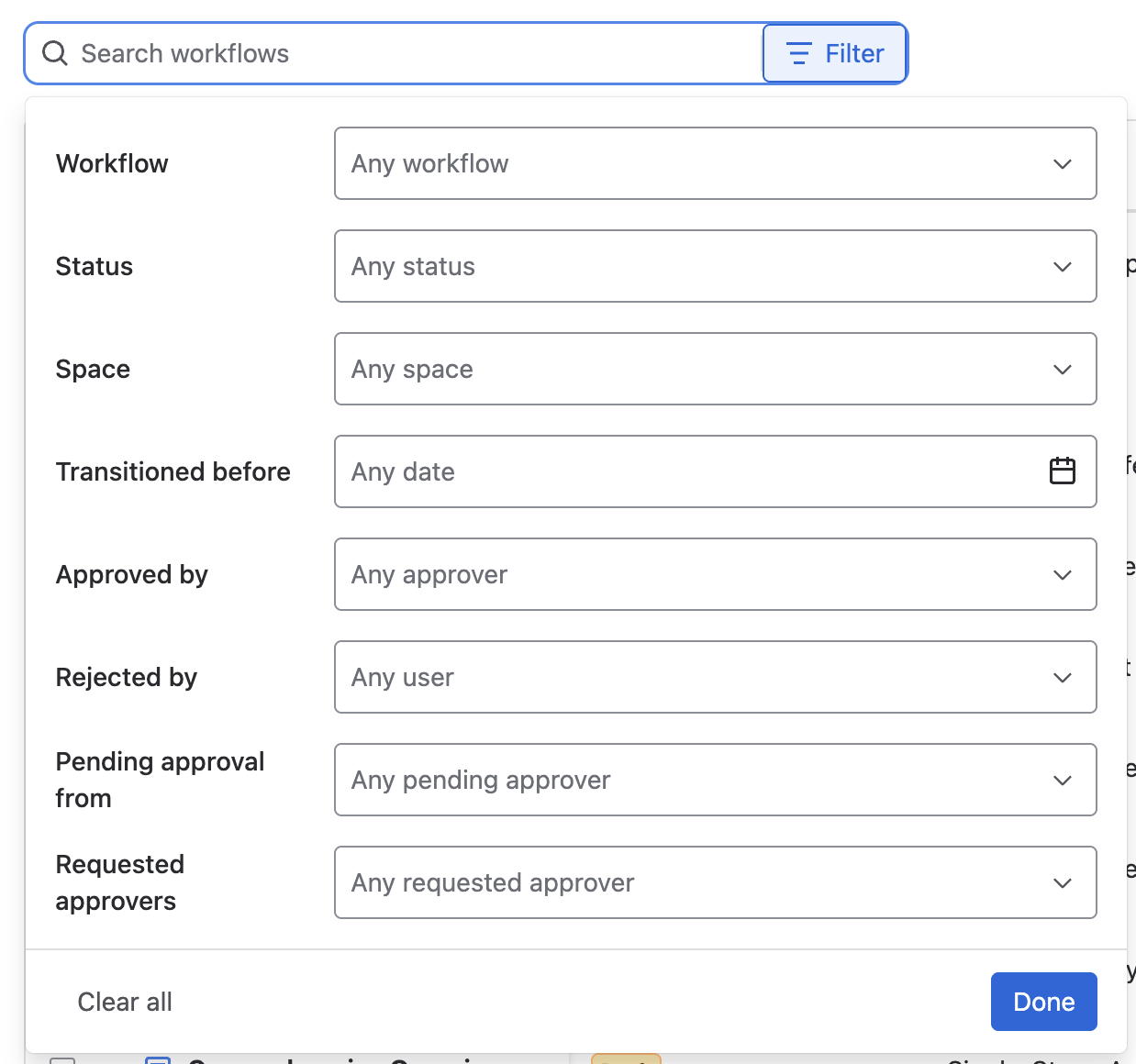
You can narrow your results in two ways: the text search bar and the Filter dropdown. You can use both together.
Text search
Type in the search bar to show only workflows whose name contains your search term. Any filters you've applied still apply.
Filters
When you select options in more than one filter, a result has to match every filter. Within a single filter, it only has to match one of the options you picked.
For example: if you pick two spaces under Space and one status under Status, you'll see results that are in either of those spaces and have that status.
Click Done to apply your filters. If you close the dropdown without clicking Done, your selections are still applied. To remove all filters, click Clear all.
|
Filter |
What it does |
|---|---|
|
Workflow |
Pick from all enabled workflows that are either global or in spaces you can view. |
|
Status |
Pick from the statuses of the workflows selected under Workflow. |
|
Space |
Pick from all the spaces you have access to. |
|
Transitioned before |
Shows only results that were last transitioned before the date you pick. Results last transitioned on that date aren't included. |
Approval step filters
These filters only return results that are currently at an approval stage step.
|
Filter |
Shows results where any of the selected users… |
|---|---|
|
Approved by |
have approved the step |
|
Rejected by |
have rejected the step |
|
Pending approval from |
are an approver who haven't decided yet |
|
Requested approvers |
are an approver, regardless of their decision status |
Customising columns
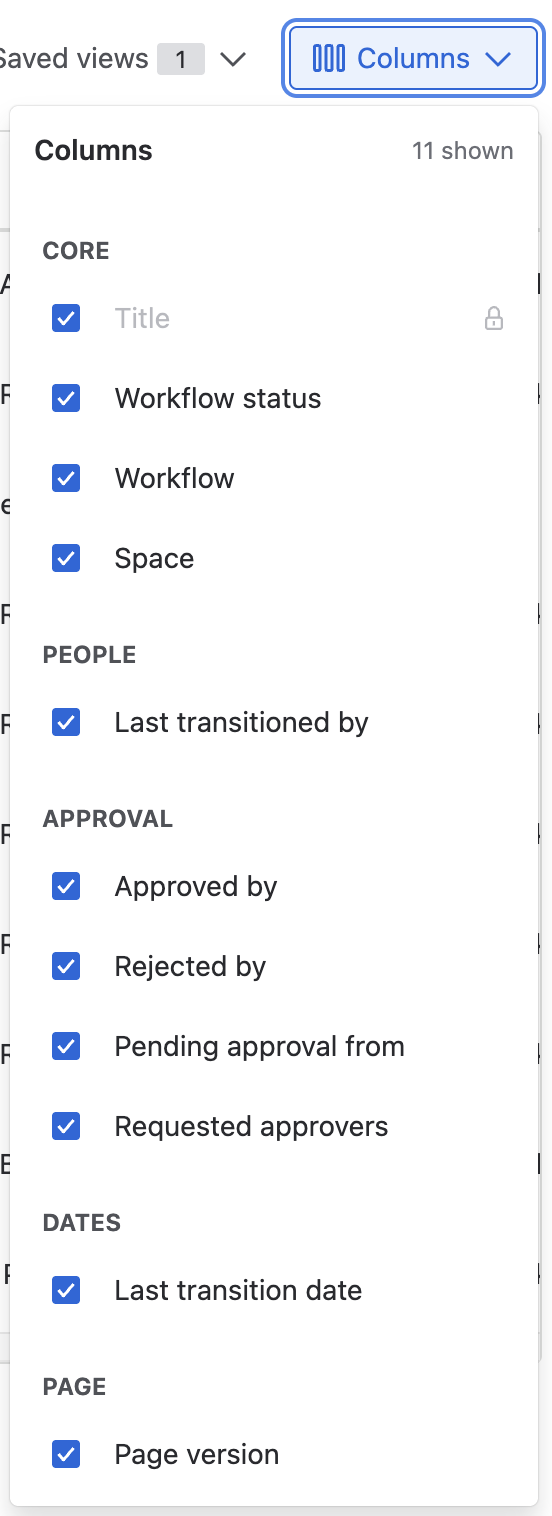
Showing and hiding columns
Use the Columns dropdown to show or hide columns. Hiding a column doesn't stop you from filtering by it. The Title column is always shown.
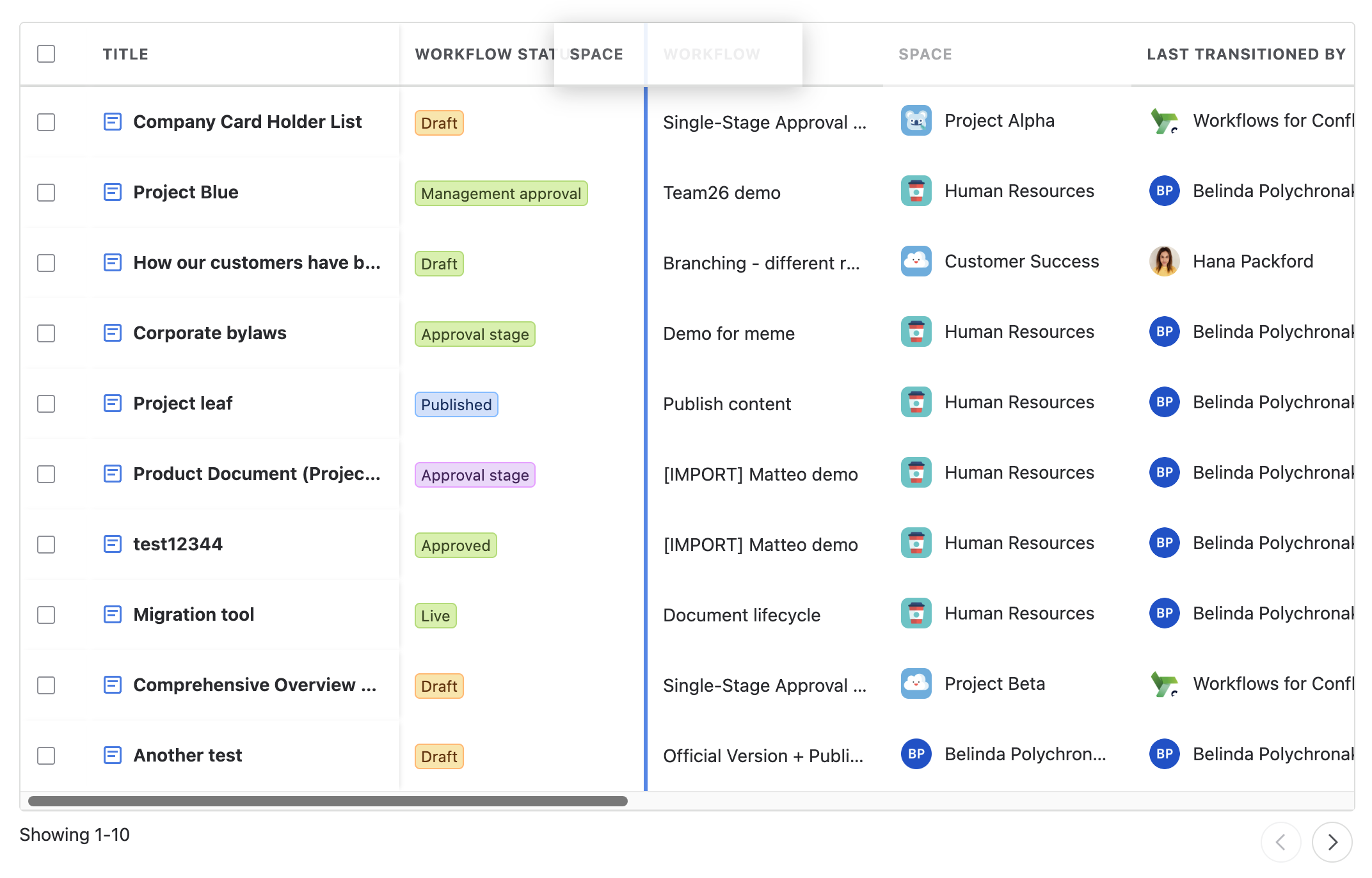
Reordering columns
To move a column, drag its header to where you want it. A line shows where it will land. You can move every column except Title.
Column visibility and column order are both saved in saved and shared views.
Saving and sharing views
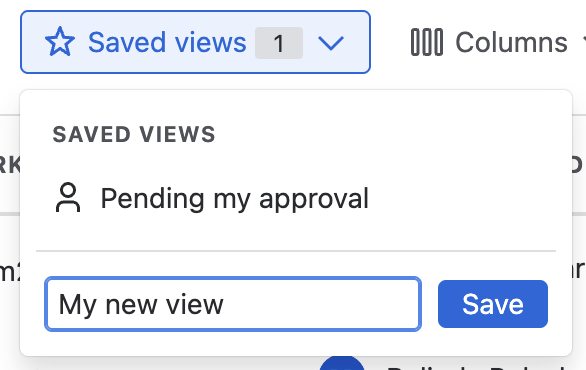
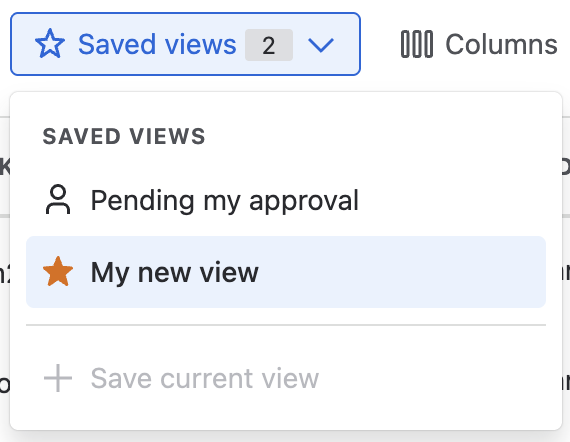
A view is your current combination of filters, column visibility, and column order. Once you’ve set up a view, you can save it for later or share it with teammates.
Saving a view
-
Click Saved views to open the panel.
-
Give your view a name and save it.
To delete a saved view, click the X next to it. Every user also gets a built-in view called Pending my approval.
Note: Saved views are stored in your browser. You won't see them if you switch browsers or clear your browser data. To take a view to another browser, share it with yourself (see below) or bookmark the page.
Sharing a view
Click Share view to copy a link to your clipboard. Anyone who opens the link sees your filters, columns, and column order exactly as you set them up. They can then save it as one of their own views.
Export to CSV
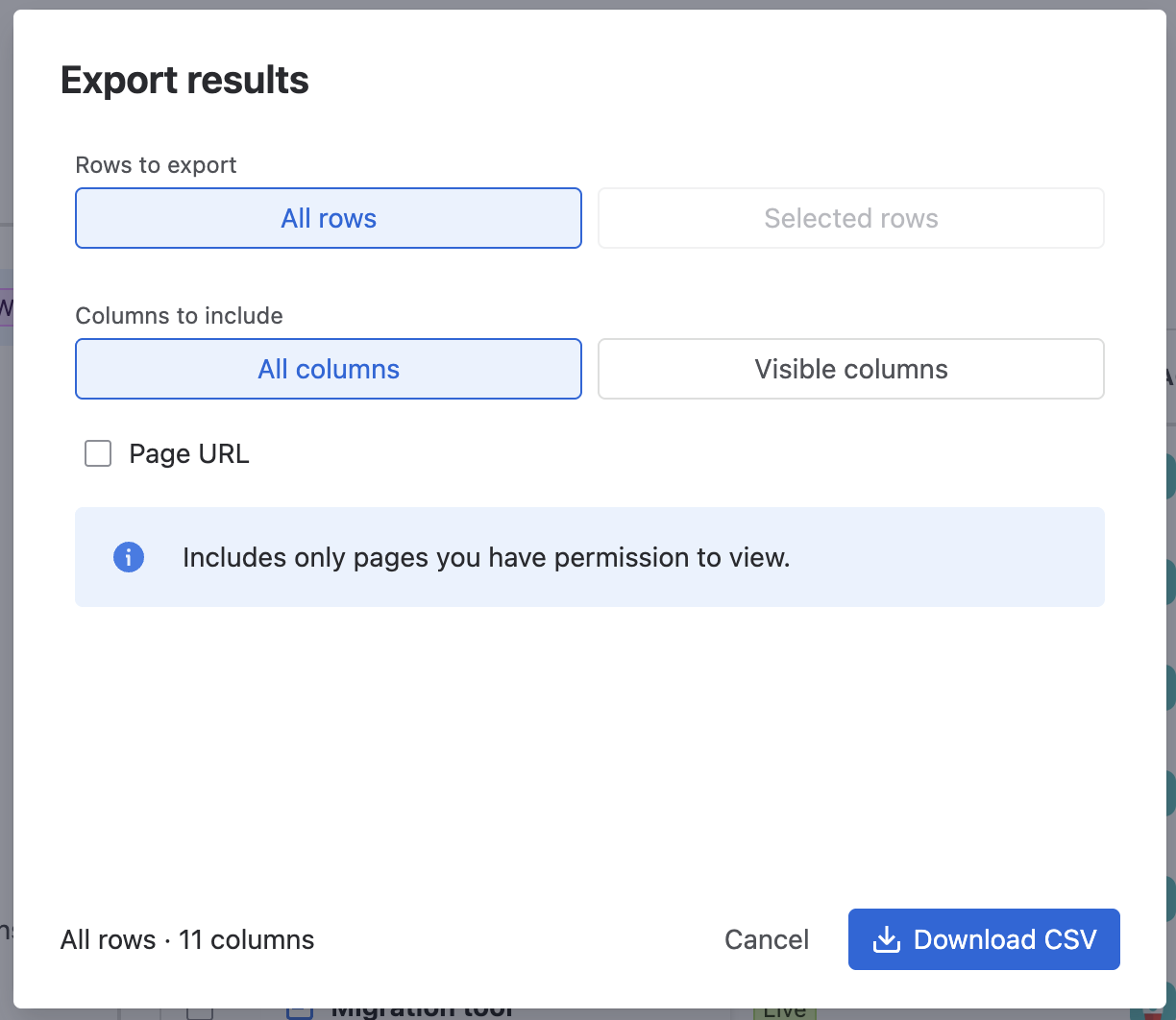
Click Export to choose what goes into your CSV:
-
Rows to export
-
All rows: every result that matches your filters.
-
Selected rows: only the rows you've ticked.
-
-
Columns to include
-
All columns: every column, including hidden ones.
-
Selected columns: only the columns currently visible in your view.
-
-
Page URL: adds a column with a full link to each page.
Keep the dialog open until your CSV has downloaded.
Need support? We’re here to help 🧡
If you have any questions or would like to speak with us about Workflows, please don’t hesitate to reach out to our Customer Support team.