-20250819-084018.svg)
The section approval macro has a refreshed look and feel! You still set up approvals, approve or reject sections, and track progress exactly as before, but the macro is now clearer, easier to scan, and works better across Confluence page layouts.
More improvements are planned! This guide walks through upcoming changes, and changes that have already been delivered:
Section approval macro
When a Section Approval Macro is added to a page, you’ll be prompted to set up an approval. Once set-up, the macro display is a view of everything about that approval:
-
Title / Menu / Status / Duplicate Warning: The section approval title appears at the top of the macro, with the overall approval status, and a ••• menu for viewing history or re-submitting the approval. If the macro has been copy-pasted elsewhere on the page, a warning icon indicates that it is a duplicate rather than a standalone approval.

-
Description: If the section approval has a description, it will be shown underneath the title.

-
Progress: A segmented bar showing how many approval decisions have been made versus the minimum amount of required approvals, alongside a label like "1 of 3 approvals required".

-
Expiry (when set): A chip displaying the expiry date, with a warning icon if the expiry date is within a week.

-
Approvers / Approve / Reject: Avatars for the requested approvers (click any avatar to jump to that person's profile). And a View detail link for the approval request details. Each approver's avatar shows their current status at a glance via a coloured border: whether they've approved, rejected, are still pending, or expired. When you’re an approver, Approve and Reject buttons allow you to make your decision.

Setting up a section approval
Adding a Section Approval Macro to a Confluence page will cause a configuration modal to pop up. This is where you set up your section approval. It is split into two simple parts:
-
Approvers: Search for and add the users or groups whose approval you require.
-
Settings: Provide a title and optional description, choose who gets notified, if and when the approval should expire, and how many approvals are required before the section is considered approved.
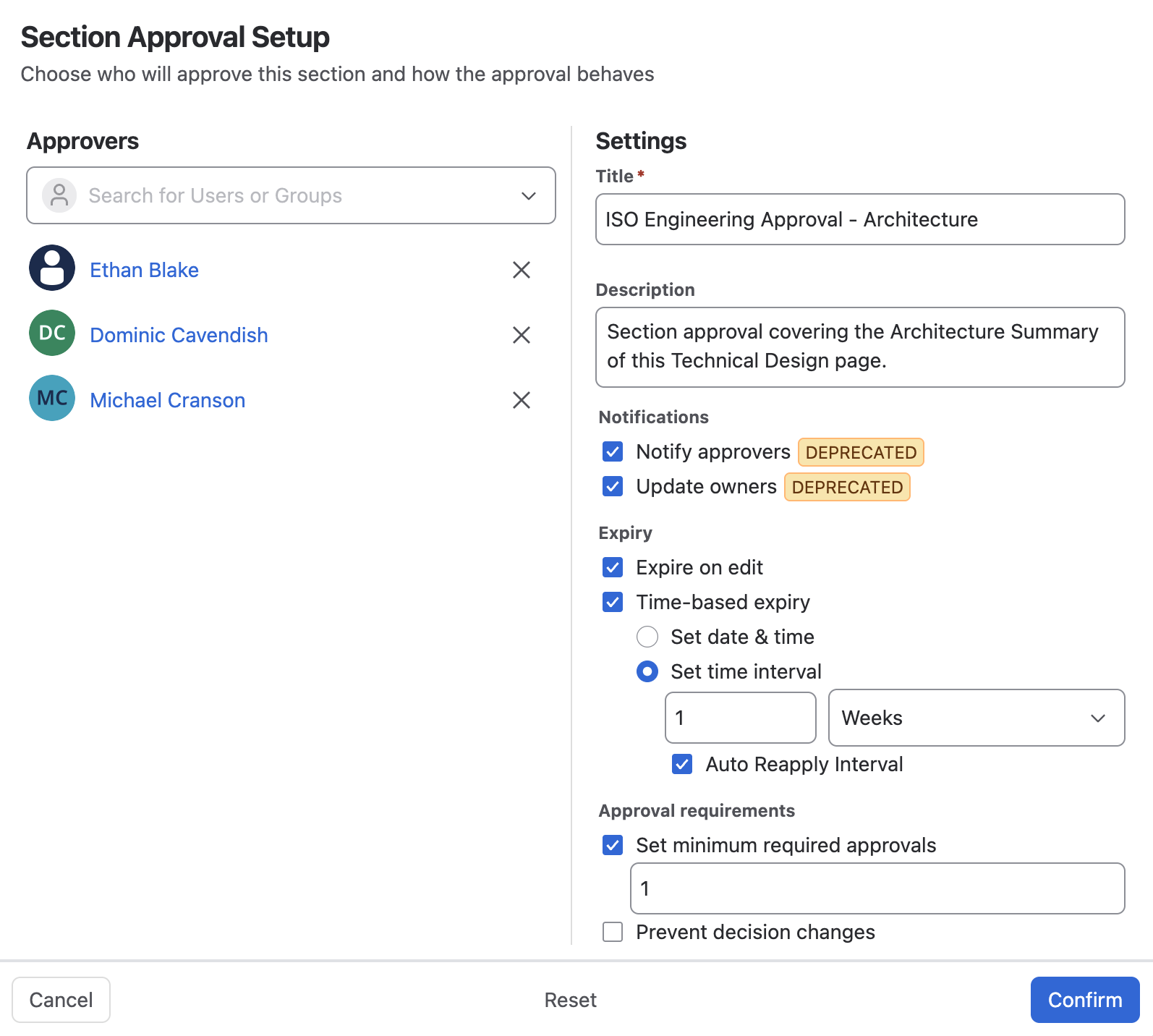
Unlike page approvals, whose byline is always present on the Confluence page, section approvals exist via macros manually added, edited, and removed on the page.
-
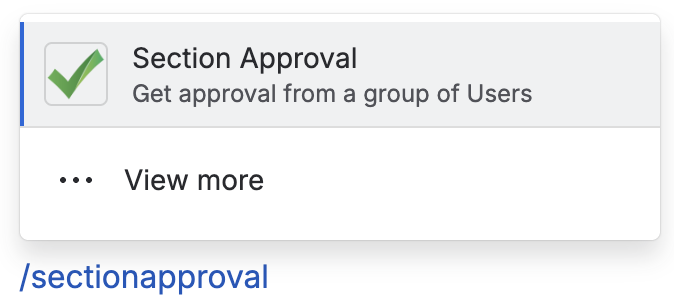
Adding: Click Edit on the Confluence page to go into the page editor, and then use the ‘+' icon or type '/’, and find Section Approval. Selecting this will add a macro to the page and pop up the configuration modal.
-
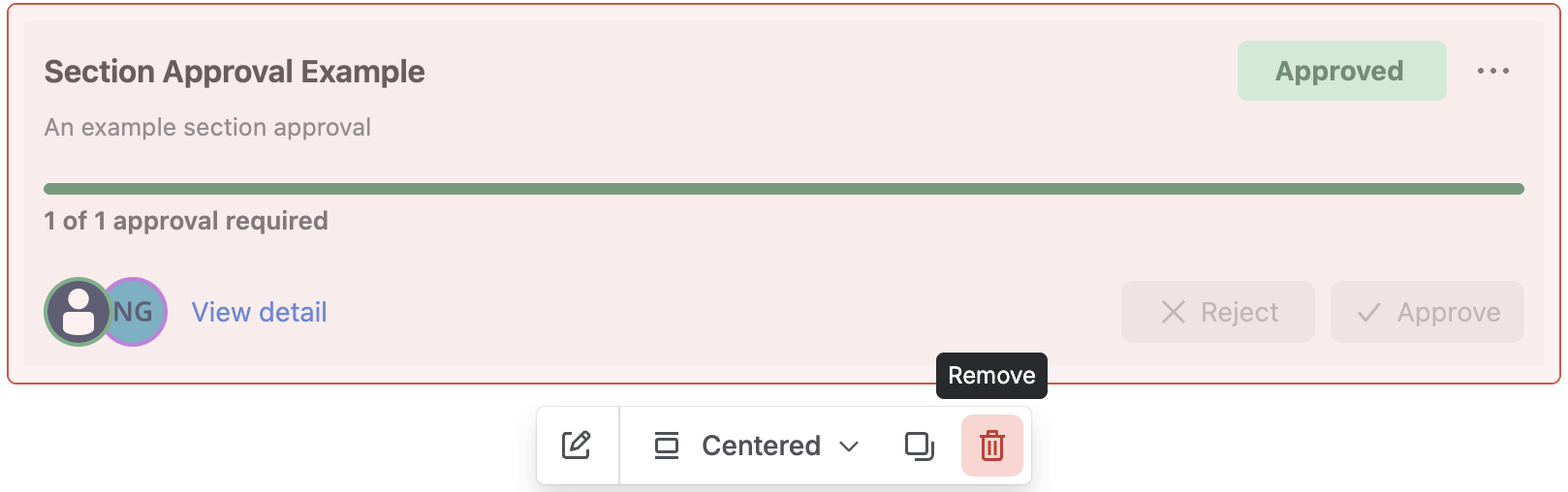
Removing: Section approvals are removed like any other macro in Confluence; Edit the page, select the macro, and click the Remove icon to delete the section approval.
-
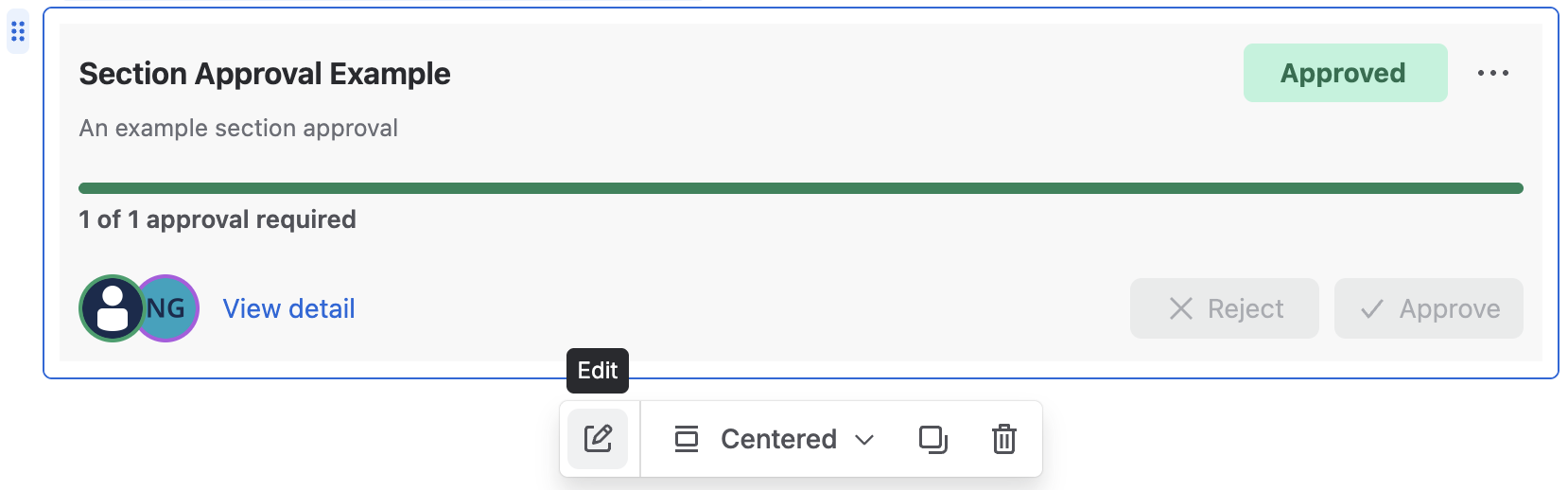
Editing: Section approvals are edited/configured like any other macro in Confluence; Edit the page, select the macro, and click the Edit icon to change the configuration of the section approval.
Approving or rejecting a section
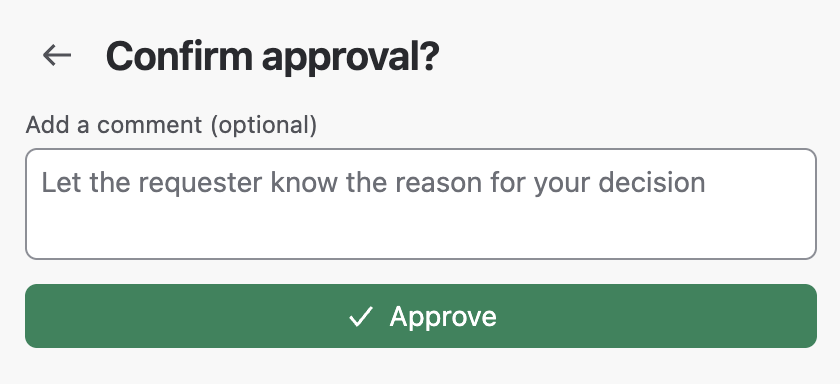
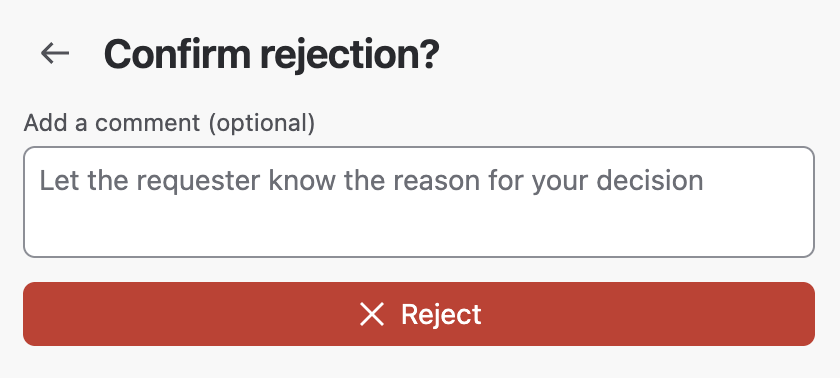
When you're an approver, clicking Approve or Reject opens a quick confirmation screen where you can optionally leave a comment explaining your decision before submitting it. Any comments are recorded along with the decision in the section approval history (accessed via the ••• menu).
Approved or rejected sections
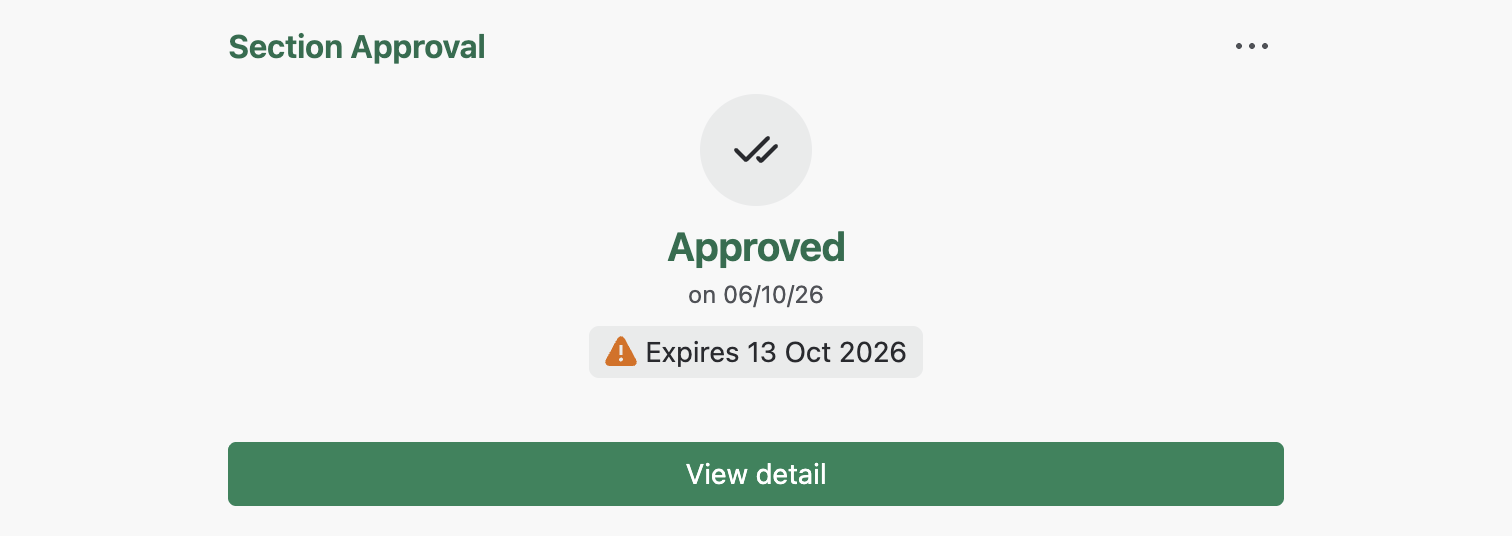
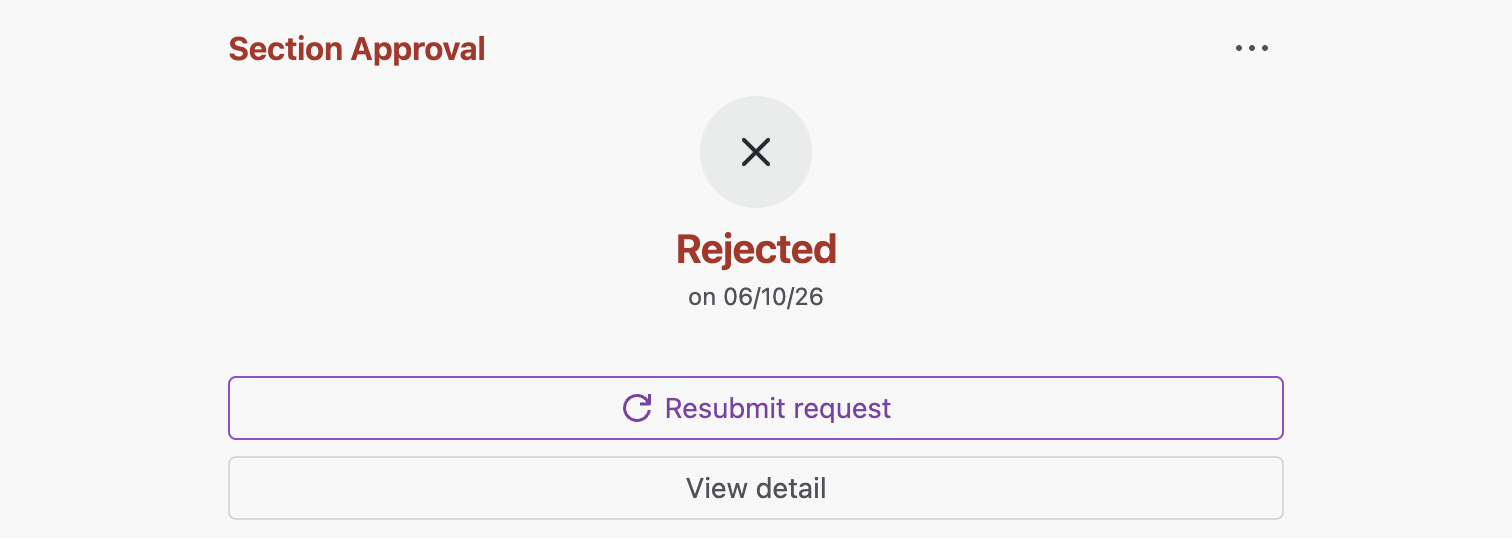
When a section approval reaches an overall Approved or Rejected status, that status is considered final; setting changes and decisions can no longer be made on the approval.
The requester (and/or a space admin) can choose to Resubmit the approval (recommended in the case of rejections) or Cancel the request outright. All other users will only be able inspect the details of the approval, or view the approval history.
Viewing the full approval details
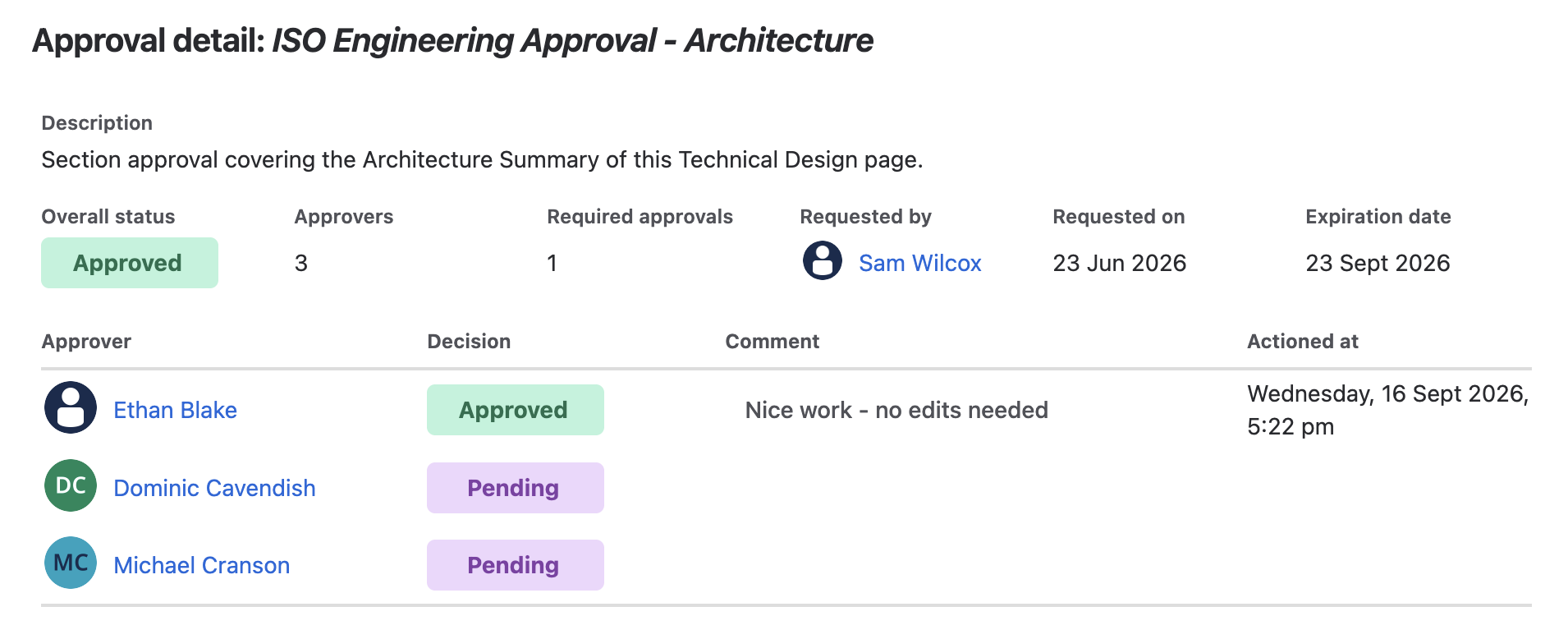
Click View detail to see everything about the approval in one place: title, description, overall status, number of approvers, how many approvals are required, who requested it and when, and the expiry date. Below that sits a full table of every approver, their decision, any comment they left, and when they made their decision.
Recent changes
Rejected and Approved overall statuses will be considered final, preventing further approval changes
RELEASED on
Once a section approval reaches an overall status of Approved or Rejected, that status is now final. Decisions and settings can no longer be changed against that approval; the record is locked in as it stood when the outcome was reached.
Decisions and settings used to be changeable at any time, even after an approval reached a final Approved or Rejected outcome. That undermined what an approval record needs to provide: a trustworthy, unchangeable, point-in-time account of who approved what, and when. Locking the status once reached has addressed this.
It also addressed a second problem: there was no reliable way for a requester to signal that a section needs re-review after a rejection and subsequent changes. Locking Rejected as a final state closes off the old approach: an approver simply switching their decision to approved once changes are made, so 'Resubmit request' has become the intended path instead. Resubmitting discards all prior decisions and re-sends approval notifications to every approver, including those who had already approved (giving the section a fresh review rather than a partial one carried over from before the rejection). This is deliberate: an explicit rejection signals that the required changes are significant enough to warrant a full approval cycle.
Upcoming changes
Removal of ‘Prevent Decision Changes’ setting
PLANNED for
The Prevent Decision Changes setting on section approvals was a stop-gap solution to ensure that overall Rejected or Approved statuses could not be changed at a future date. This setting is now usurped by the recent change to the behaviour of section approvals; rejected and approved overall statuses are final and cannot be manipulated.
Customer Support 🧡
If you have any questions or need assistance with Approvals for Confluence Cloud, please contact our Customer Support team