
Every page approval and section approval has an overall status that shows where it is in the review process. The diagram below shows how an approval moves between statuses.
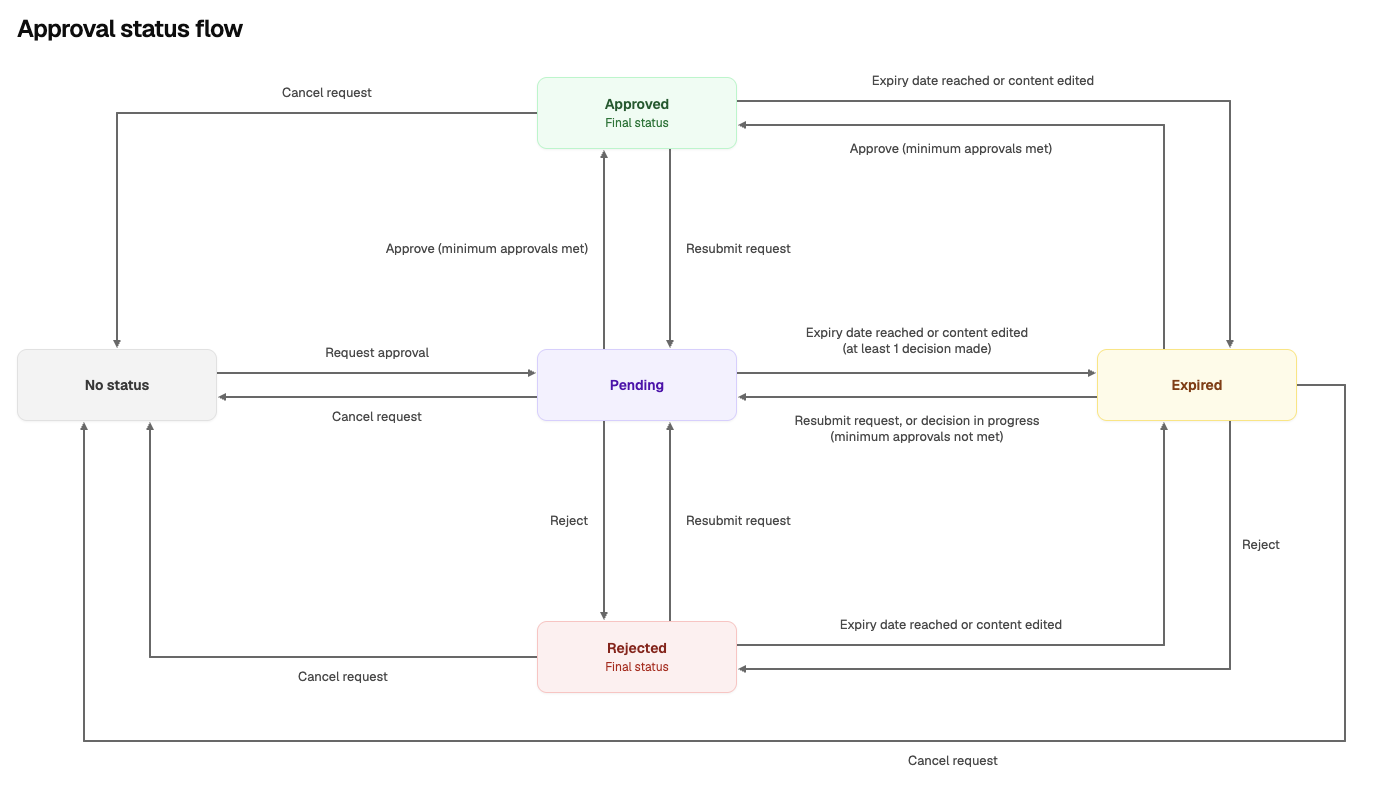
Once you’ve added your approval to your page or section, it will transition between these states:
|
Status |
Description |
|---|---|
|
Pending |
The approval is waiting for approvers to review it. Whenever an approval moves to Pending, approvers get an email asking them to review it. Each approver can approve or reject it. |
|
Approved |
The approval has reached the minimum number of approvals needed. You can set this number for both page and section approvals. This is a final status. |
|
RejeCTED |
An approver has rejected the approval. This is a final status. |
|
Expired |
The approval’s expiry date has been reached, or its content has been edited with Expire on edit turned on. Approvers get an email asking them to review it again. Approvals only expire if one of these settings is configured. |
How the status changes
-
Pending: Once you request an approval, it starts as Pending. When the minimum number of approvals is met, it changes to Approved. If an approver rejects it, it changes to Rejected.
-
Approved and Rejected: These statuses stay as they are unless the approval expires, is resubmitted or is cancelled.
-
Expiry: If an expiry date or time is set, or Expire on edit is turned on, an approval can change to Expired. This can happen from Approved or Rejected, or from Pending if at least one approver has made a decision.
-
Expired: If an expiry date is set, or Expire on edit is turned on, an approval can expire. This can happen from Approved or Rejected, or from Pending once at least one approver has made a decision. Approvers then review the content again. If the minimum number of approvals is met, it returns to Approved. If an approver rejects it, it changes to Rejected. While decisions are still being made, it shows as Pending.
Every status change and approver decision is recorded in the approval history. To see it, open the ••• menu on the page approval byline or section approval macro and select History.
Final statuses
Approved and Rejected are final statuses. Once an approval reaches either one, its decisions and settings can’t be changed. This keeps a reliable record of who approved what, and when.
To start a new review or remove the approval, use Resubmit request or Cancel request.
Resubmit and Cancel
You’ll find both actions in the ••• menu on the page approval byline or on the section approval macro.
-
Resubmit request clears every previous decision and sets the approval back to Pending. All approvers get a new request, including anyone who had already approved. Use it after you’ve updated content following a rejection. Find this action in the ••• menu on the page approval byline or on the section approval macro.
-
Cancel request is available on Pending, Approved, Rejected and Expired approvals. It removes the approval. Find this action in the ••• menu on the page approval byline or by deleting the specific section approval macro.
Need support? We’re here to help 🧡
If you have any questions or would like to speak with us about Approvals for Confluence, please reach out to our Customer Support team.