-20250819-084018.svg)
With Compliance for Confluence, you can easily add the classification level and sub-level of a page to the exported document with the Compliance page macro. This is particularly useful if a document is being shared with internal teams or even external parties, as the classification indicator at the top of the page is not included in page exports.
Adding a Classification Level to Page Exports
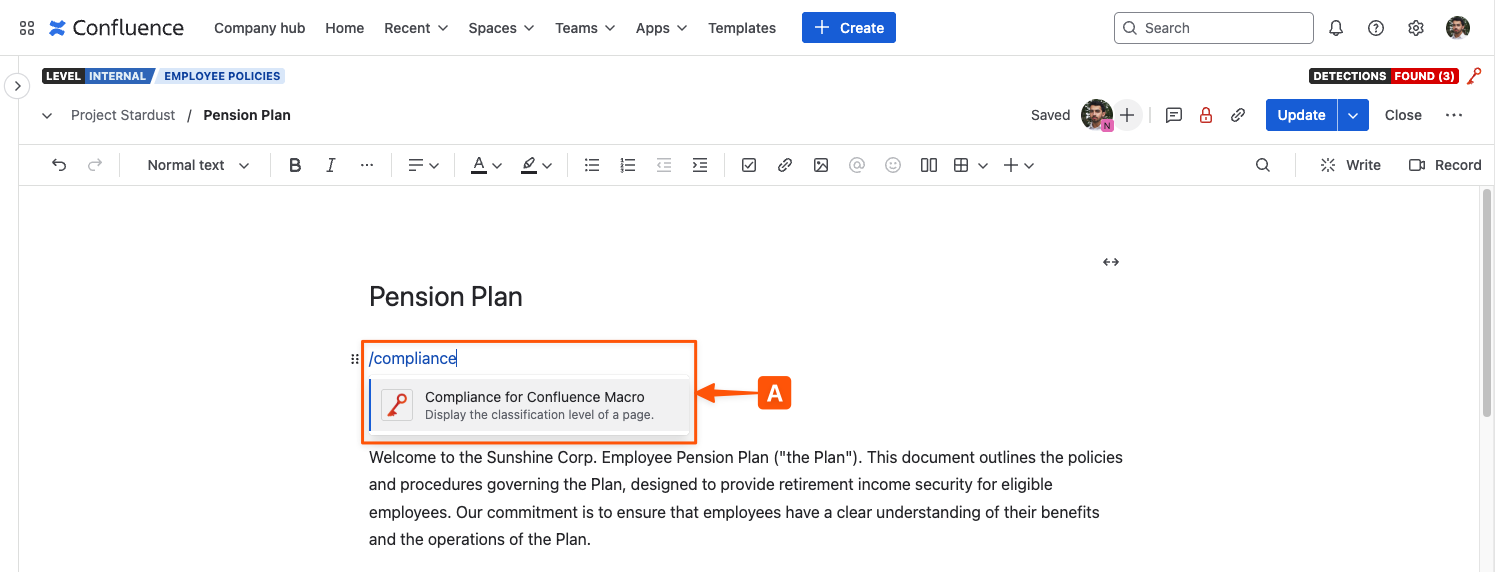
Start by editing the page and typing /compliance, which will display the Compliance for Confluence Macro (A)
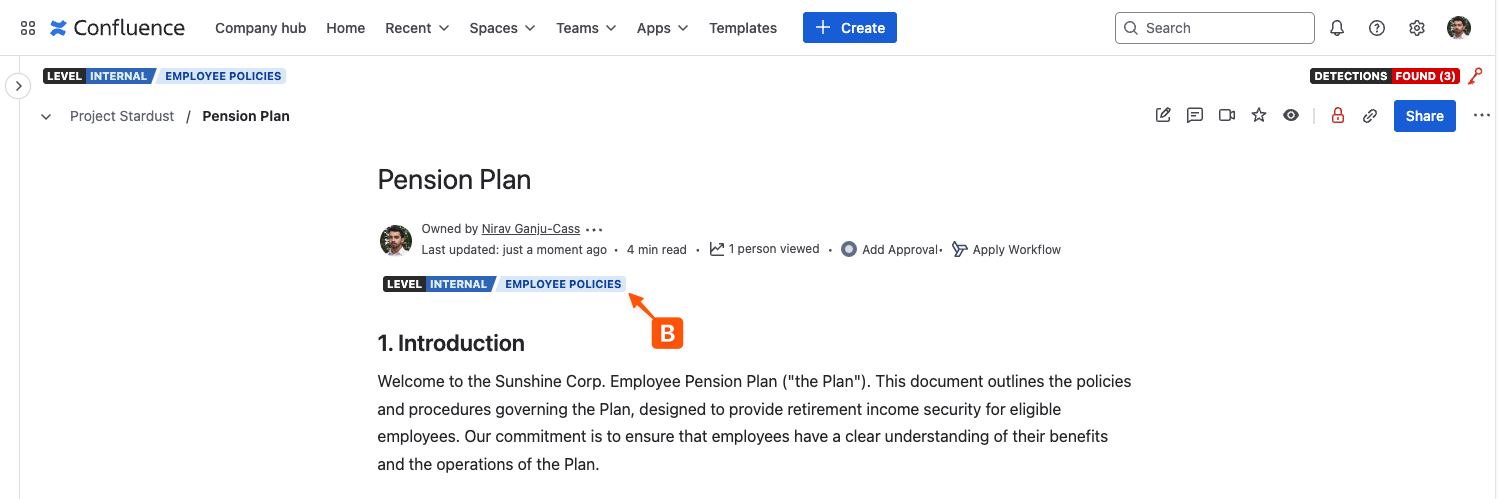
Once the macro has been added, you will see the classification level and sub-level (B) also appear in the main body of the page. This is now ready for exporting using the Confluence export feature.
Exporting a page from Confluence
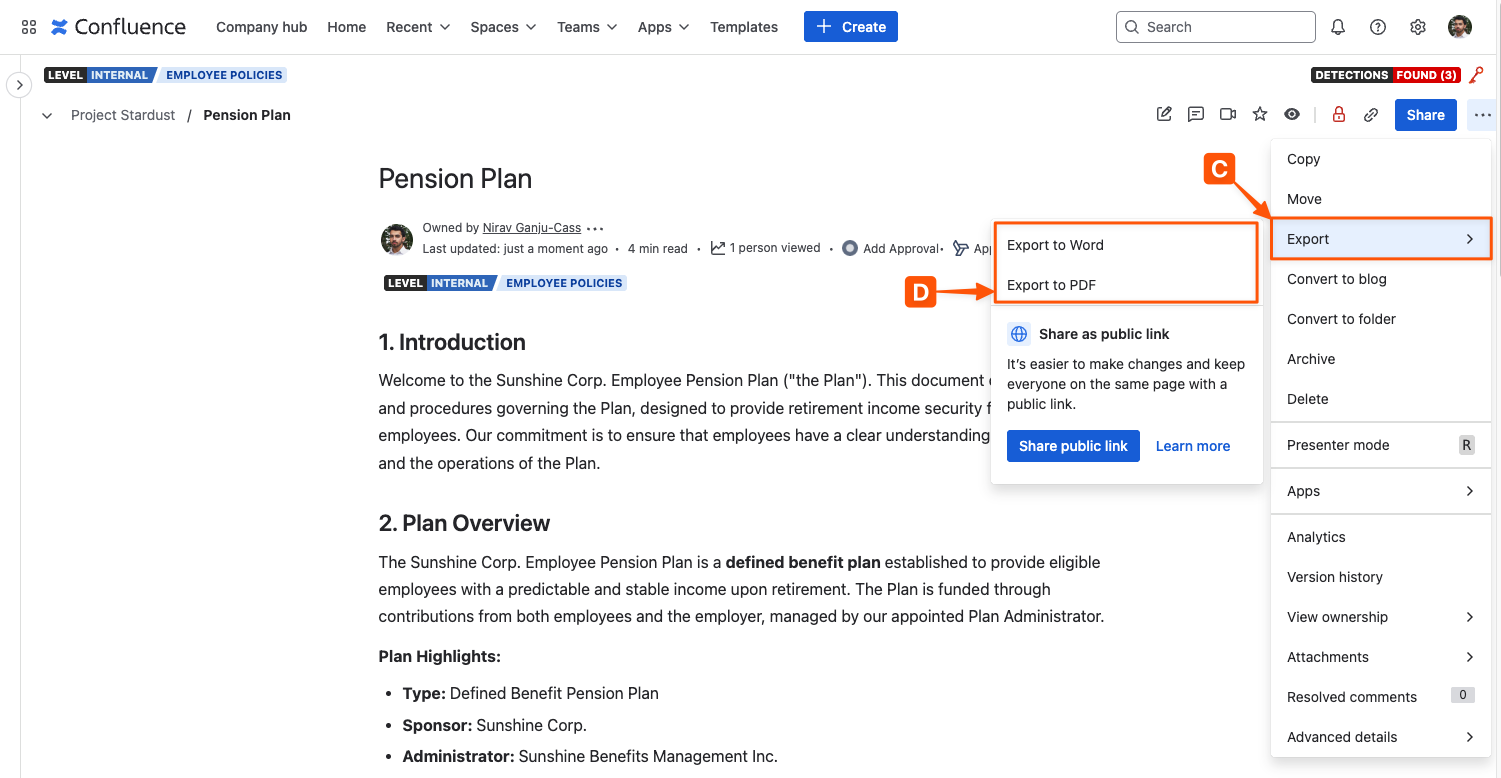
To export a page from Confluence, click the three-dot ellipsis in the top right corner of your Confluence page and select Export (C). You can then export the page as a PDF or Word document. In this example, we will Export it as a PDF (D).
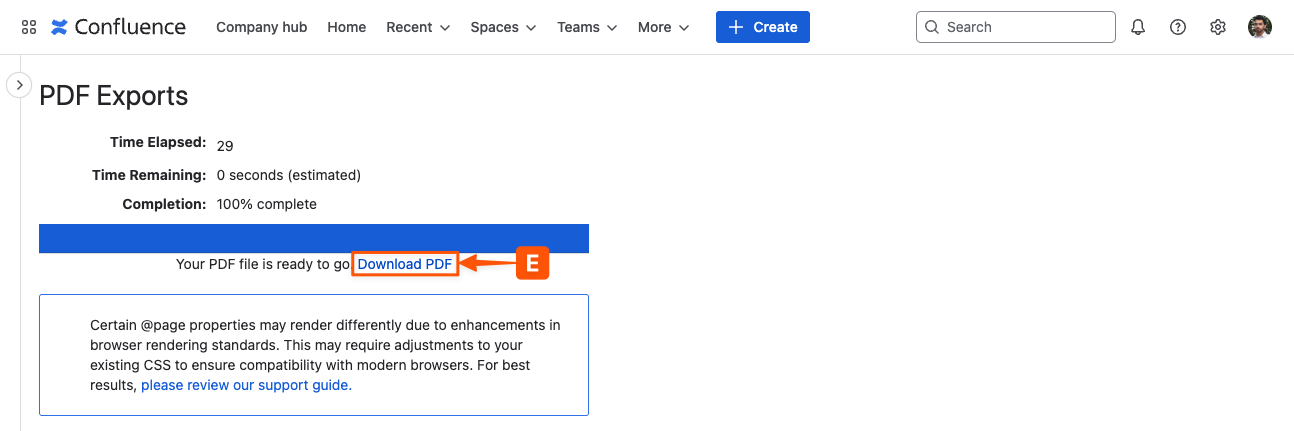
Once selected, the page will be converted to a PDF document which will take a few seconds. You will then have the option to Download PDF (E), which will download the document with the classification level displayed.
Important: The classification level and sub-level will only be displayed on the first page of any exported page.
Next steps 💪
Need support? We’re here to help 🧡
If you have any questions about Compliance or would like to speak with us, please don’t hesitate to reach out to our Customer Support team.