-20250819-084018.svg)
The Compliance for Confluence REST API allows you to further integration with the Atlassian Teamwork Graph by using Confluence Automations. This allows for the implementation of more complicated workflows such as applying a classification level based on a page template or label.
While there are not explicit Compliance API connectors within Confluence’s automation rule builder, the Send Web Request node is compatible with the Compliance API.
Prerequisites
To start using the Compliance API with Confluence Automations, you will need both a valid Compliance API key (with the appropriate scopes for the endpoints you are using) and the UUIDs for any Compliance elements you wish to interact with such as classification levels.
Compliance API Key
Requests made to the API using Confluence Automations must be authorised using an API key generated within the API Keys page of the Compliance administration area.
The key scopes will depend on the specific actions to be taken, for example classification::write is needed to set the level of a page.
Required scopes are listed in the documentation for each API endpoint.
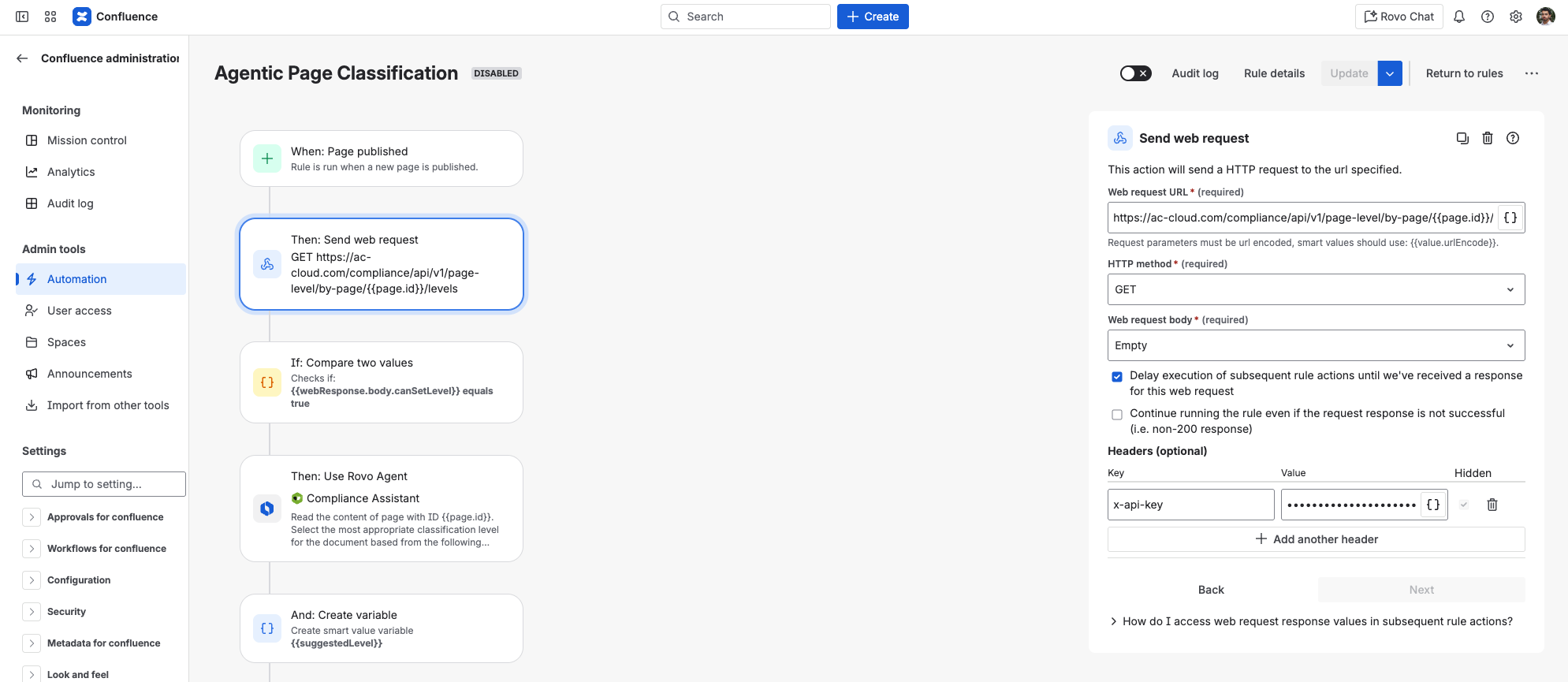
The Compliance API should be included in any web requests to the Compliance API in an x-api-key header. Is is recommended that this header be hidden in order to prevent accidental exposure of the API key.
Classification Level UUIDs
While the Compliance UI shows classification names to users, the setting of a page level via the REST API requires a UUID that is not visible in UI. There are two ways to obtain these UUIDs:
-
Use the
GET /levelendpoint in the Compliance API
The easiest way to do this is directly within the API Reference page of your Compliance admin area, but could also be performed with a tool such as Postman. It will require the use of an API token with theclassification::managescope. This could also be done dynamically as part of the Script in some cases. -
Use the browser’s network tools in the Compliance admin area
Inspecting the response to the graphql request that is made when opening the Classification Levels page in the Compliance admin area will allow the user to see all classification levels and their UUIDs
These UUIDs are what must be passed into the POST /page-level endpoint to set a page’s level and can be included in the automation either directly or as a smart value.
Using the Compliance API with Automations
The Compliance API can be called in Confluence automations using the Send Web Request action which allows custom HTTP requests to be made to a specified URL.
Request URL and Method
The URL for the web request will vary depending on the endpoint but should be in the format of:
https://ac-cloud.com/compliance/api/v1/<ENDPOINT>
The HTTP method must match the method specified in the Compliance API documentation.
Request Body
The request body can be set to ‘Empty’ for endpoints that do not require a body as outlined in the Compliance API documentation - typically GET endpoints.
For endpoints that do a require a request body, this should be set to ‘Custom Data’. The contents of the request body can utilise smart values to pass in data from earlier in the automation.
The following example passes in the current page ID as well as a custom variable suggestedLevel.
{"pageId": "{{page.id}}", "levelId": "{{suggestedLevel}}"}
Adding line-breaks into the custom data field is known to cause issues in JSON validity so this should be avoided. Use single line formatting as shown in the above example.
Request Headers
In order to authenticate requests, your Compliance API key should be passed into the request in the x-api-key header. For web requests where custom data is included, the following header should also be included:
Content-Type: application/json; charset=utf-8
Accessing Response Content
If a later automation step needs to access the response content (for example checking if the API key has permission to set the level of a queried page), the ‘Delay execution of subsequent rule actions until we've received a response for this web request’ option should be checked in the web request action.
The JSON response can then be accessed using dot notation per the following guidance from Atlassian:
On successful web request, you will be able access response data using the following smart values:
{{webResponse.status}}returns the response code e.g. 200
{{webResponse.statusCategory}}returns the category of the response status - INFO, SUCCESS, REDIRECT, CLIENT_ERROR, SERVER_ERROR, OTHER
{{webResponse.headers}}returns the response headers that you can access using dot notation e.g.{{webResponse.headers.Content-Type}}
{{webResponse.body}}returns the response body, if the body is a JSON object then you can access values using dot notation e.g.{{webResponse.body.name}}
{{webResponses}}returns a list of the 10 most recent responses this rule received. E.g.{{webResponses.last.body}}
For example, if making a request to the https://ac-cloud.com/compliance/api/v1/page-level/by-page/{{page.id}}/levels, you can subsequently reference {{webResponse.body.canSetLevel}} to checked if the current API key has permission to set the level of the queried page.
Example Automation Use Cases
Check out these potential use cases for leveraging the Compliance API with Confluence automations:
Setting a Page Level by Label
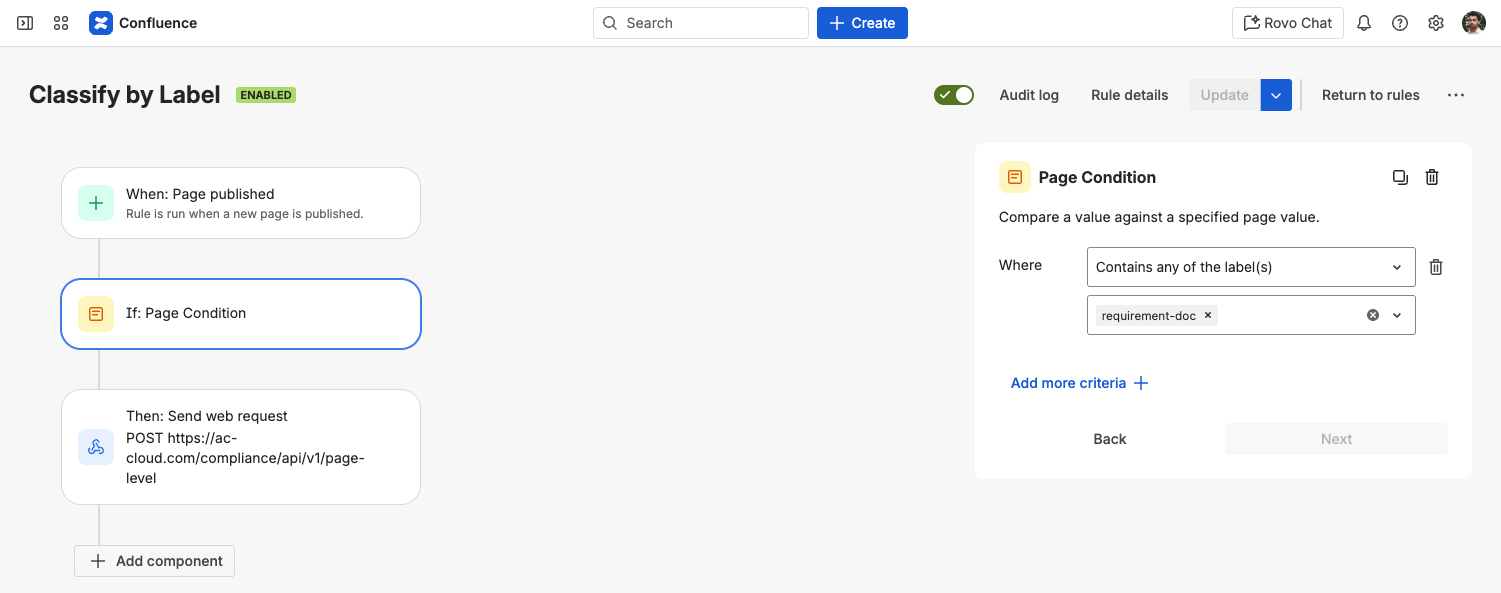
A very simple workflow can be implemented as shown below to automatically apply a classification level to newly published pages based on the page label(s).
This can help apply consistent classifications to similar content - such as meeting notes - without requiring user input, improving site coverage.
Using a Rovo Agent to Classify Page
This video that highlights how to combine the Compliance API with Confluence Automations and Rovo to have an agent apply page classifications:
Need support? We’re here to help 🧡
If you have any questions or would like to speak with us, please don’t hesitate to reach out to our Customer Support team.