
Send a Confluence page to one or more approvers and track their decisions from the page byline.
Please note: Page approvals only work on pages and live docs.
Send a page for approval
-
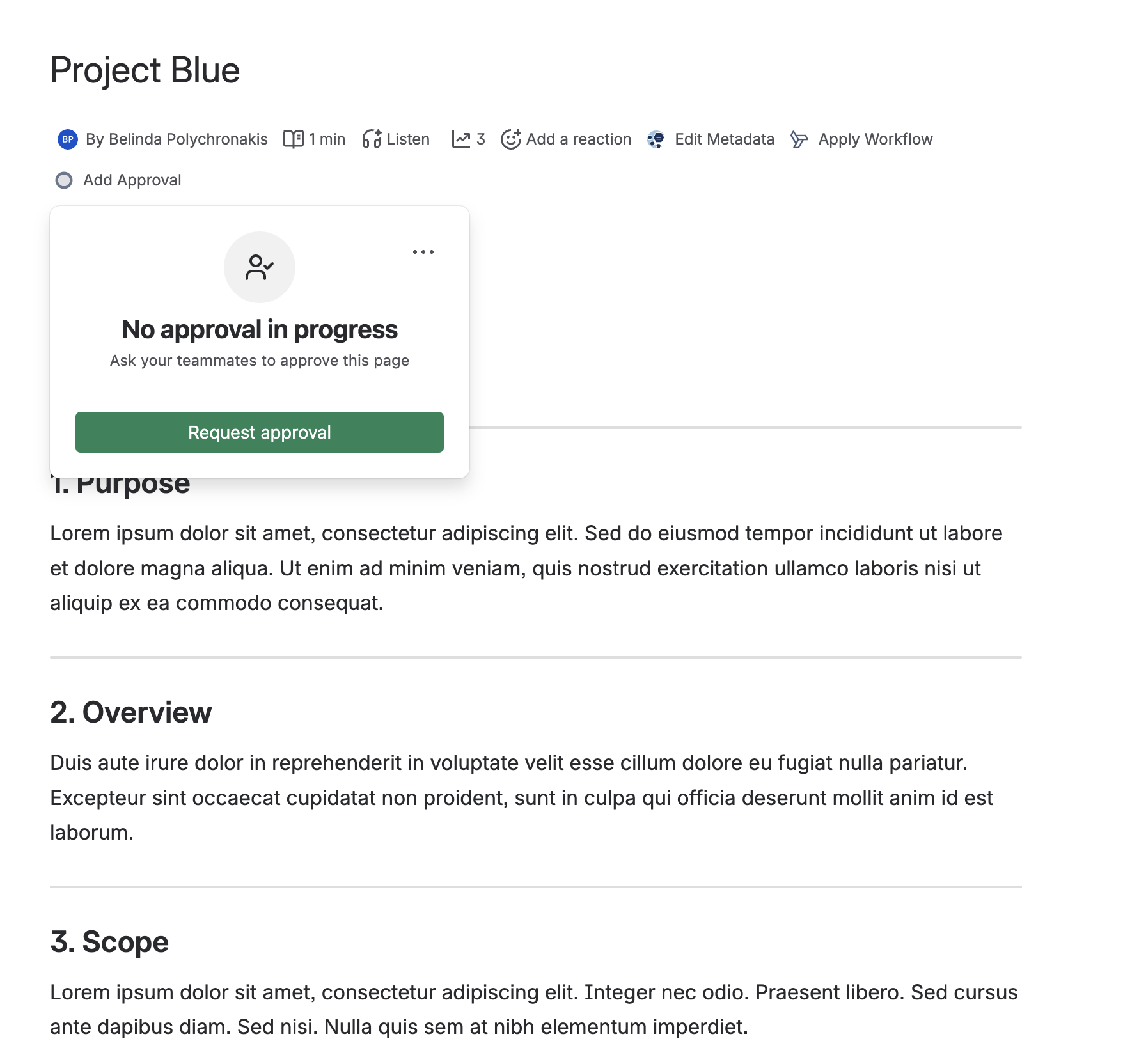
Open the page and select Add Approval in the byline at the top of the page. [screenshot]
-
Select Request approval.
-
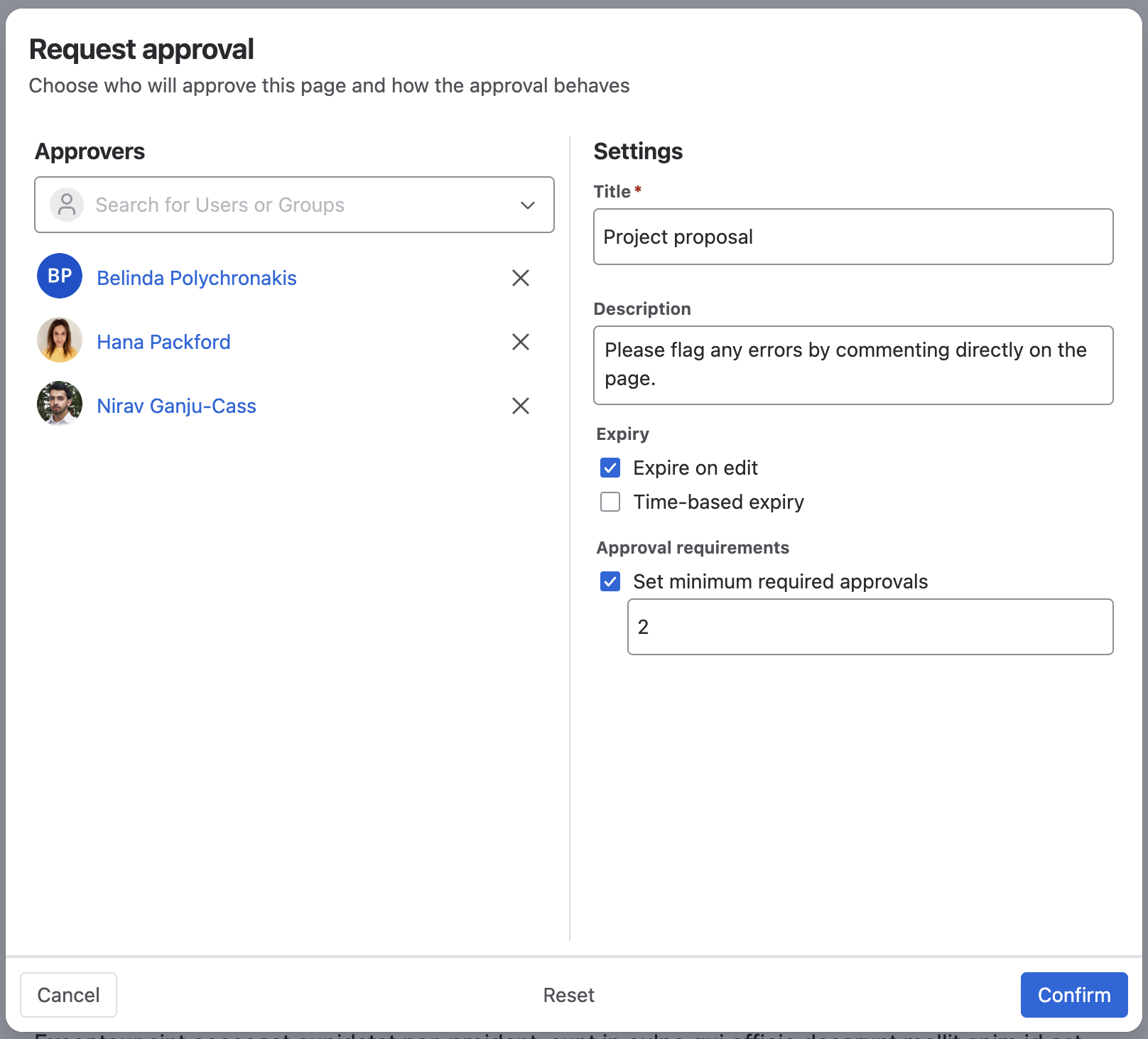
Choose who will approve this page and how the approval behaves. (See the table below).
-
Select Confirm. Your approvers will be notified via email.
Approval settings
|
Setting |
What it does |
|---|---|
|
Approvers |
Search for users, Confluence groups and Approval teams. |
|
Expire on Edit |
If someone edits the page after it’s approved, the approval expires and goes back to Pending. On live docs this can take up to 15 minutes after the edit session ends. |
|
Expire on Date |
|
|
Set Minimum Required Approvals |
How many approvals the page needs before it moves to approved status. |
|
Reset |
Puts every setting back to the defaults that were set in space settings. |
Track the approval
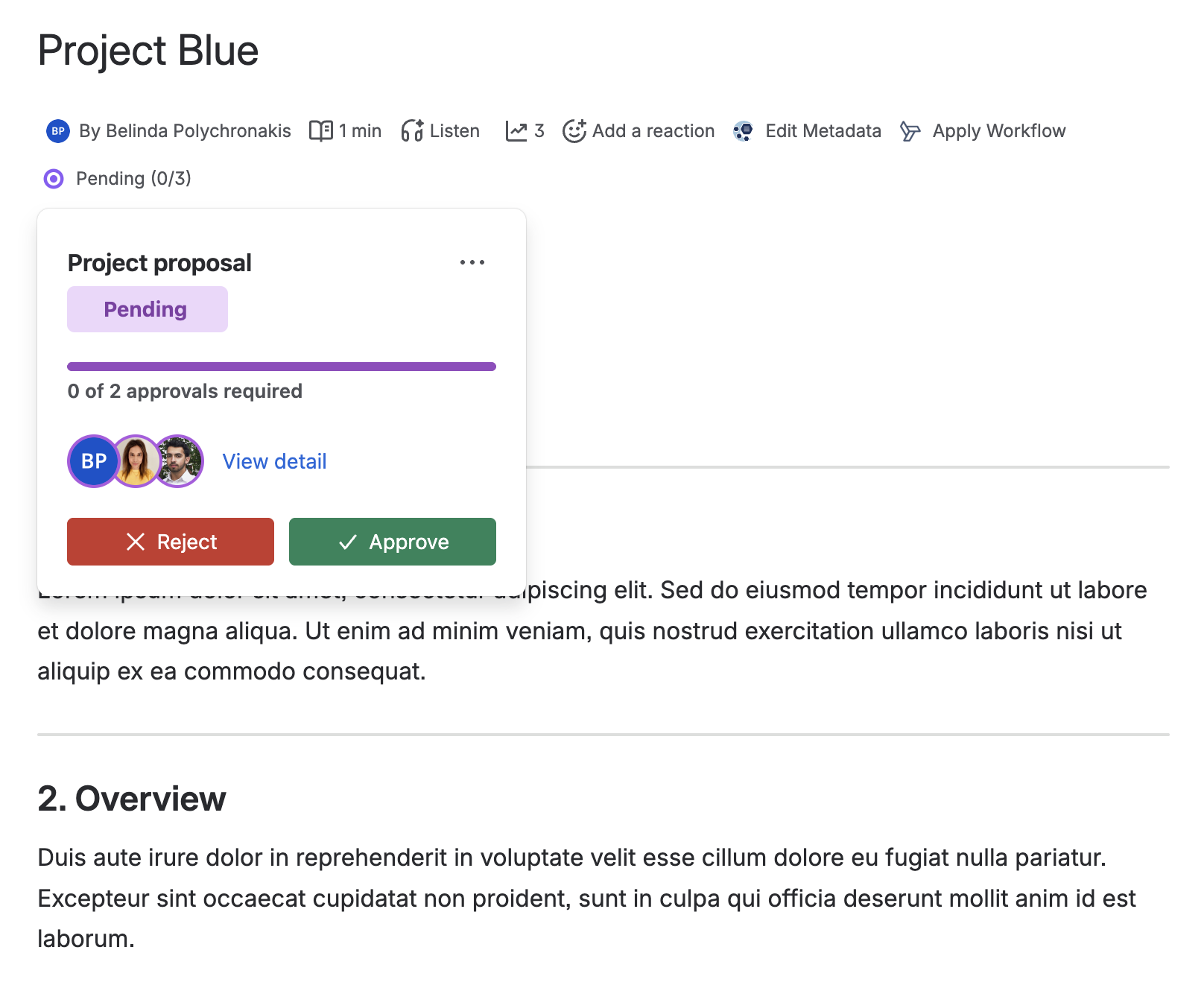
You can see the approval status in the page byline. The number shows how many approvers have approved so far, out of the total. The status can be Pending, Approved, Rejected or Expired.
Select the status to open the approval card. It shows:
-
the approval name and its status
-
a progress bar of approvals received against approvals required, for example 0 of 2 approvals required
-
the approvers
-
a View detail link to the full approval record
-
The ••• menu
Check when the approval expires
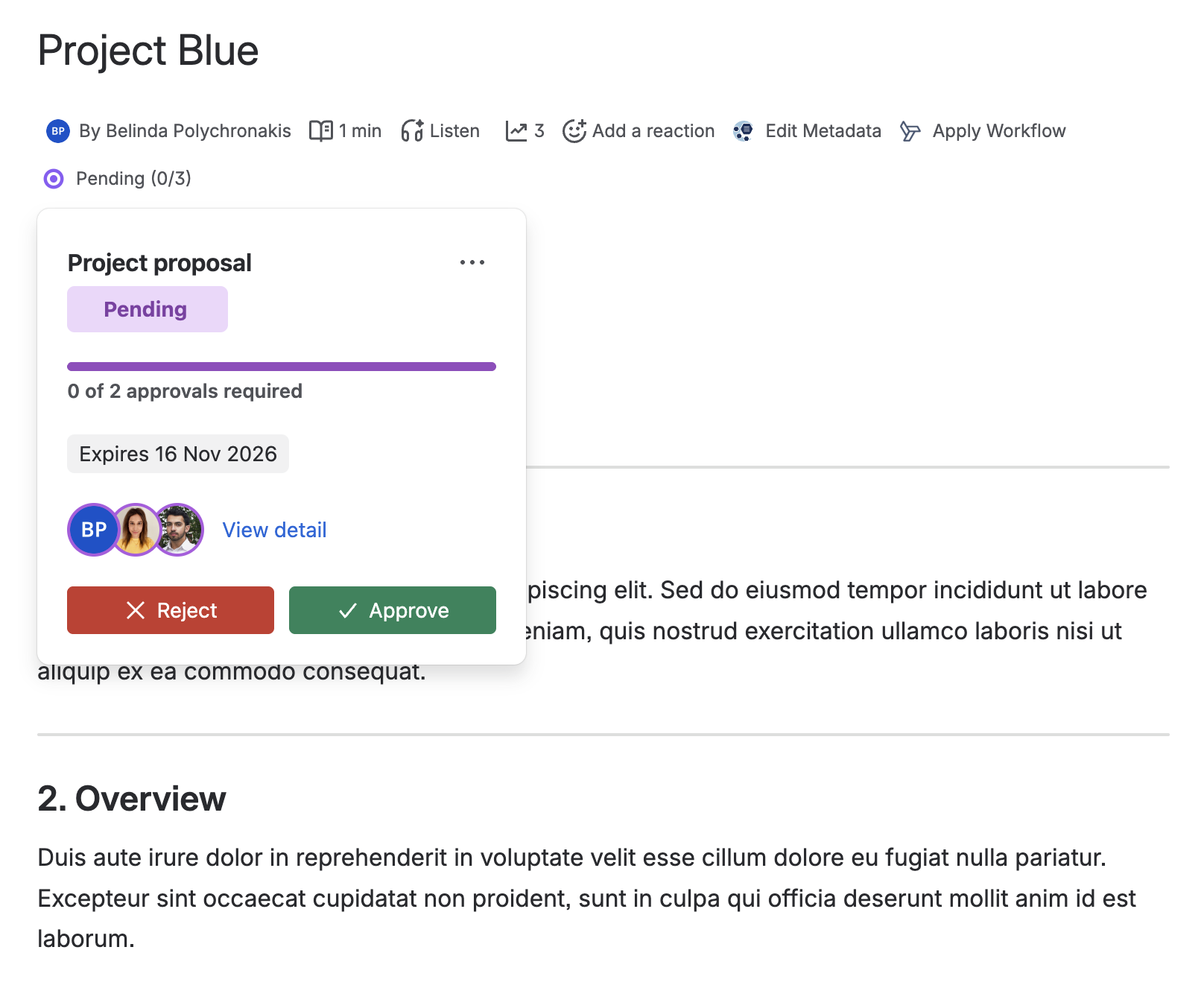
If the approval has an expiry date, it appears on the approval card.
Approve or reject a page
If you’re an approver, the approval card shows Approve and Reject buttons.
-
Select the approval status in the byline.
-
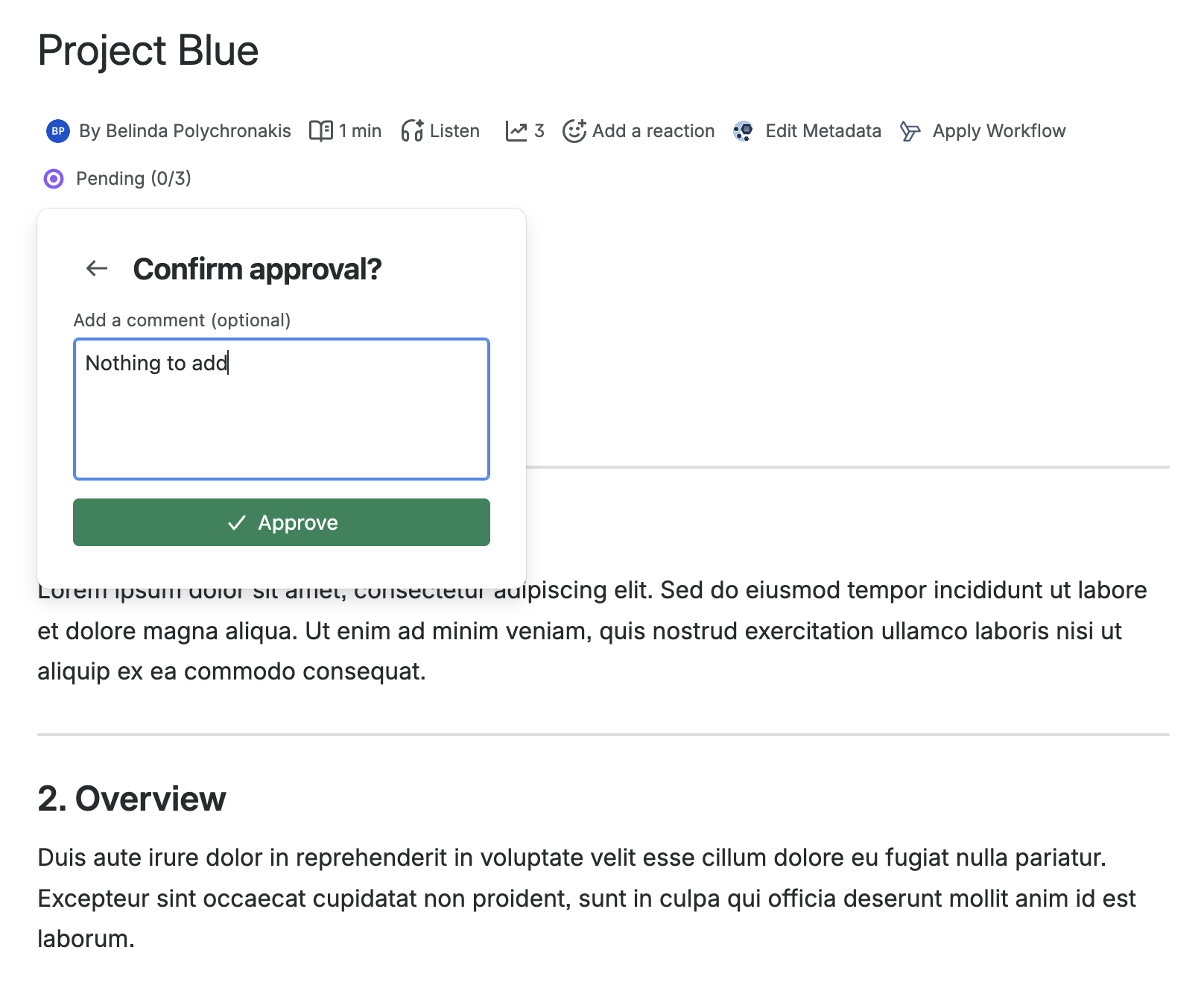
Select Approve or Reject.
-
Add a comment if you want to. Comments are optional.
-
Select Approve or Reject again to confirm.
View approval details
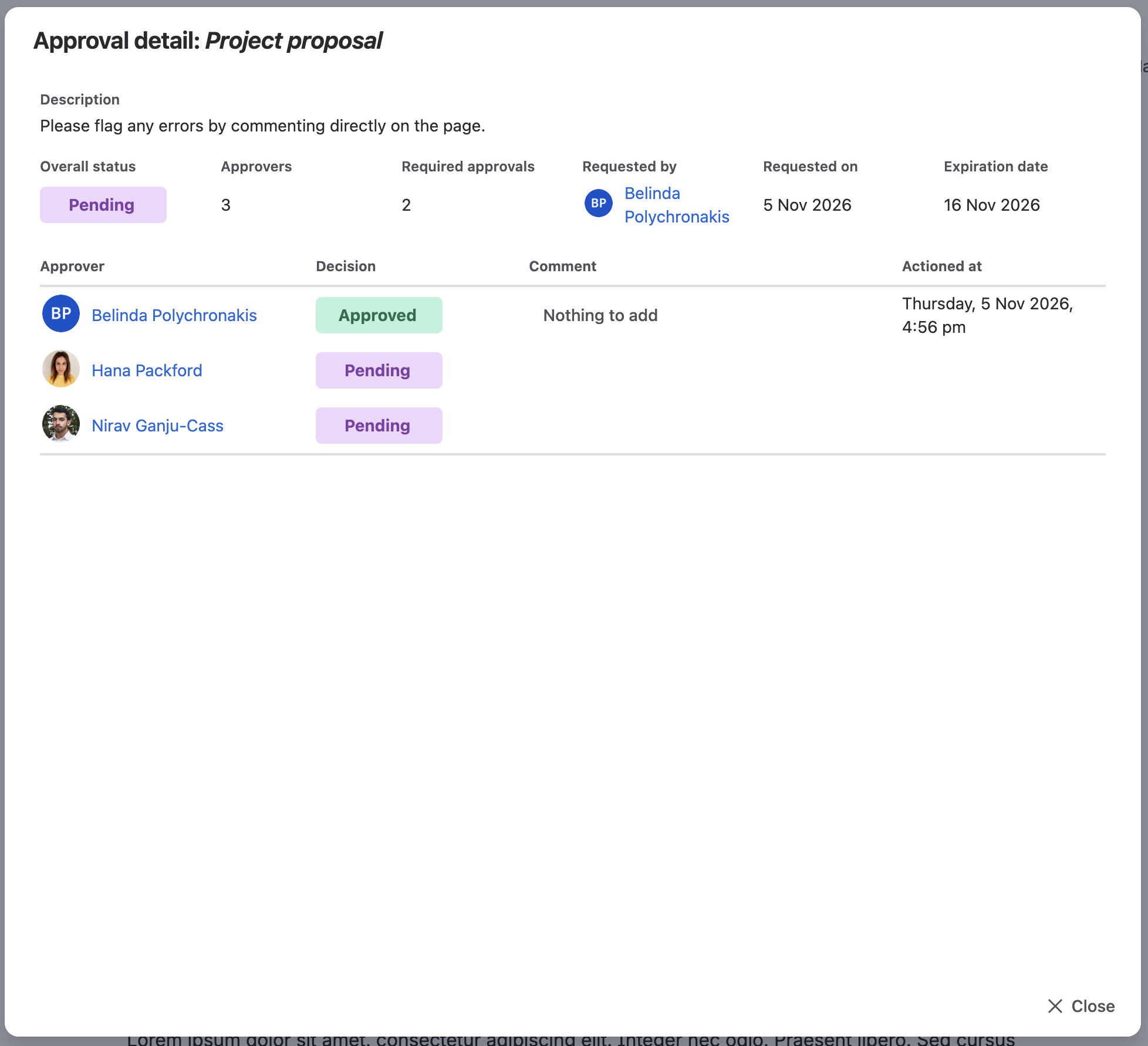
Select View detail on the approval card to see the full approval record. It shows:
-
the approval description
-
the overall status, the number of approvers and the number of approvals required
-
who requested the approval, and when
-
the expiration date, if there is one
-
each approver’s decision and comment, with the date and time they acted
Select Close to go back to the page.
Need support? We’re here to help 🧡
If you have any questions or would like to speak with us about Approvals for Confluence, please reach out to our Customer Support team.