
If Sensitive Data Detection is enabled in your Confluence instance, Compliance will display any detected data in Search as shown below.
You need permission to view the sensitive data search results. This permission is managed by your Confluence administrator(s).
Access Search
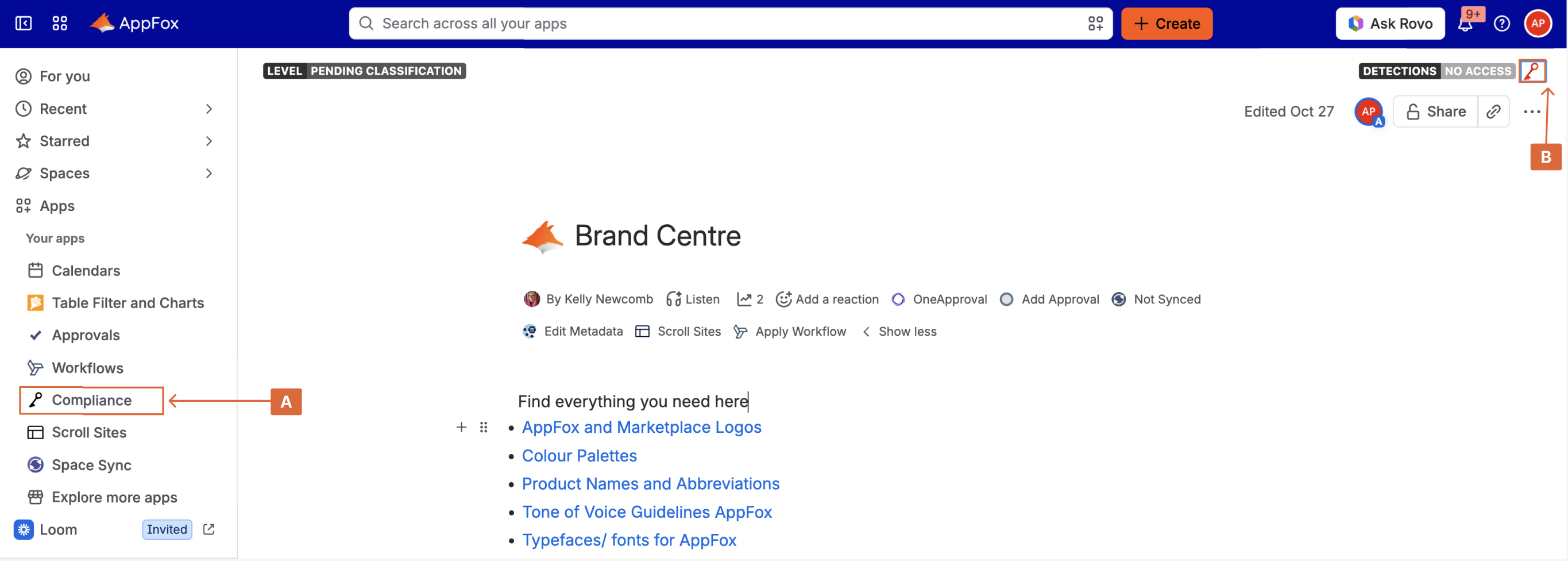
The Search is located on the Compliance app page, which can be accessed either via the Compliance option in the Apps menu (A) or by clicking on the Compliance key icon (B) above the page action menu.Access the Search option
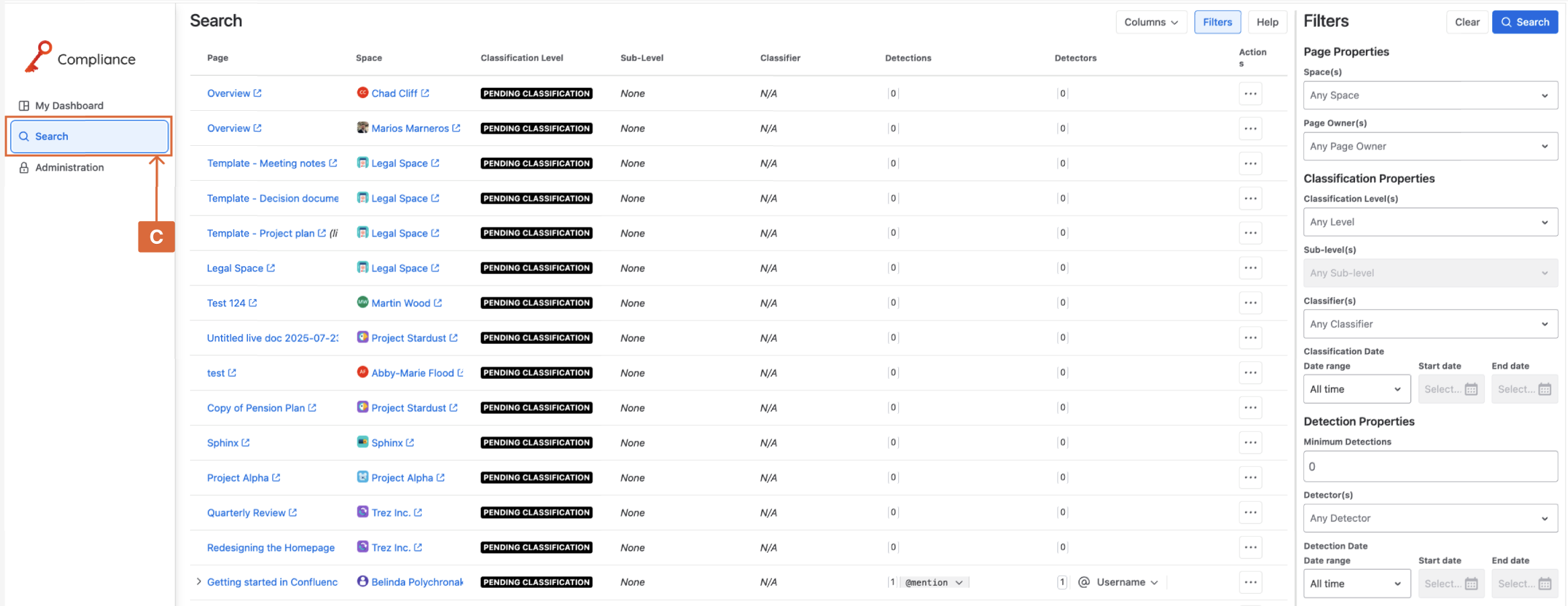
Next, access Search (C) shown in the left-hand navigation menu. If you do not have permission to view this search page, you will be unable to access it - contact your Confluence administrator if you believe you should be able to access this page.
Use the Sensitive Data Filters in Search
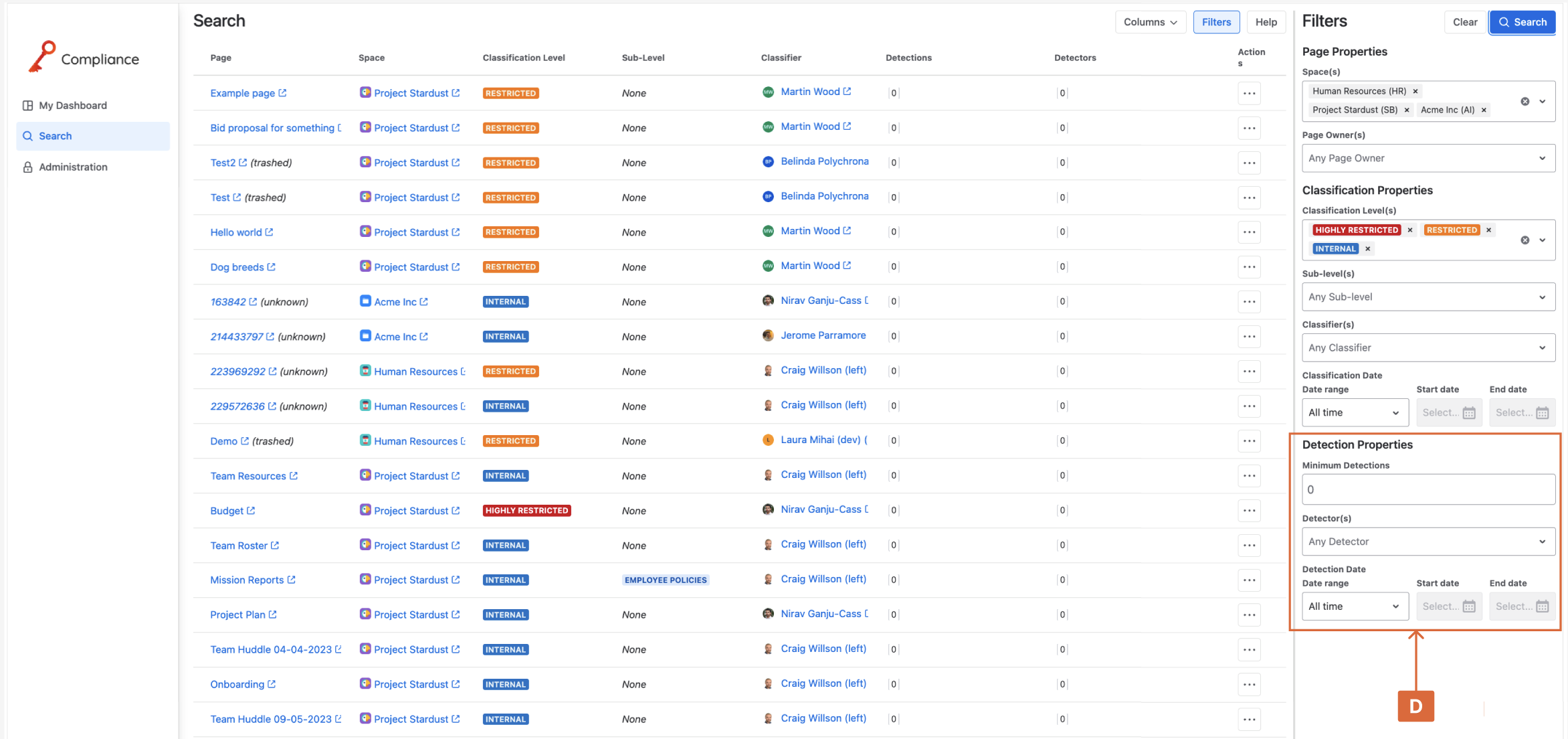
Once you have accessed the Search, you can use the Filters (D) to narrow down your search results by Minimum Detectors, Detectors, or Detection Date.
Perform Actions on your Sensitive Data
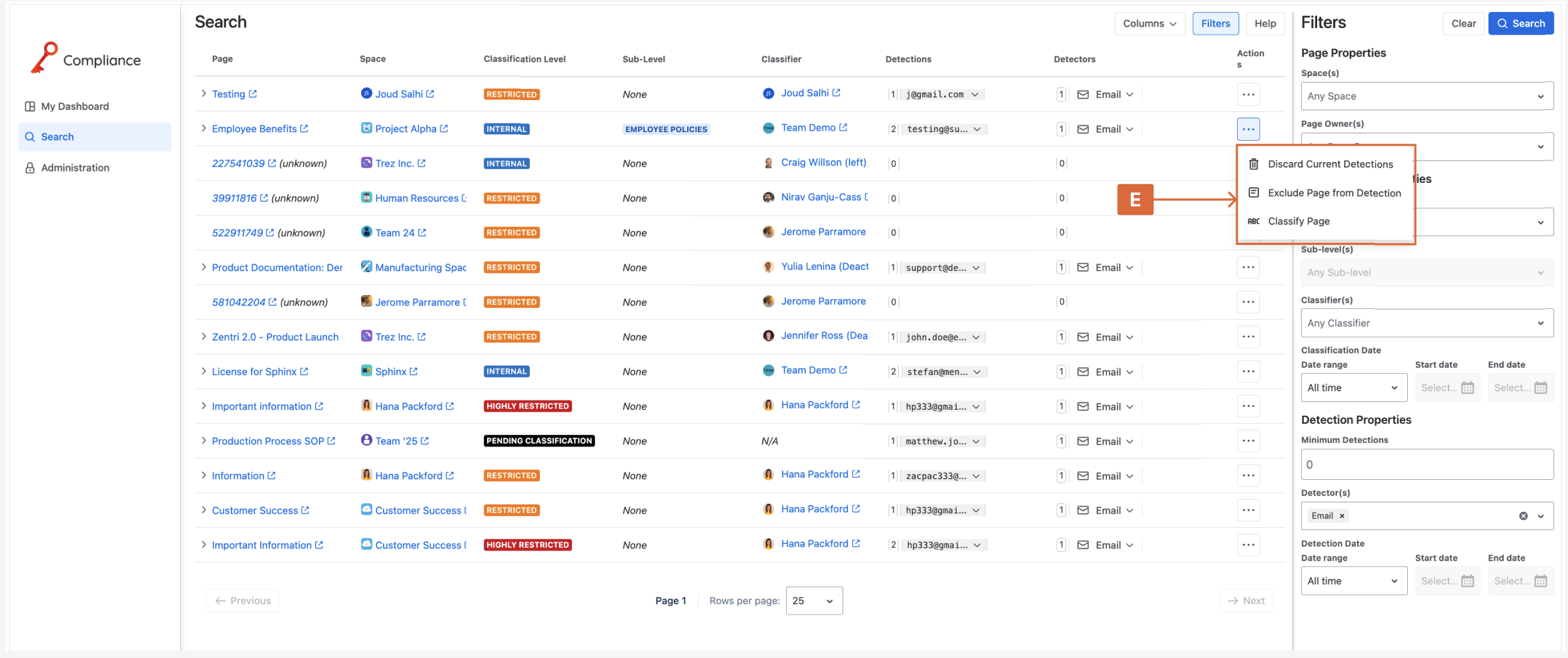
Each entry in the sensitive data results table features an action button which provides actions (E) you may perform on detected data. These actions are:
Classify Page – Change the classification level of the page with the detected data
(Admin only) Discard detections on selected page (sensitive data will be re-detected if another scan is run
(Admin only) Exclude the page associated with the detected data
Need support? We’re here to help 🧡
If you have any questions or would like to speak with us, please don’t hesitate to reach out to our Customer Support team.