-20250819-084018.svg)
Who is this guide for?
This guide is for Confluence administrators who are migrating from Compliance for Confluence Data Center to Compliance for Confluence Cloud using the Confluence Cloud Migration Assistant as part of a broader move from Confluence Data Center to Confluence Cloud.
By the end of this guide you will have:
-
Installed Compliance for Confluence Cloud
-
Migrated your Confluence content to Cloud (using the CCMA)
-
Included your Compliance for Confluence config in your Cloud migration
Preparing for Migration
Before performing a migration, you should:
-
Make sure Compliance for Confluence Data Center is on version 5.13.0 or later. This is the minimum version that supports migration via the CCMA, and we recommend 5.13.5. Compliance for Confluence Cloud should also be on the latest version.
-
Configure an acting user within Compliance Data Center
-
Wait for any in-progress Task Manager tasks to finish in Compliance Data Center
Atlassian recommends using a Cloud migration as an opportunity to clean up your instance and consolidate configuration. You may want to review your Compliance for Confluence configuration before migrating and consider removing unused pieces.
Important
To successfully complete the CCMA migration you must select an acting user in the Compliance for Confluence Data Detection Scan Settings section, even if you don’t use the data detection functionality. This is required to fetch Compliance space settings and page classifications. If your migration fails, ensure you have an acting user.
Performing the Migration
Confluence for Compliance Data Center now supports fully automated migration via the CCMA. Full instructions for performing the overall migration of your instance is out of scope of this document, but the Atlassian documentation for that is here: Confluence Cloud Migration Assistant | Atlassian Support. It is recommended that you run a test before running the full migration, and that you schedule a migration window.
For the migration of Compliance data and configuration we recommend your Compliance Cloud is a fresh installation with the default configuration. However, the CCMA supports migrating Data Center instances into Cloud instances with pre-existing content and config, and the Compliance for Confluence migration path does support this use case. Such a migration will modify your Compliance for Confluence Cloud configuration to match your Compliance Data Center setup which may alter existing Compliance behaviours. But any pre-existing Compliance entities such as classification levels and automation rules will not be deleted. See the section below for full details on how Compliance Data Center settings translate to Cloud.
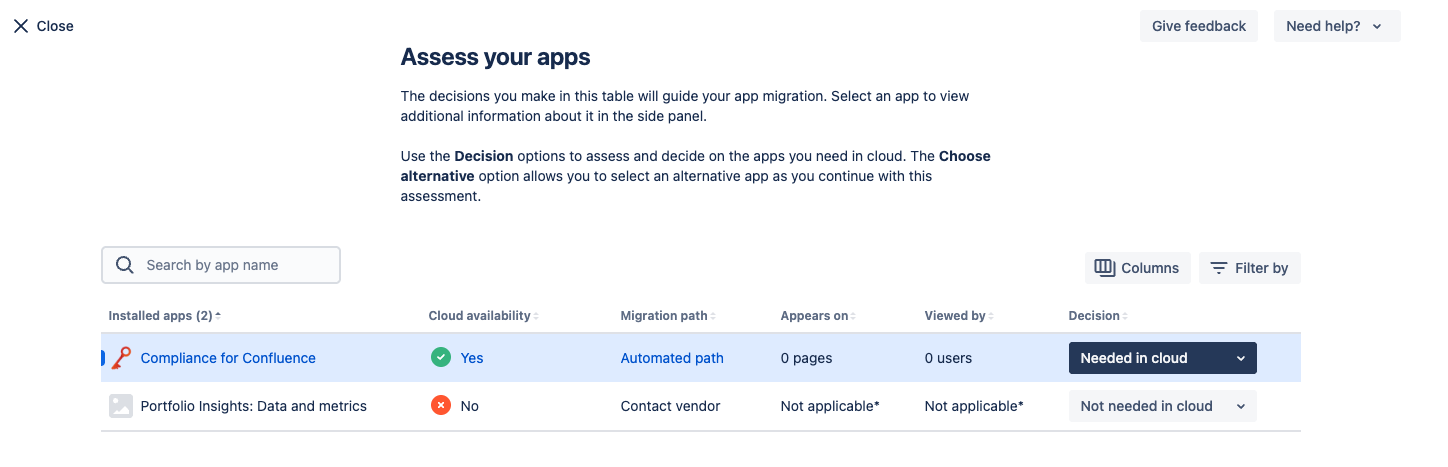
The CCMA app prompts you to install marketplace apps before migration. When you open the app, you will be asked to ‘Assess your apps’:
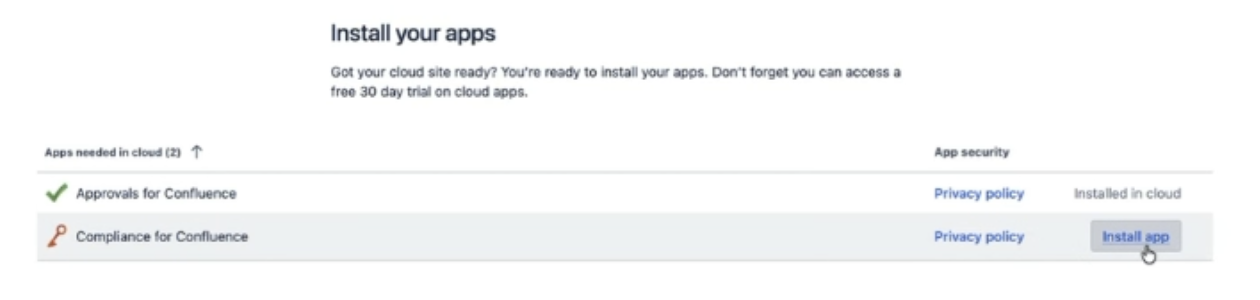
Once you have selected Compliance for Confluence from the list, you will then be asked to ‘Prepare your apps’. You’ll be able to click install from here:
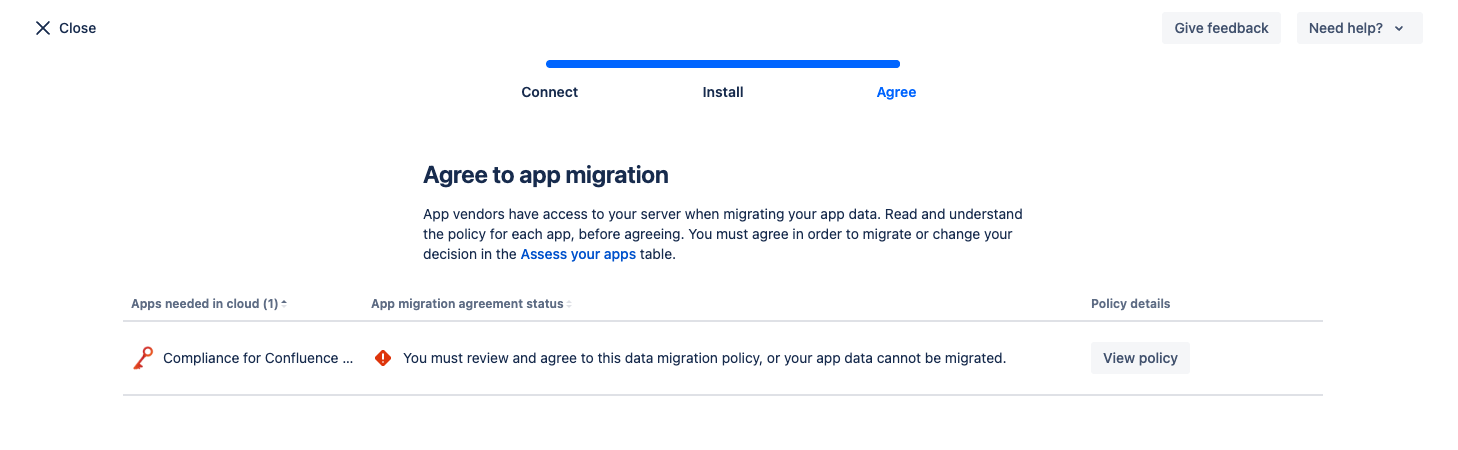
The final stage of this is to ‘Agree to app migration’. Review the permissions required to perform the migration.
Now, when you perform your CCMA migration, Compliance for Confluence data will be migrated along with your Confluence content.
If your migration fails for any reason, it is possible to re-run it from within the individual migration plan in the CCMA. Make sure you have an acting user configured in Compliance as this can cause the migration to fail. If it still fails after checking and re-running, don’t hesitate to reach out to our support team.
Post-Migration
Once your migration is completed, you may want to review and validate your Compliance for Confluence Cloud configuration, especially if you had pre-existing content and config in your Cloud instance, and familiarise yourself with the app using our documentation.
We recommend verifying the following after migration:
-
All classification levels are present
-
Automation rules are configured correctly
-
Space settings match your Data Center configuration
-
A sample of classified pages have maintained their classifications
You can now let your users know that Compliance for Confluence Cloud is now active!
-
Highlight anything that is different from Data Center (such as renamed classification levels).
-
Point users to the user documentation and our getting started video.
-
Users track their own pages’ compliance status via the Compliance Dashboard
What is Migrated?
For details about what Confluence content is migrated with CCMA, refer to the CCMA documentation from Atlassian.
What Compliance config and entities are included:
-
Space and global settings
-
Page level restrictions configuration
-
Classification levels
-
Page classifications
-
Compliance automations
-
Action logs
-
Tasks and task logs
-
Extractions, referred to as detectors in Cloud
-
Page redactions - these are direct edits to the Confluence content so any content migrated will have the same redactions present in Data Center
What is not migrated:
-
External detection API configuration (this is not supported in Cloud)
-
Existing and prior sensitive data detections are not migrated. However, a full-site scan is triggered after the migration to pick up any sensitive data based on your DC config at the time of migration
-
Certain settings that have no Cloud equivalent. See the settings section for more details
How is Config Migrated?
Space and Global Settings
Data Center space and global settings are mapped to their Cloud equivalent where appropriate settings exist. If some settings are managed globally in Data Center this may adjust the Compliance settings for spaces already in your Cloud site before the migration.
-
Managed globally settings - Compliance Data Center has 4 separate manage globally options for classification: classification enabled globally; restrictions managed globally; enforce classification managed globally; default level managed globally. If all of these settings are managed globally, classification will be managed globally in Cloud, otherwise everything will be managed per-space with the spaces configured to match the Data Center behaviour.
-
Personal Spaces - Compliance Cloud can disable features in personal spaces, but Data Center treats all spaces equally. After migration, all features will be enabled in personal spaces by default to match your Data Center setup. You can then customize personal space settings if desired.
-
Scopes - Classification and sensitive data detection scopes will be replicated with appropriate Cloud schemes and space-level configuration. Refer to the Compliance Cloud documentation to learn more about how these work.
-
Inherit Classification from Parent not migrated - Compliance Cloud does not support inheriting classification from parent pages. If you have this feature enabled in Data Center, it will not function in Cloud and you may need to adjust your workflow.
-
Excluded Data not migrated - Due to differences in how exclusions work between Data Center and Cloud, excluded data for sensitive data detection will not be migrated to Cloud.
-
Space-Level Classification Browser not supported - Compliance Cloud does not have a classification browser at the space-level. Therefore, the settings controlling access to that are not migrated.
Page Level Restrictions
Compliance Data Center supports restricting pages based on their classification levels, either globally or at the space level. Compliance Cloud handles these restriction settings using Restriction Schemes. If you use page restrictions, your globally configured restrictions will be converted to a Restriction Scheme, and any spaces with unique restriction configuration will have a dedicated Restriction Scheme created to match the Data Center restrictions.
Note that Data Center allows page restrictions to be applied to ‘roles’ such as the page’s creator or the space’s admin. Cloud Restriction Schemes only include restrictions at the group and user level. If you make significant use of roles in your page restriction configuration, please review the schemes post-migration.
Classifications
Your Classification Levels will be copied over to your Cloud site, along with the classification of pages across your instance.
Compliance Automations
Compliance automation rules are copied to your cloud site, including logs of their actions. Compliance Cloud uses Rule Schemes to manage which automations run in which spaces, while Data Center automations have the spaces they run in attached to their config. The CCMA migration will create a global Rule Scheme to which all your unscoped rules will be added, plus one space-specific scheme for each space that has automation rules scoped specifically to them. This will replicate your automation behaviour from Data Center.
Note that if your Cloud site has pre-existing automation rules, they will not be added to any of the schemes generated during migration and may be disabled for some spaces in which they currently run. If you have rules pre-dating your migration, double check the rule schemes applied to your pre-existing spaces and which rules they include.
Tasks and Task Logs
Logs of your long running tasks from Data Center will be migrated into Cloud. However, any in-progress long running tasks will be copied into Cloud with a status of ‘warning' and will not continue running on the Cloud side. So make sure any long running tasks are completed before migrating so any changes they make are included in your migration.
Extractions
Any custom or built-in extractions that you used in Data Center will be migrated to your Cloud site. To ensure your new Cloud configuration is as clean as possible, extractions which are disabled and not used in any automations will not be imported into Cloud.
Sensitive Data Detections
Sensitive data detections will not be copied into your Cloud instance. To make these available, a full site scan will be kicked off once the migration is complete. Therefore there could be a small delay between the migration completing and sensitive data detections being shown in Compliance. The scan duration depends on your instance size and will run in the background without affecting normal operations.
Any redactions applied to pages in your Data Center instance will be maintained when migrated to Cloud. These redactions are baked into the Confluence content itself.
Need help?
If you run into issues at any point during this migration, please raise a ticket with our helpful Service Desk team, who are always here to help.
You may also find it useful to explore our full documentation pages.