-20250819-084018.svg)
As an admin you can easily view the sensitive data that has been detected by Compliance for Confluence within the Sensitive Data Search.
To access the Sensitive Data Search, navigate to Settings, then Compliance Configuration, then Data Detection, and finally access the Search tab.
Sensitive Data Search
This table shows all the sensitive data that has been detected (see example below). Data shown includes the type of extraction, the sensitive text, the page from which it was detected, the space and when the text was detected.
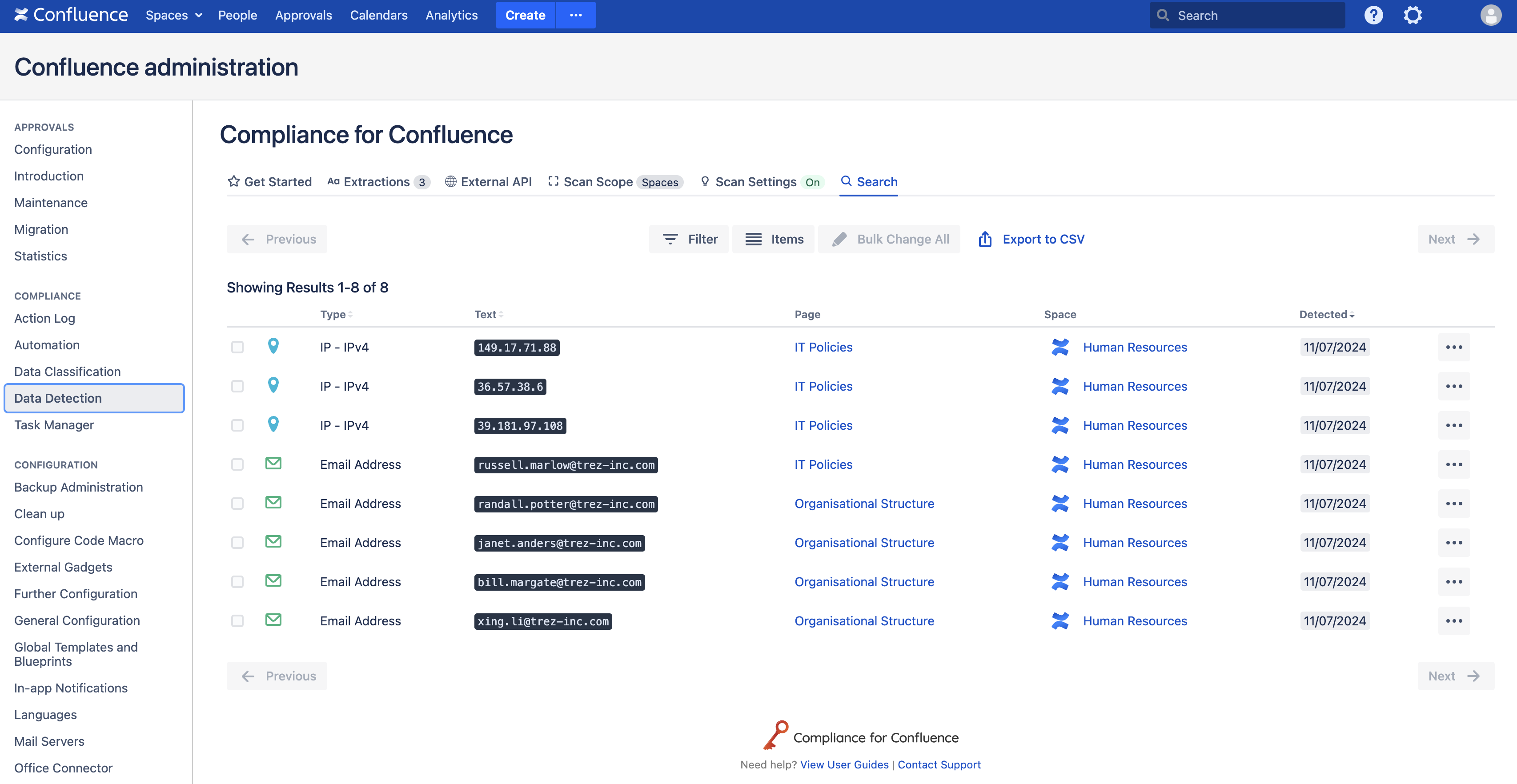
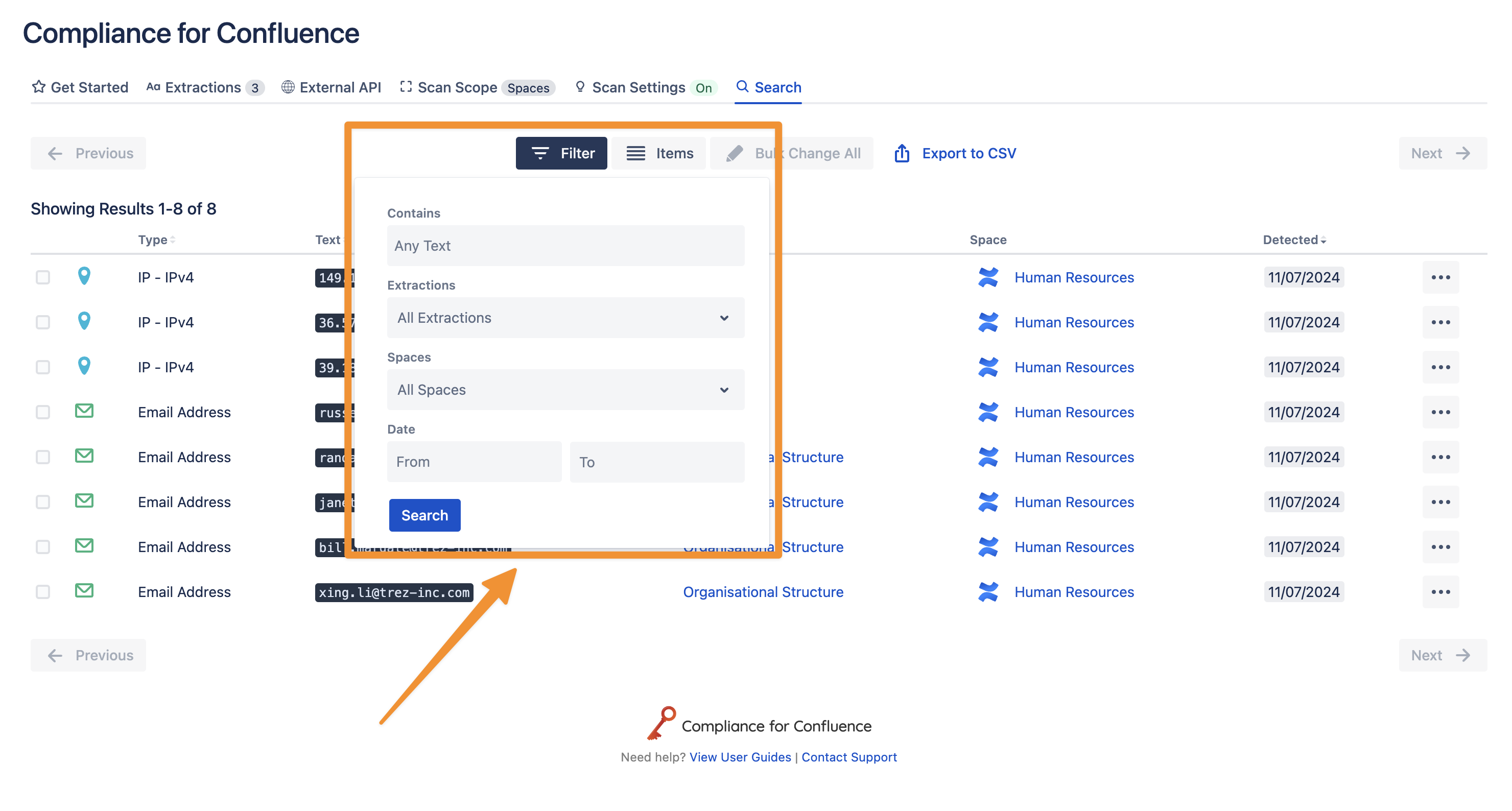
You can use the “Filter” button to retrieve specific items using:
-
Text match - filter sensitive data that contains the text you've entered
-
Extractions - only show the sensitive text of specific extraction types i.e. Email addresses
-
Spaces - only show sensitive text that belongs to pages in certain spaces
-
Date - display sensitive data detected within a particular timeframe
The “Items” button allows you to change how many pieces of sensitive data are displayed on each search page.
The search results can also be sorted by extraction type, detected text, or detection date.
Once you have found the sensitive data, you can use Automation to perform actions on the page. Find out how to set this up. If you don’t want to automate these actions then you can click on the Ellipsis (triple dot) button at the end of each row and choose from the list of available actions. To learn more about the available actions click here to read more.